Configuring Redirects, Robots, LLMs and Legal Pages
How to control old links, search indexing, AI discovery files and the site's legal policies.
Overview
These pages control how visitors, search engines and AI tools find and interpret the site, and provide the legal pages a public website needs. They are separate tools under Website.
Redirects
What it does
A redirect maps an old address to a new one. Use it after changing a slug, retiring a page or moving a campaign URL.
Add a redirect
Open Website → Redirects, then Add a redirect:
| Field | Purpose | Validation |
|---|---|---|
| Old address | The path visitors request | Required; starts with / in practice; up to 500 characters |
| New address | Where to send them | Required; a path or full URL; up to 1,000 characters |
| Type | 301 Permanent, 302 Temporary, 307 Temporary, 308 Permanent | One of the four |
The list supports search, editing and deletion. Automatic redirects for old content slugs are also recorded by the system.
Choosing a status
- 301 / 308 — permanent. Search engines transfer signals.
- 302 / 307 — temporary. Use while testing or for short campaigns.
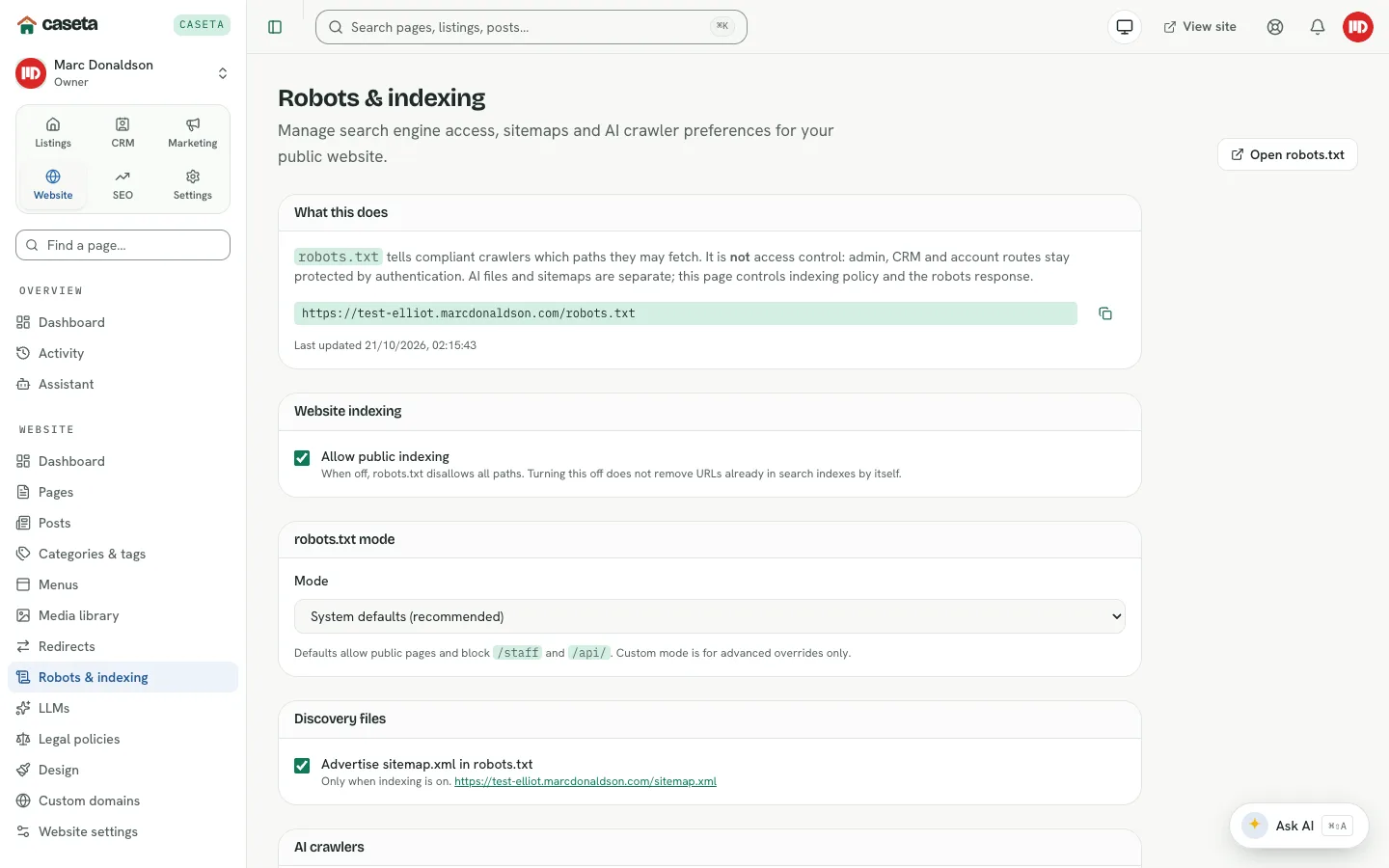
Robots and indexing
Open Website → Robots & indexing.
| Setting | Purpose | Options |
|---|---|---|
| Website indexing | Whether search engines may index the site | On/off |
| robots.txt mode | How the file is generated | System defaults, Custom rules, Disallow all crawlers |
| Custom rules | Your own rules when Custom is chosen | Rule editor |
| Discovery files | Whether the sitemap and discovery files are published | On/off |
| AI search policy | Whether AI search crawlers may read the site | Inherit, Allow, Disallow |
| AI training policy | Whether AI training crawlers may read the site | Inherit, Allow, Disallow |
| Canonical origin | The preferred origin for canonical URLs | A URL |
A Generated preview shows the resulting robots.txt. Reset to system defaults
restores the recommended settings.
Turning indexing off or disallowing all crawlers hides the site from search; it does not make it private. Use the master publishing switch for that.
LLMs
Open Website → LLMs. The page manages two files:
llms.txt— a short guide that AI tools read first.llms-full.txt— an optional long version with full page and article text.
Actions:
- Draft it for me — generates a starting point from the site's content and settings.
- Publishing — turns the files on or off.
- Save — stores the short and long content.
- Delete these settings — removes the custom files.
A preview shows the files as AI tools receive them.
Legal policies
Open Website → Legal. The page manages the Terms, Cookie policy and Privacy policy.
For each policy:
- Select Generate to create a draft from the agency's details, or type the content
yourself.
- Review and edit the text.
- Choose whether to Publish it.
- Save.
A published policy becomes a public page. Deleting a policy removes the generated content; review the legal consequences before doing so. Legal text is a starting point, not legal advice.
Common Problems
- An old link still 404s. Add a redirect, or check that the old address is exactly the
path visitors use (including any prefix).
- Search engines still show a removed page. Indexing changes take time. Use the
redirect and the Search Console removal tools.
llms.txtis not reachable. Check that the files are enabled and the site is live.- A policy page is missing. It may be unpublished. Publish it and add it to a menu.
- You cannot open these pages. They are limited to owners and admins.
Screenshots
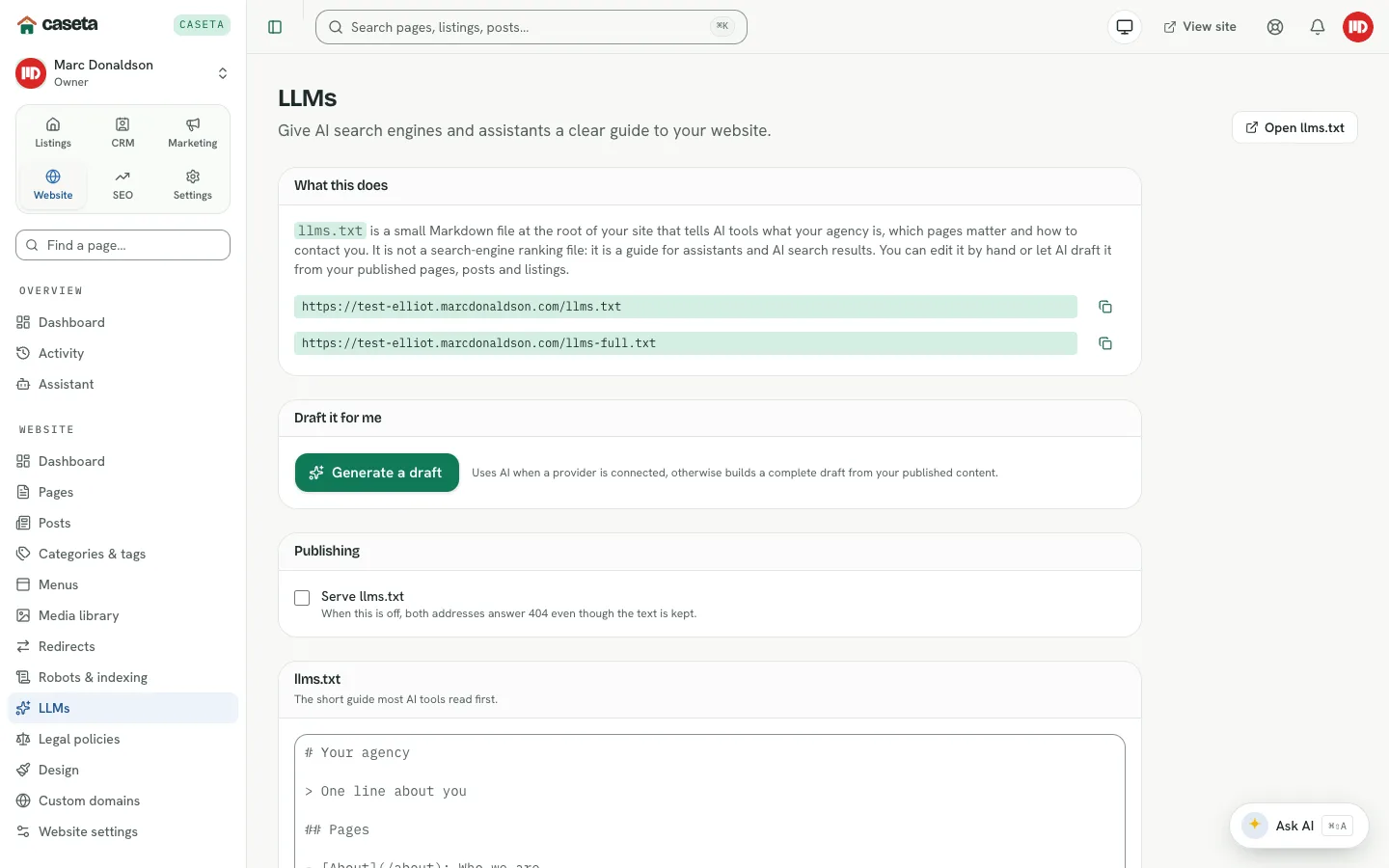
Shows LLM discovery files
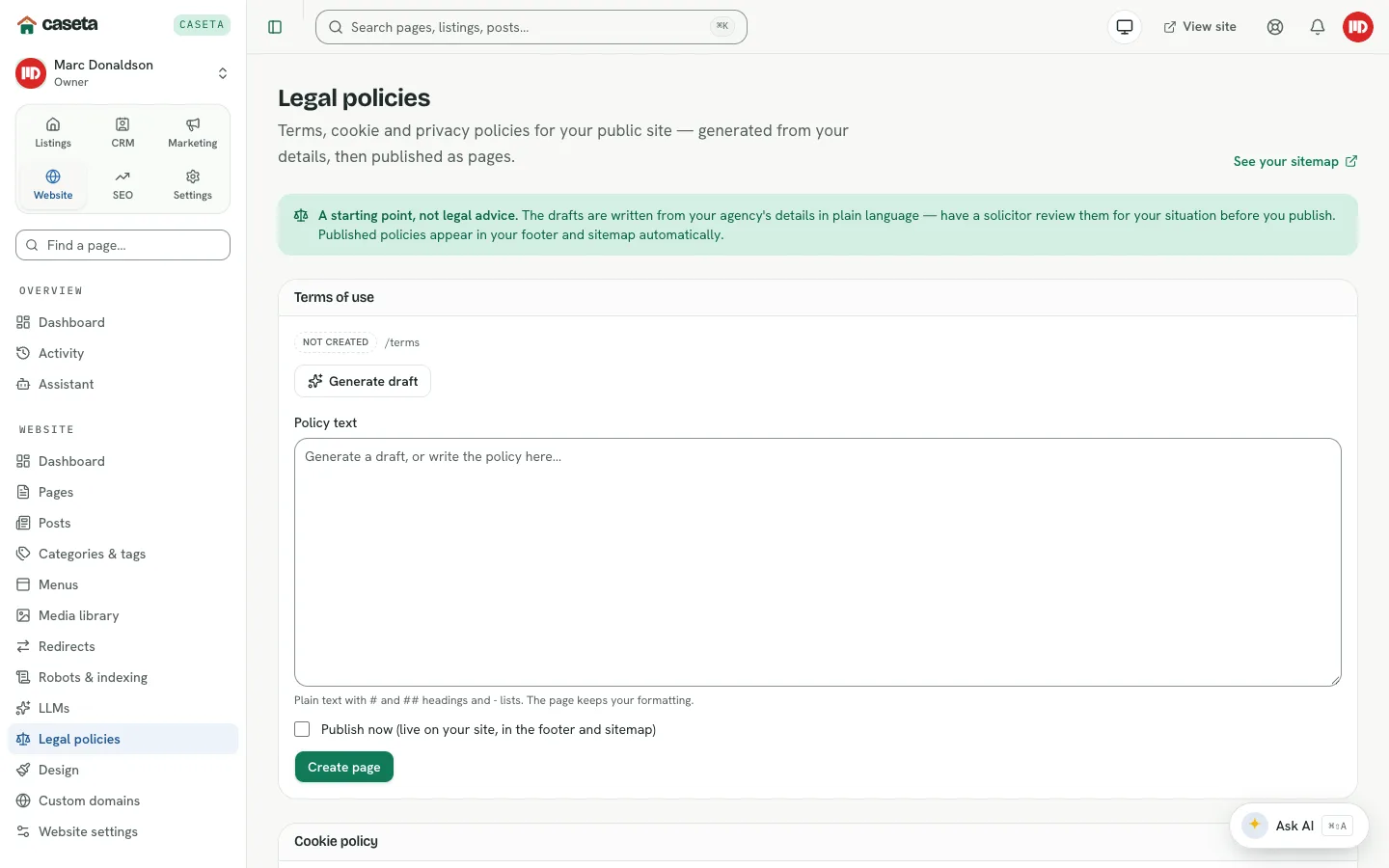
Shows legal policy management

Shows the website indexing settings