Contacting Caseta Support
How to start a support conversation in the app, add screenshots, understand AI answers and follow up.
Overview
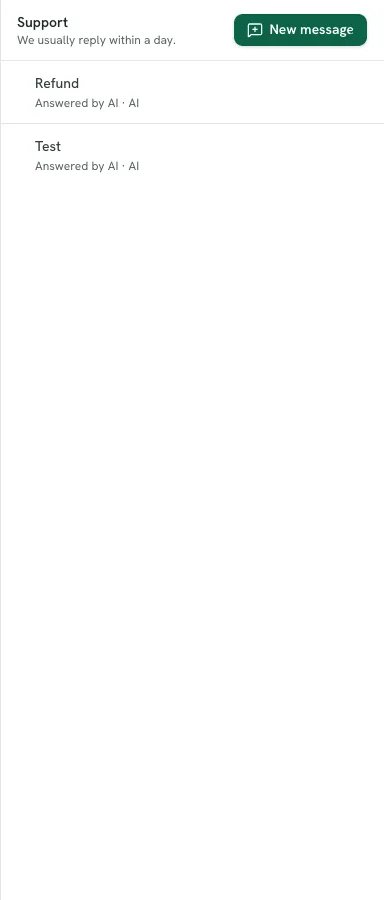
The in-app support desk opens a conversation with Caseta. You can pick a topic, describe the issue and attach screenshots. When staff are online, a person replies; when they are not, an AI assistant answers first, grounded in the knowledge base and your app context. The same conversation can continue with a person later.
Who Is This For?
Signed-in members whose organisation has the support desk enabled.
Step-by-Step Instructions
Step 1: Open support
Select the support button in the header, or open the support panel from the app chrome. The header badge shows unread replies.
Step 2: Start a new conversation
Select New message. Choose a topic category if one is offered, then describe the problem. Include:
- what you were trying to do,
- what happened instead,
- the page or feature,
- any error message text.
Step 3: Attach a screenshot (optional)
Use the attach action to add an image or file. Attachments are limited in number and stored with the message. Do not attach passwords, API keys or unnecessary personal data.
Step 4: Send and wait
The conversation shows a typing state and unread counters. An AI answer may arrive first. If staff are available, a person can take over.
Step 5: Follow up
Reply in the same conversation with the result of any steps you tried. Keeping one thread preserves the context. The conversation can be marked resolved by staff.
Understanding the states
| State | Meaning |
|---|---|
| Open | Waiting for a first reply |
| Answered by AI | The AI responded |
| Waiting on us | Caseta staff need to reply |
| Replied | Caseta replied to you |
| Resolved | The issue is closed |
| Closed | The conversation is finished |
Buttons and Actions
- New message — starts a conversation.
- Send — sends the message.
- Attach — adds a screenshot or file.
- Back — returns to the conversation list.
What Happens Next?
Support may ask for more detail or a reproduction step. If the issue is a bug, Caseta records it and follows up in the same conversation. For urgent access problems, include the affected email address and agency.
Common Problems
- The support button is missing. The support desk may be off for the organisation.
- The AI answer is wrong. Reply with the correction; a person can review it.
- An attachment fails. The file may be too large or an unsupported type. Try a smaller
screenshot.
- No reply arrives. Check the conversation's status; staff availability varies. The AI
answer is immediate.
- You cannot see an old conversation. It may belong to another member or have been
closed.
Security and Privacy
Do not send passwords, API keys, access tokens or full customer records. Redact personal data in screenshots. Support conversations are visible to authorised Caseta staff and to members of your organisation as designed.
Screenshots

Shows the entry point to the in-app support desk