Troubleshooting Integrations and Missing Features
Why a connected service, AI action or menu item is unavailable, and how plan modules and access grants change what you can see.
Overview
A feature can be unavailable for four different reasons:
- the deployment's feature flag is off,
- the agency's plan does not include the module,
- the member's access grant excludes the area, or
- the underlying integration or provider is not configured.
Identifying the correct layer avoids wasted effort.
A menu item or page is missing
| Check | Where | What to do |
|---|---|---|
| Plan module | Settings → Plan & usage | Upgrade or change the plan |
| Access grant | Settings → Team → Edit access | Add the area (owner/admin) |
| Feature flag | Deployment configuration | Ask Caseta support |
| Role | Your organisation role | Ask an owner/admin |
With workspaces on, a plan-locked item may still appear with the plan's name as a badge. Opening it explains the upgrade. Without workspaces, it is hidden.
A member gets 403
The path belongs to an access area the member's grant does not include, or the member is read-only and attempted a write. Update the grant or use an account with the needed role.
Read-only mode blocks an action
Read-only blocks state-changing requests (form posts and API writes) while allowing profile, security, sign-out, organisation switching and the assistant. Remove read-only for that member if they need to edit.
Email tests fail
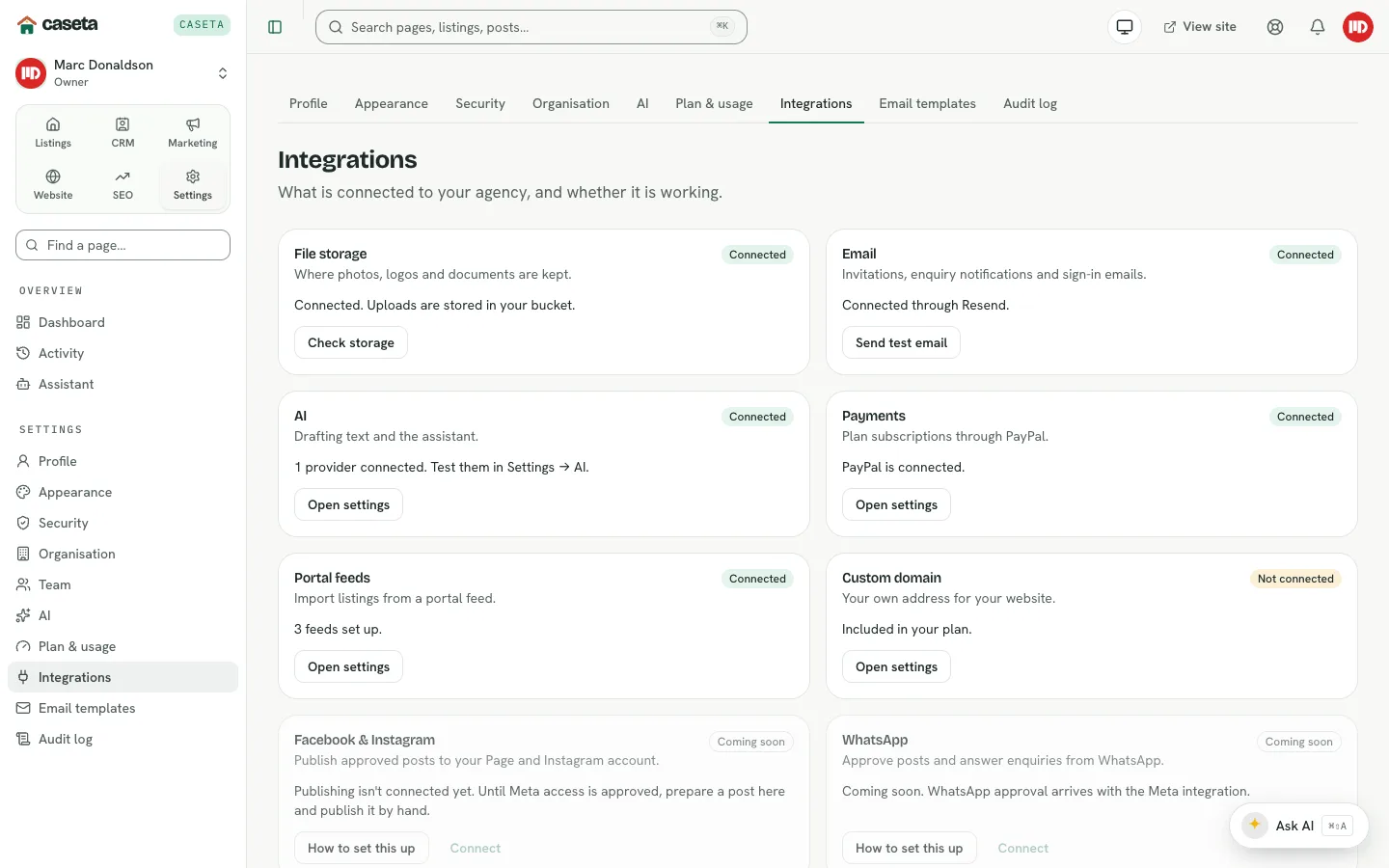
- Check the email provider key, sender address and domain verification.
- Use Settings → Integrations → Send test email.
- Check spam and the provider's logs.
- A failure in the test does not prove every send fails, but it is the first check.
Storage checks fail
- Check the endpoint, region, bucket and credentials.
- Use Settings → Integrations → Check storage.
- Uploads fail when storage is unavailable; existing images may still display from cache.
AI is unavailable
- Add and test a provider in Settings → AI.
- Choose a default provider; check the provider is enabled.
- For the assistant, choose a model that supports tools.
- Shared plan AI requests may be exhausted; check Plan & usage.
Social connection expired
Reconnect through Marketing → Social media → Setup guide. Until then, use the manual publishing flow in Ready to publish.
Portal feeds return nothing
Check that the listing is manual, published, available/reserved/under offer and included in portal exports. Check the export's contact restriction and key.
Common Problems
- Everything is read-only. A deployment or organisation setting may have restricted the
session; check with an owner.
- A module disappeared after a plan change. Downgrades remove modules; data is
retained but the pages may be hidden.
- An integration says connected but actions fail. The credentials may have expired
after the last check; test again.
Security and Privacy
Do not paste credentials into support messages. Use the in-app tests and the setup guides, and rotate any key that may have leaked.