Creating Your Caseta Account
How to request or create a Caseta account, confirm your email address and reach your dashboard for the first time.
Overview
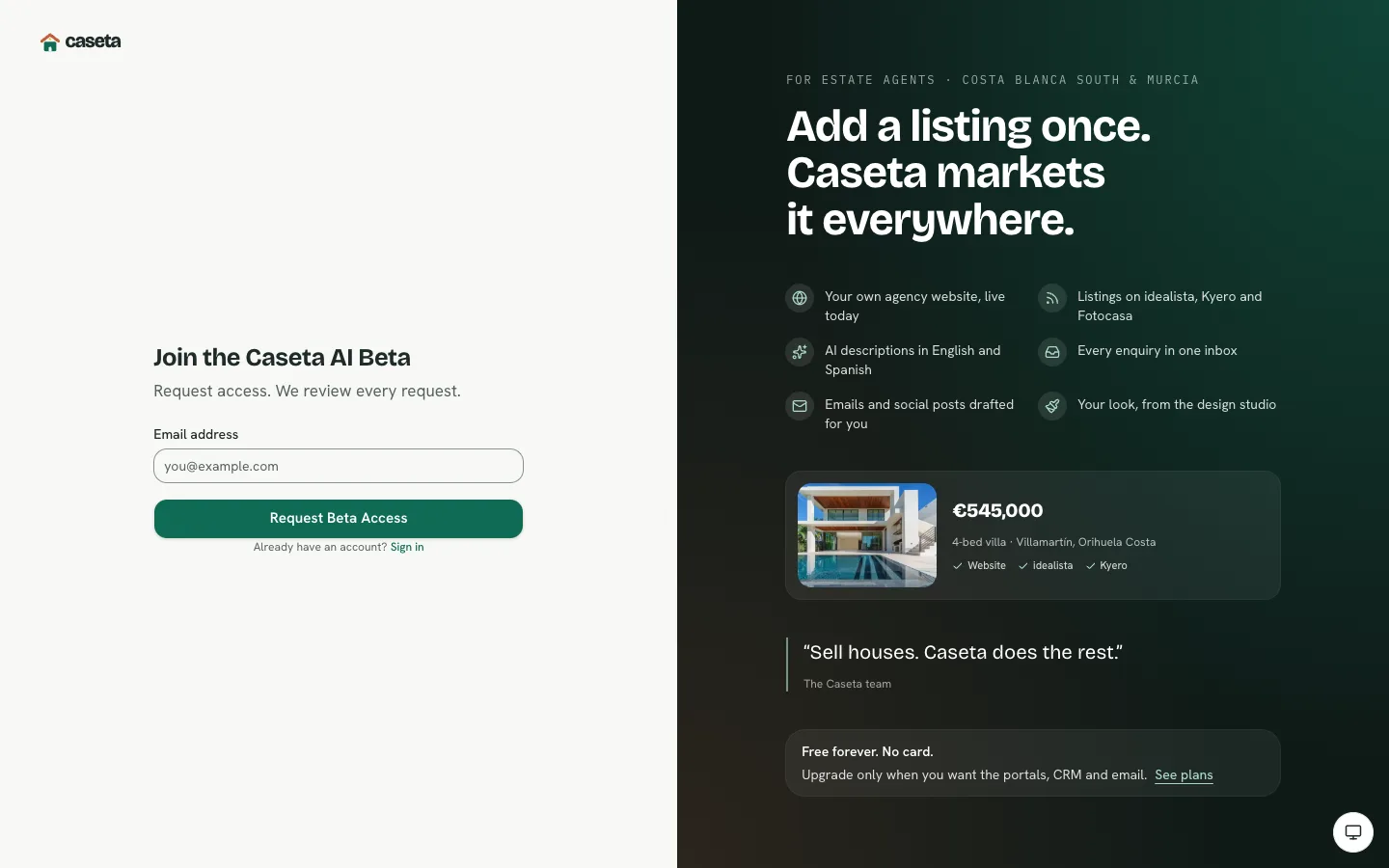
Caseta accounts are created through a short registration flow. When beta signup is enabled on the deployment, the public entry point is a request-access form rather than an open registration page: you enter your email, Caseta reviews the request, and an approved request gives you a one-time link to create the account.
Once the account exists, you confirm your email address, sign in, and either create your agency or accept a team invitation.
Who Is This For?
Anyone who does not yet have a Caseta account, including a new agency owner and an agent who has been invited but has not created an account yet. You do not need to be signed in.
Before You Begin
- An email address you can open now. The confirmation link is time-limited and works once.
- Your agency's name and preferred web address, if you are setting up the agency yourself.
- If your deployment has beta signup turned off, the Create an account link on the
sign-in page opens the standard registration form instead.
Step-by-Step Instructions
Step 1: Open the access page
Go to the Caseta site and choose Create an account (or open /sign-up directly).
When beta signup is enabled, Caseta sends you to the Join the Caseta AI Beta page.
Step 2: Request access
- Enter your email address in Email address.
- Complete the bot-protection challenge if it is shown.
- Select Request Beta Access.
The page confirms that the request has been received. Caseta reviews every request.
Step 3: Open the approval email
When your request is approved, Caseta emails a verification link. Open it and complete the verification step. The link is single-use; if it has expired, request access again or use the resend option on the confirmation page.
Step 4: Create the account
On a deployment with beta signup disabled, registration asks for:
| Field | Purpose | How to complete it | Validation | Required? | Result |
|---|---|---|---|---|---|
| Name | The name shown in the app and on your profile | Your full name or the name you want the team to see | 1–100 characters after trimming | Yes | Stored on your account |
| The address you sign in with | A valid address you can access | Valid email, at most 254 characters | Yes | Used for sign-in and verification | |
| Password | Protects your account | A passphrase or long password | At least 12 characters, at most 128 | Yes | Stored as a password hash |
| Confirm password | Catches typing mistakes | Repeat the password exactly | Must match Password | Yes | The form will not submit if they differ |
Select Create account.
Step 5: Confirm your email
Open the confirmation email and follow the link. Caseta shows Email confirmed when it succeeds. Then continue to sign in or to the dashboard.
Understanding the Fields
| Field | Notes |
|---|---|
| Email address (beta request) | Used only to contact you about access and to match the approval to your account. |
| Name (registration) | Editable later at Settings → Profile. |
| Password (registration) | A minimum of 12 characters. Caseta does not impose character-class rules, so a short sentence works well. |
| Confirm password | Never stored; used only for the comparison. |
Buttons and Actions
- Request Beta Access — submits the access request.
- Create account — creates the account when registration is open.
- Sign in — for people who already have an account.
- Resend confirmation — available from the verification page when the first email did not arrive.
Panels and Sections
- Access request card — email field, bot protection and the primary action.
- Auth side panel — explains what Caseta does. It is hidden on small screens.
- Verification status — the confirmation page shows
sent,verifiedorinvalidstates.
What Happens Next?
After verification you can sign in. If you were invited to an agency, open the invitation again. If you are starting your own agency, Caseta sends you to onboarding to name it and choose its web address.
Common Problems
- The beta page keeps appearing. Beta signup is enabled and the browser has no
approved, short-lived access cookie. Use the approval email and open its link in the same browser.
- The confirmation link says it is not valid. Links are single-use and expire after
one hour. Request a new confirmation email.
- The registration form rejects the password. Use at least 12 characters. The
confirmation field must match exactly.
- No approval email. Check spam, then request access again with the same address.
Security and Privacy
Caseta never displays whether an email address already has an account during the password-reset or beta-request flows. Confirmation and reset links are single-use and short-lived. Do not forward them; anyone who opens a live link can act on the account.
Frequently Asked Questions
Can I create an account without a card? Yes. Account creation and the free plan do not require payment details.
Can I change my email later? Yes, from Settings → Profile. The new address must be confirmed.
Can I use the same email for two agencies? Yes. A person can belong to more than one organisation and switch between them.
Screenshots
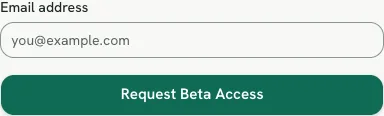
Shows the beta access request form