Signing In and Out
How to sign in to Caseta with a password, passkey or two-step code, reach the right page afterwards, and sign out safely.
Overview
Sign-in is the door to the members area. Caseta supports an email and password, a device passkey, and a second step (a 6-digit code or a backup code) when two-factor authentication is enabled. After signing in you land on the page you originally asked for, or on your dashboard.
A separate Staff tab is available when staff sign-in is enabled. It is intended for agency staff who sign in through their agency's web address.
Who Is This For?
Existing account holders. Owners and agents use the Owner tab; staff who reach Caseta through an agency-specific staff entrance can use the Staff tab.
Before You Begin
- The email address on your account and its password, a passkey, or a two-factor
authenticator/backup code.
- Access to your email if you need to recover the password.
Step-by-Step Instructions
Step 1: Open the sign-in page
Open /sign-in or choose Sign in from the site. The page offers two tabs when staff
sign-in is enabled: Owner and Staff.
Step 2: Enter your details
On the Owner tab, enter:
| Field | Purpose | Validation | Required? |
|---|---|---|---|
| Identifies your account | A valid email address | Yes | |
| Password | Proves the account belongs to you | At least 1 character; correct credentials are checked by the server | Yes |
Select Sign in.
Step 3: Complete the second step, if asked
When two-factor authentication is on, Caseta asks for a code:
- Enter the current 6-digit code from your authenticator app, or choose the backup-code
option and enter one of your saved backup codes.
- Optionally select Trust this device for 30 days so that device is not challenged
again during that period.
Step 4: Staff sign-in (staff only)
Switch to the Staff tab and enter:
| Field | Purpose | Notes |
|---|---|---|
| Agency | The short name in your agency's web address | The agency slug, not its display name |
| Your staff email | Must belong to that agency | |
| Password | Your account password | The normal sign-in is then used, including 2FA |
Staff sign-in fails if the address is not a member of that agency, even when the password is correct.
Step 5: Sign out
Open the account menu in the top-right and choose Sign out, or visit /sign-out and
select Sign out. Caseta ends the session and returns you to the signed-out flow.
Understanding the Fields
| Field | Notes |
|---|---|
| Case-insensitive. The address must already have an account. | |
| Password | Never shown; use Forgot password? if you cannot recall it. |
| Two-factor code | Exactly 6 digits, refreshed every 30 seconds by the authenticator. |
| Backup code | Single-use. A used code cannot be reused. |
| Trust this device | Applies to the current browser only, for 30 days. |
| Agency (staff) | Matched against the organisation's web address. |
Buttons and Actions
- Sign in — submits the credentials.
- Forgot password? — opens the password-recovery flow.
- Create an account — opens registration or the beta request page.
- Owner / Staff — switches the sign-in mode without leaving the page.
- Sign out — ends the session.
Panels and Sections
- Sign-in card — the mode tabs, email/password fields and the primary action.
- Auth side panel — a product summary shown on wide screens.
- Two-factor card — the code field, the trust-device option and the backup-code link.
What Happens Next?
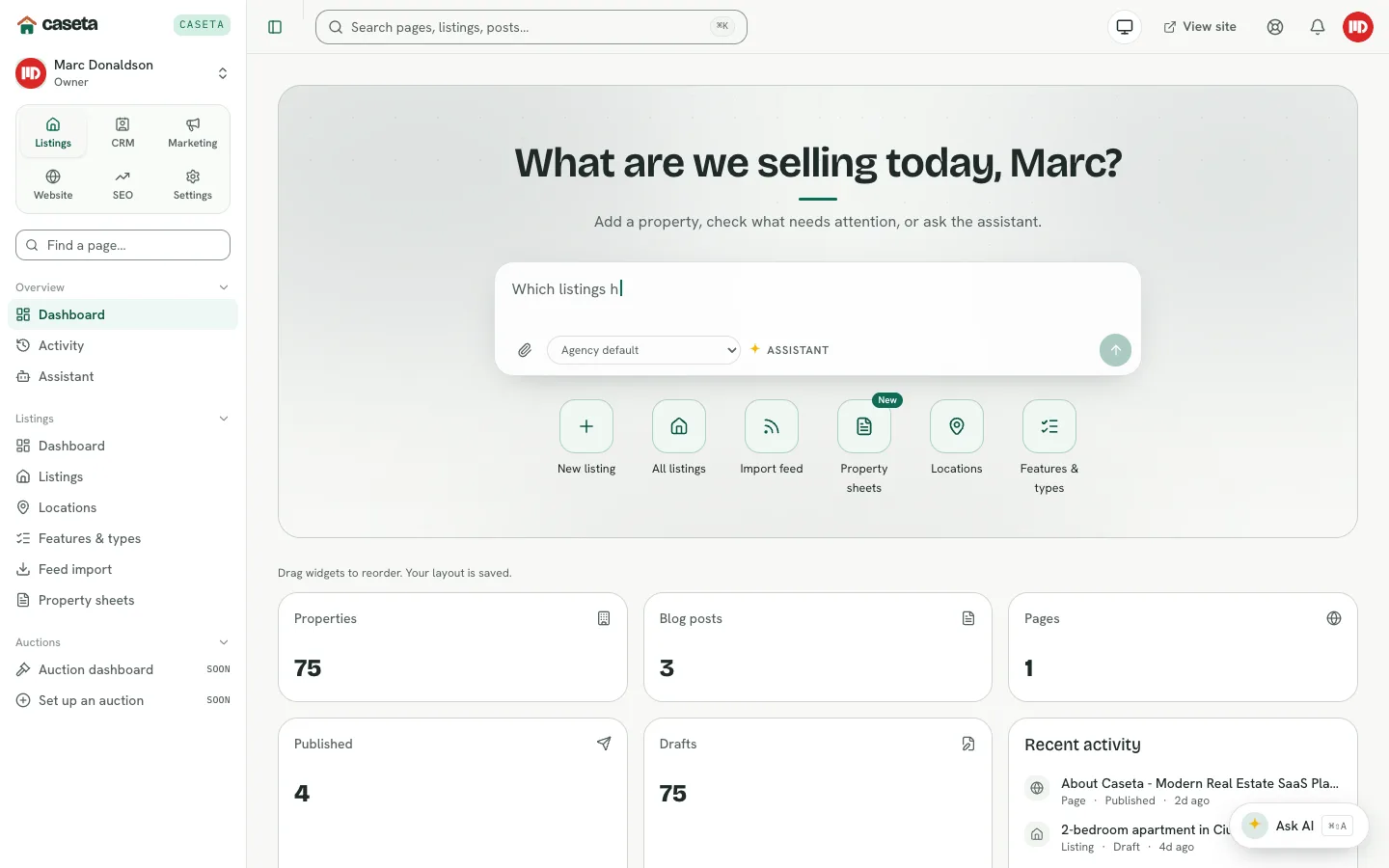
A successful sign-in takes you to the requested page (for example, the page you tried to open before signing in) or to the dashboard. If your email is not verified, Caseta asks you to verify it first. If you have no organisation, Caseta takes you to onboarding.
Common Problems
- The password is rejected. Check the address and password, then use **Forgot
password?**. Repeated failures are rate-limited.
- The authenticator code is rejected. Codes are time-based; wait for the next code.
If the device clock is wrong, correct it. Use a backup code if needed.
- The staff tab refuses the details. The email must belong to the agency named in
Agency. Owners and agents should use the Owner tab.
- You are asked to verify your email again. Open the latest confirmation email; old
links may have expired.
- You are signed out unexpectedly. A session may have been revoked from **Settings →
Security → Sessions**, or the account may have been banned or deleted.
Security and Privacy
Sessions are stored server-side and can be reviewed and revoked. Passwords are hashed; Caseta never displays them. Two-factor codes are short-lived. Sign out on shared devices and revoke any session you do not recognise.
Frequently Asked Questions
Can I stay signed in? Yes. Sessions last until they expire or are revoked.
Can I use a passkey instead of a password? Yes, when a passkey has been added in Settings → Security → Passkeys.
Why is there no Staff tab? Staff sign-in is enabled per deployment. If it is off, use the Owner tab.
Does signing out delete my data? No. It only ends the session.
Screenshots
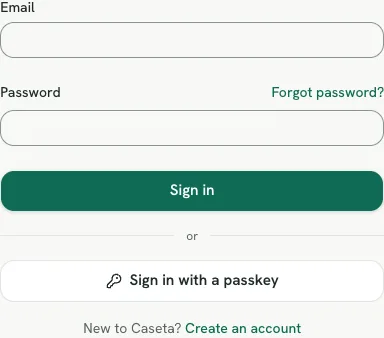
Shows the sign-in form