Creating and Setting Up Your Organisation
How to name your agency, choose its Caseta web address, add a logo and manage the organisation profile.
Overview
An organisation is your agency inside Caseta. It owns your website, listings, CRM, marketing and plan. New accounts without an organisation are sent through onboarding: first the agency name and web address, then an optional logo.
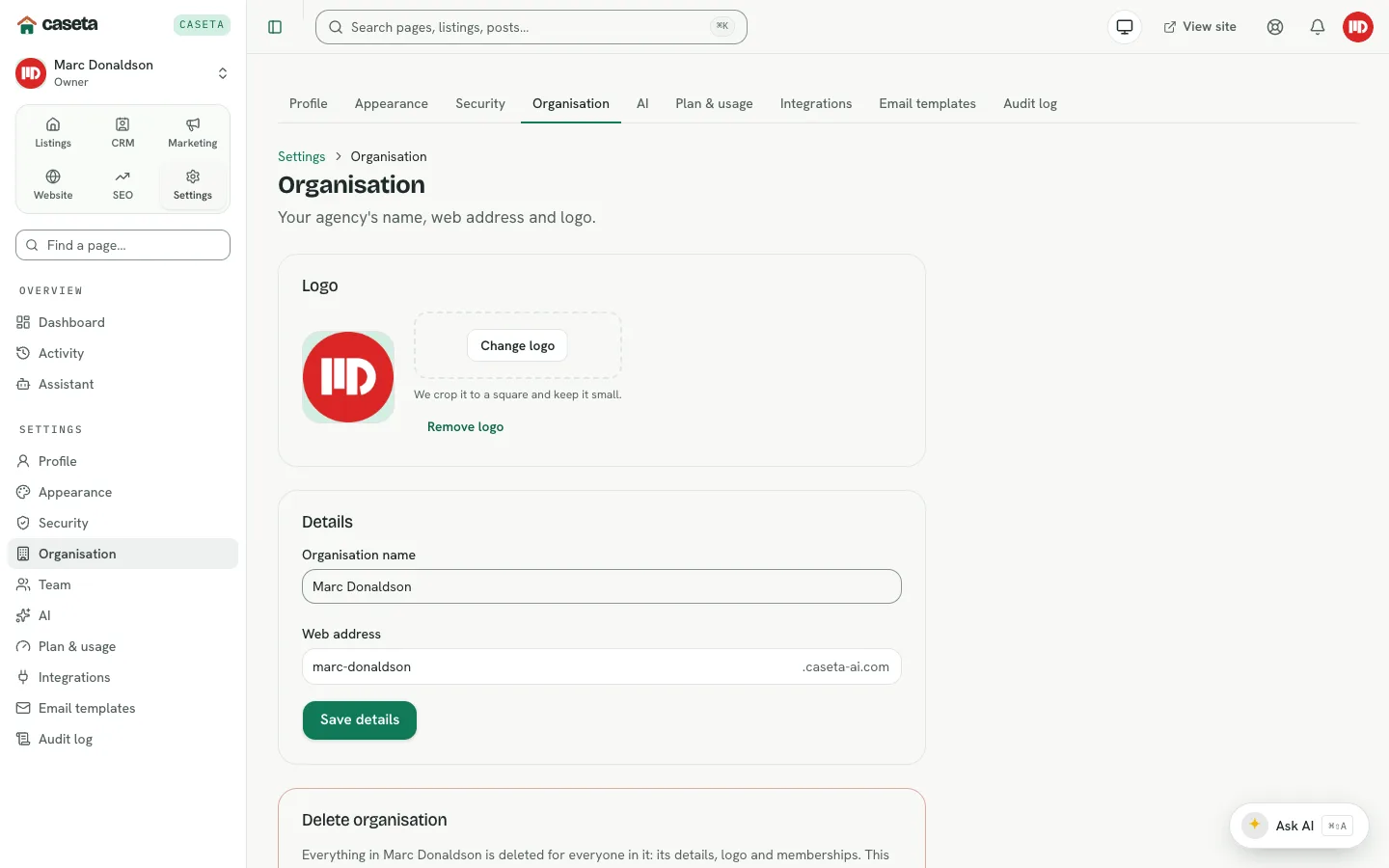
Owners and admins can change the same details later in Settings → Organisation.
Who Is This For?
A signed-in person who does not yet belong to an organisation, and owners/admins who manage an existing agency.
Before You Begin
- Your agency's legal or trading name.
- The web address you want. It becomes the agency's Caseta subdomain and part of its
public site address.
- A square logo (optional) if you want branding from day one.
Step-by-Step Instructions
Step 1: Open onboarding
After confirming your email, a new account with no organisation is sent to
/onboarding.
Step 2: Name the agency
| Field | Purpose | How to complete it | Validation | Required? | Result |
|---|---|---|---|---|---|
| Agency name | The name shown in the app and on the public site | Your agency's name | 1–80 characters after trimming | Yes | Stored as the organisation name |
| Web address | The agency's unique Caseta address | Lower-case letters, numbers and single hyphens | 3–40 characters; must match a-z, 0-9, single hyphens; reserved words refused; uniqueness checked | Yes | Used in the agency's subdomain and links |
Caseta suggests a web address from the agency name. You can edit it; the page checks it as you type.
Step 3: Continue
Select the continue action. Caseta creates the organisation, makes you its owner, and moves to the optional logo step.
Step 4: Add a logo (optional)
Upload an image. The logo appears in the app's organisation switcher and on the public site where the design uses it. Choose Continue to skip or finish.
Step 5: Change details later
Open Settings → Organisation. Owners and admins can update the name and web address and replace or remove the logo. Changing the web address changes the agency's public address, so update any printed or external links.
Understanding the Fields
| Field | Notes |
|---|---|
| Agency name | Shown in the sidebar, invitations, emails and the public site. Editable later. |
| Web address | Stored lower-case. Hyphens must be single and cannot start or end the value. Reserved words such as admin, api, www, support and mail are refused. |
| Logo | Optional. Removing it falls back to the text brand. |
| Delete organisation | Irreversible; requires typing the organisation name to confirm. Only available to permitted owners. |
Buttons and Actions
- Continue / Create organisation — creates the agency and makes you its owner.
- Add logo / Replace logo / Remove logo — manages branding.
- Save changes — applies name, address or logo edits in Organisation settings.
- Delete organisation — permanently removes the agency after confirmation.
Panels and Sections
- Create step — agency name and web address.
- Logo step — optional upload and a continue action.
- Organisation settings — details form, logo panel and a danger-zone delete panel.
What Happens Next?
You land on the dashboard with the new organisation active. Recommended next steps are to add branding, review Website settings, add your first listing, invite the team and connect an AI provider.
Common Problems
- "That web address is taken." Choose another. Two agencies cannot share an address.
- "That web address is reserved." Words used by Caseta's own services are blocked.
Choose a distinctive agency address.
- The name is rejected. It must not be empty and must be at most 80 characters.
- You cannot see Organisation settings. Your role may be Agent, or your access grant
may exclude organisation settings.
Security and Privacy
The web address is public. Do not use confidential information in it. The logo is served publicly. Deleting an organisation is destructive and affects its content; confirm the name carefully.
Frequently Asked Questions
Can I change the web address later? Yes, but existing public links to the old address will break unless you keep redirects at the old address.
Can I have more than one organisation? Yes. Create or join another and switch with the organisation switcher.
Can I delete the agency? Owners with permission can use the delete panel. This is irreversible.