Creating Pages and Blog Posts
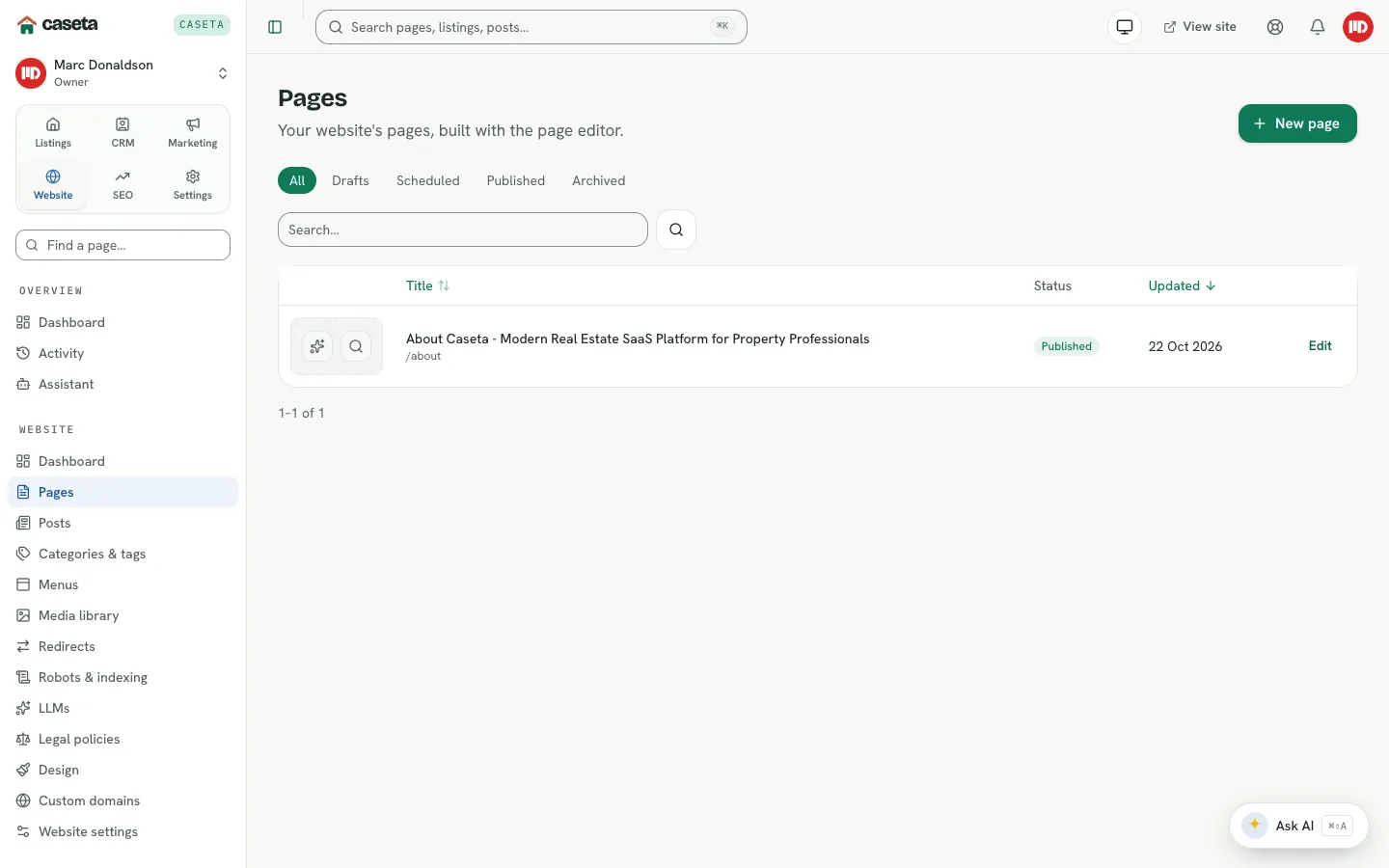
How to create, publish, schedule, unpublish and archive website pages and blog posts in Caseta.
Overview
Pages are the fixed parts of the site (Home, About, Contact, services). Posts are dated articles for the blog/news feed. Both use the same editor and the same publishing rules, but posts can have categories and tags and appear in the blog listing.
Who Is This For?
Agents, admins and owners with access to website content.
Step-by-Step Instructions
Step 1: Open the list
- Website → Pages for pages.
- Website → Posts for blog posts.
Each list can be filtered by status and searched.
Step 2: Create a new record
Select New page or New post. Caseta creates an untitled draft and opens the editor. Nothing is public yet.
Step 3: Write the content
In the editor:
- Enter a Title (required; up to 200 characters).
- The Web address is generated from the title. Edit it if needed; it must use
lower-case letters, numbers and single hyphens.
- Add an Excerpt (up to 500 characters) for cards and summaries.
- Write the body with the block editor.
- Add a featured image and SEO fields if useful.
See Using the Page and Post Editor for the full field reference.
Step 4: Save
Select Save. Saving keeps the record in its current status. It does not publish it.
Step 5: Publish or schedule
The Publishing panel offers actions based on the current status:
| Current status | Actions |
|---|---|
| Draft | Publish now, schedule, archive |
| Scheduled | Save & publish, reschedule, cancel schedule, archive |
| Published | Unpublish, archive |
| Archived | Restore to drafts |
- Publish now makes the page or post live.
- Schedule asks for a future date and time; the browser supplies the time-zone offset.
- Unpublish returns it to drafts.
- Archive removes it from the active list without deleting it.
If you have unsaved edits, Publish now becomes Save & publish so the current values go live.
Step 6: Preview
Use the public link shown in the editor to open the rendered page. Preview is only available for content the public site can show.
Understanding the Fields
| Field | Purpose | Validation | Required? |
|---|---|---|---|
| Title | Page or post name | 1–200 characters | Yes |
| Web address | Public slug | Lower-case letters, numbers and single hyphens; unique within the site | Yes (generated) |
| Excerpt | Summary for cards and SEO fallback | Up to 500 characters | No |
| Body | Rich content | Valid editor document | No |
| Featured image | Card and social image | An organisation image | No |
Posts can also be assigned categories and tags. Pages cannot.
Buttons and Actions
- New page / New post — creates an untitled draft and opens the editor.
- Save — stores edits without changing status.
- Publish now / Save & publish — publishes.
- Schedule / Reschedule — sets a future publish time.
- Unpublish — returns to drafts.
- Archive / Restore to drafts — moves between archived and draft.
- Delete — available to users with permission; deletion is not the same as archiving.
What Happens Next?
Published pages appear at their web address and in the menus where you add them. Posts appear in the blog listing and, if configured, in the sitemap and RSS feed.
Common Problems
- The web address is rejected. Use lower-case letters, numbers and single hyphens.
Reserved slugs and duplicates are refused.
- The page is published but not in the menu. Add it in Website → Menus.
- A scheduled post did not publish. Check the time and time zone; the schedule stores
the intended moment.
- The public page is not updated. Check the site is live and reload; the public read
model may need a moment to refresh.
- You cannot delete. Deletion may require a manager role. Archiving is always safer.
Frequently Asked Questions
What is the difference between a page and a post? Pages are permanent site sections; posts are dated articles that can be categorised and listed in the blog.
Can I change the web address later? Yes, but old links break unless you add a redirect in Website → Redirects.
Can I write in Spanish? Yes. Add a translation from the editor's language tabs.