Managing Categories, Tags and Menus
How to organise blog posts with categories and tags and build the website's header and footer menus.
Overview
Categories and tags group blog posts. Menus control the header and footer navigation. Both are managed from the Website workspace and use the same simple list pattern: add on the left, review and reorder on the right.
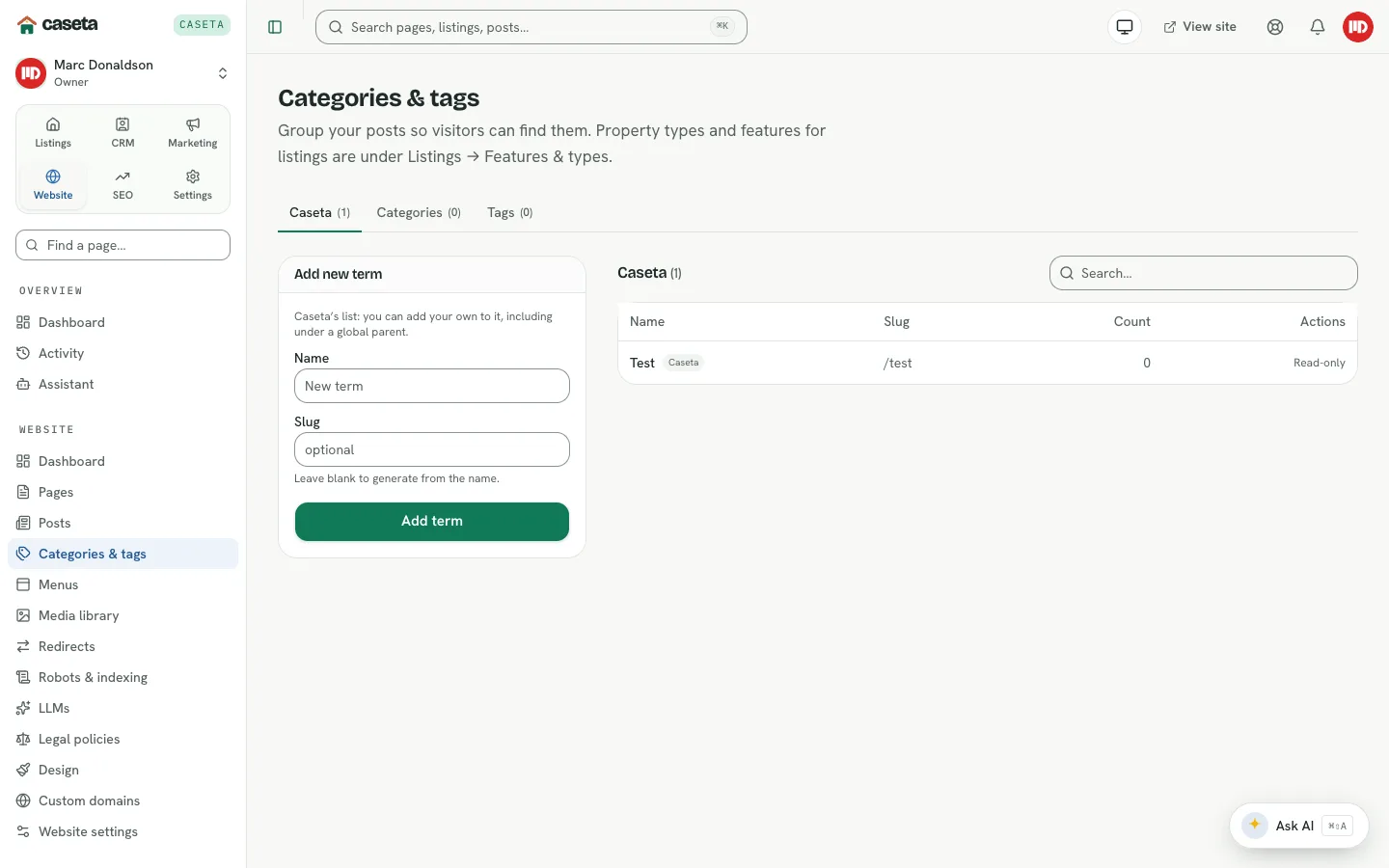
Categories and tags
How to add
- Open Website → Categories & tags.
- Choose the Categories or Tags tab.
- In Add new category (or Add new tag), enter a name (up to 80 characters) and an
optional slug (up to 120 characters).
- Optionally choose a parent category.
- Submit.
How to edit and reorder
- Select the edit action on a term to change its name, slug or parent.
- Use the move up/down actions to change its order.
- Use the delete action to remove it. A term used by posts may need those assignments
changed first.
- Search the list with the search box.
The count shown next to the tab is the number of terms, not the number of posts.
Menus
What a menu is
Each menu is an ordered list of items. Items can link to a page, post, listing, category or tag, or a custom URL. An item can have a parent, creating a dropdown, and can open in a new tab.
How to add an item
- Open Website → Menus.
- Choose the menu tab (for example Primary/header or Footer).
- In Add to menu, choose what to add:
| Kind | What you choose |
|---|---|
| Page | An existing page |
| Post | An existing post |
| Listing | An existing listing |
| Category / Tag | An existing term |
| Custom link | A URL you type |
- For a custom link, enter the URL and label. For other kinds, the label defaults to the
target's title.
- Optionally choose a parent and Open in a new tab.
- Submit.
How to edit and order
Select the edit action to change the label, URL, parent or new-tab flag. Use move up/down to reorder. Remove deletes the item from the menu without deleting the linked content.
Understanding the Effects
| Element | Where it appears |
|---|---|
| Category | Grouping and archive links for posts |
| Tag | Cross-cutting grouping for posts |
| Header menu | Site header navigation |
| Footer menu | Site footer navigation |
| Parent item | A dropdown or nested list |
Common Problems
- A page is not in the menu. Add it in Menus; publishing a page does not add it
automatically.
- A menu item links to a draft. The public site may hide or 404 it. Publish the target
or change the link.
- A category has no posts. Only posts assigned to it appear in its archive.
- A menu link opens the wrong place. Check whether the target is a site-relative path
or a full external URL.
Screenshots
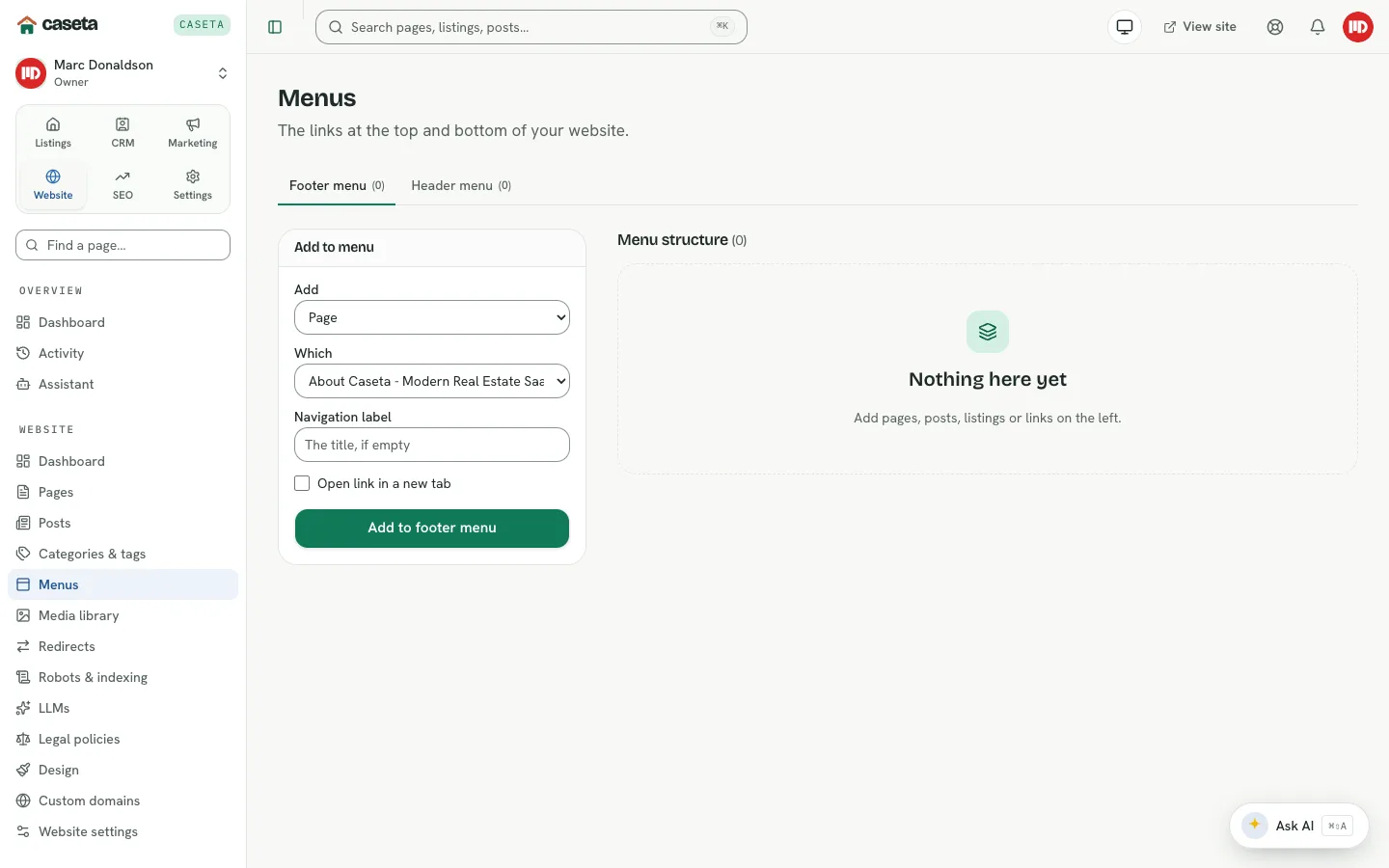
Shows menu building