Designing Your Site, Connecting a Domain and Website Settings
How to use the design studio, connect a custom domain and configure publishing, identity, contact, languages and SEO defaults.
Overview
This article covers the three owner/admin controls that shape the public site:
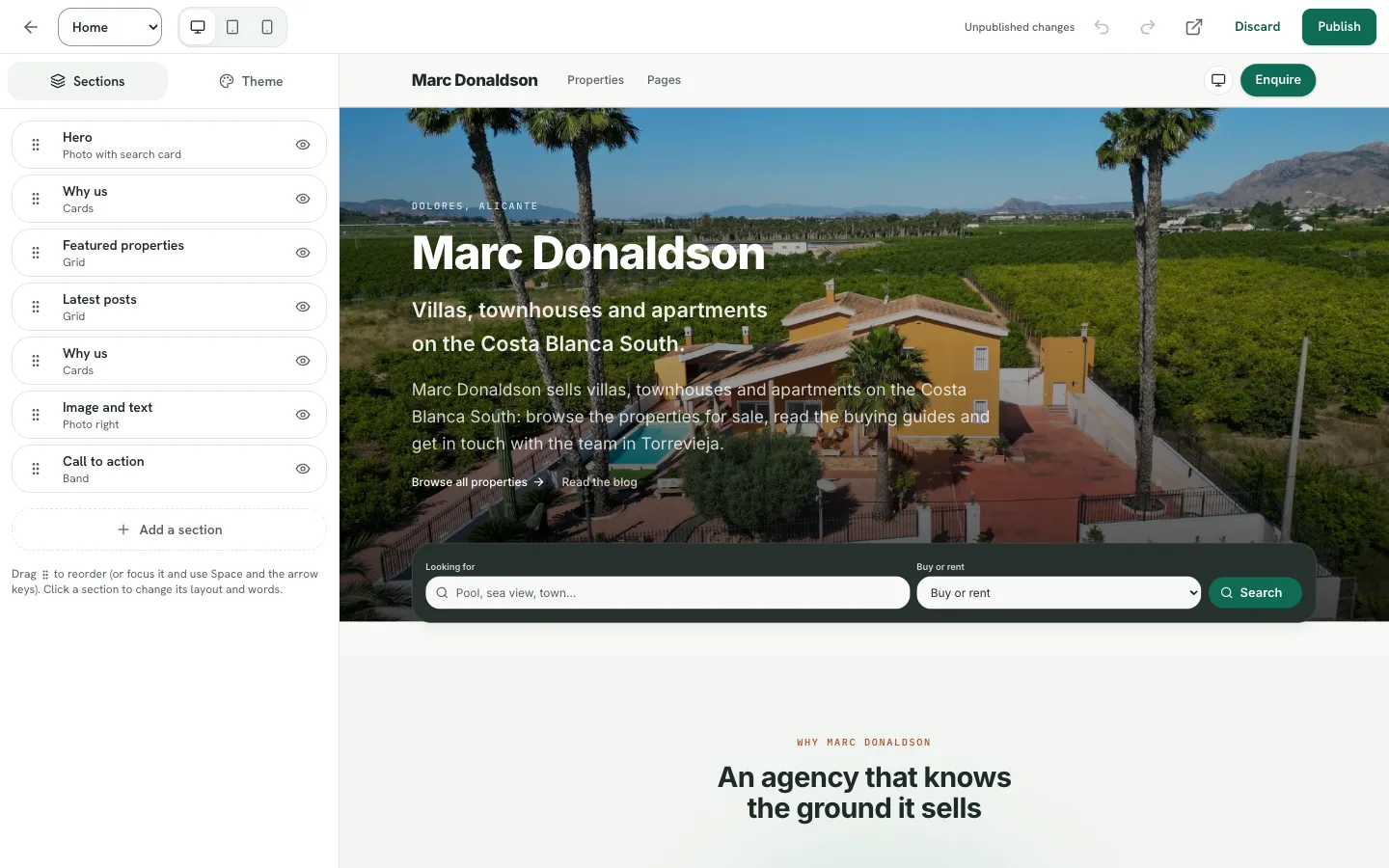
- Design — the visual studio for sections, colours, fonts and layout.
- Custom domains — the agency's own address and its DNS records.
- Website settings — publishing, identity, contact details, languages, SEO defaults
and spam protection.
Design studio
Open Website → Design. The studio has three panels and a live preview:
| Panel | Controls |
|---|---|
| Sections | Add, reorder, show/hide, duplicate and edit page sections |
| Theme | Colours, typography and buttons |
| View | Desktop, tablet and phone preview |
How to use it
- Choose the page to design.
- Select a section in the preview or in the Sections panel.
- Edit its content and settings; inline text can be edited directly in the preview.
- Use the view control to check desktop, tablet and phone layouts.
- Use undo/redo while working.
- Save keeps the draft; Publish makes it live; Discard drops unsaved
changes.
The header and footer are edited as sections, so the same navigation and branding appear across pages.
Custom domains
Add a domain
- Open Website → Custom domains → Add custom domain.
- Enter the hostname (for example
costahomes.es). - Caseta creates the domain and shows the DNS records to add.
Add the DNS records
Copy the records into the provider that manages the domain's DNS. The page includes provider-specific setup guides. After adding them:
- Wait for propagation (often minutes, sometimes longer).
- Select Check verification.
- When verified, the domain shows Active and serves the site over HTTPS.
Remove a domain
In the domain's Manage domain panel, select Remove custom domain. The site remains available on its free Caseta address.
Website settings
Open Website → Website settings. The page has tabs.
Publishing
| Field | Purpose | Notes |
|---|---|---|
| Publish this site | The master switch | Off means the agency address returns 404 |
| Site name | Header, footer and browser tab | Up to 80 characters; blank uses the organisation name |
| Tagline | A short line under the name | Up to 160 characters |
Look
Links to the Design studio and manages the site logo. The logo appears in the header and footer with the site name.
Contact
| Field | Purpose | Limit |
|---|---|---|
| Public contact email | 120 characters | |
| Phone | Public phone | 40 characters |
| Location | A short area label | 80 characters |
| Office address | Street address | 160 characters |
| Social links | Facebook, Instagram, LinkedIn, YouTube | 160 characters each |
Filled social links appear in the footer.
Languages
Choose the default language and which languages the site offers. A post can be written in either language; the site shows the version the visitor asked for.
SEO
Default title (70 characters) and description (160 characters), used when a page or post has not set its own.
Spam protection
Enable a bot challenge for contact and property enquiry forms and save the provider keys. The widget appears only when the switch is on and both keys are saved.
Common Problems
- The site is 404. Turn on Publish this site.
- The domain is not active. DNS records are missing, wrong or not propagated. Compare
them with the domain page and check again.
- Design changes are not visible. Save and publish the design draft.
- The header still shows the old name. Check the site name in Website settings and the
organisation name in Settings → Organisation.
- The enquiry form has no challenge. Spam protection needs the switch and both keys.
- You cannot edit. These controls are limited to owners and admins.
Screenshots
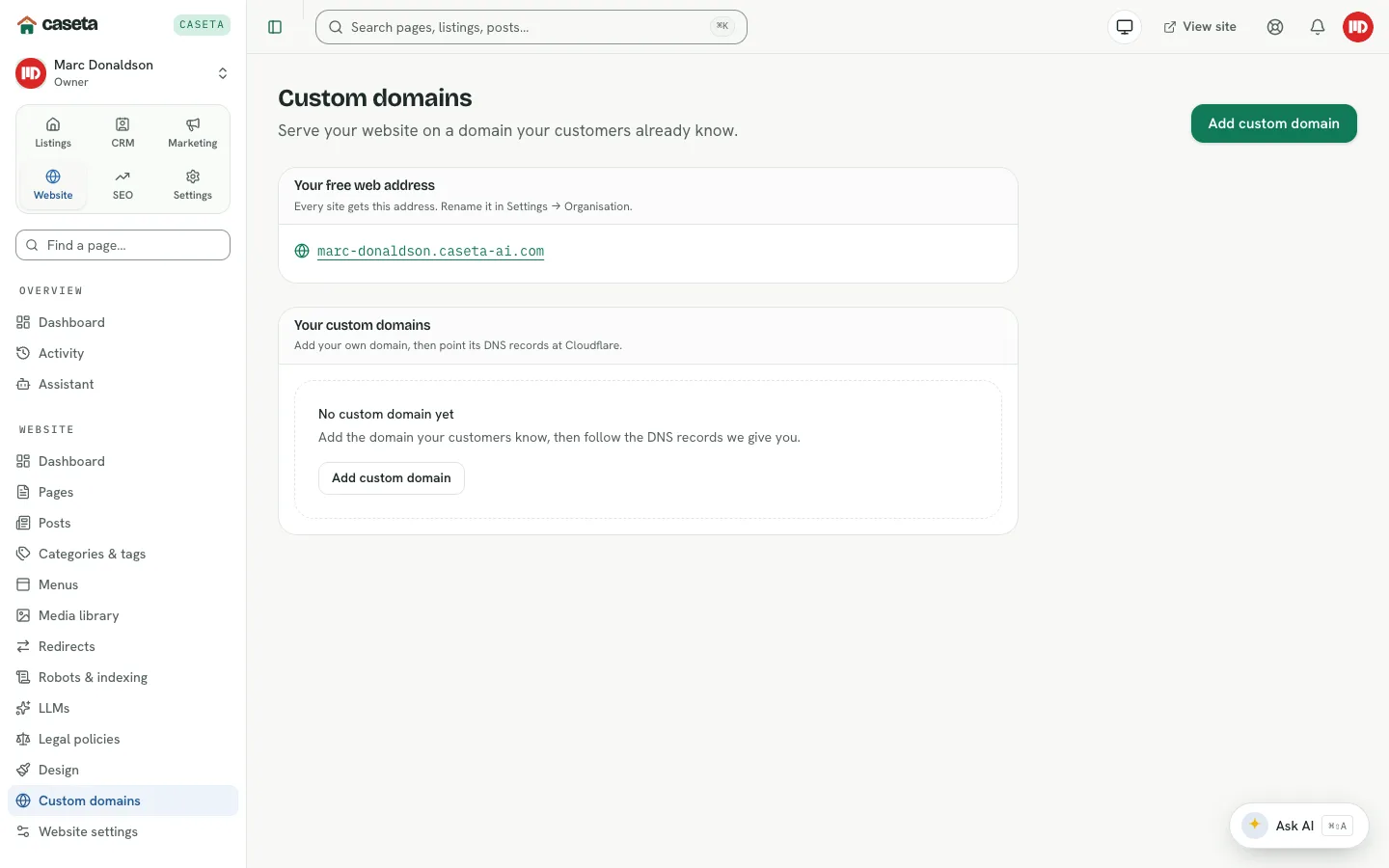
Shows custom domains
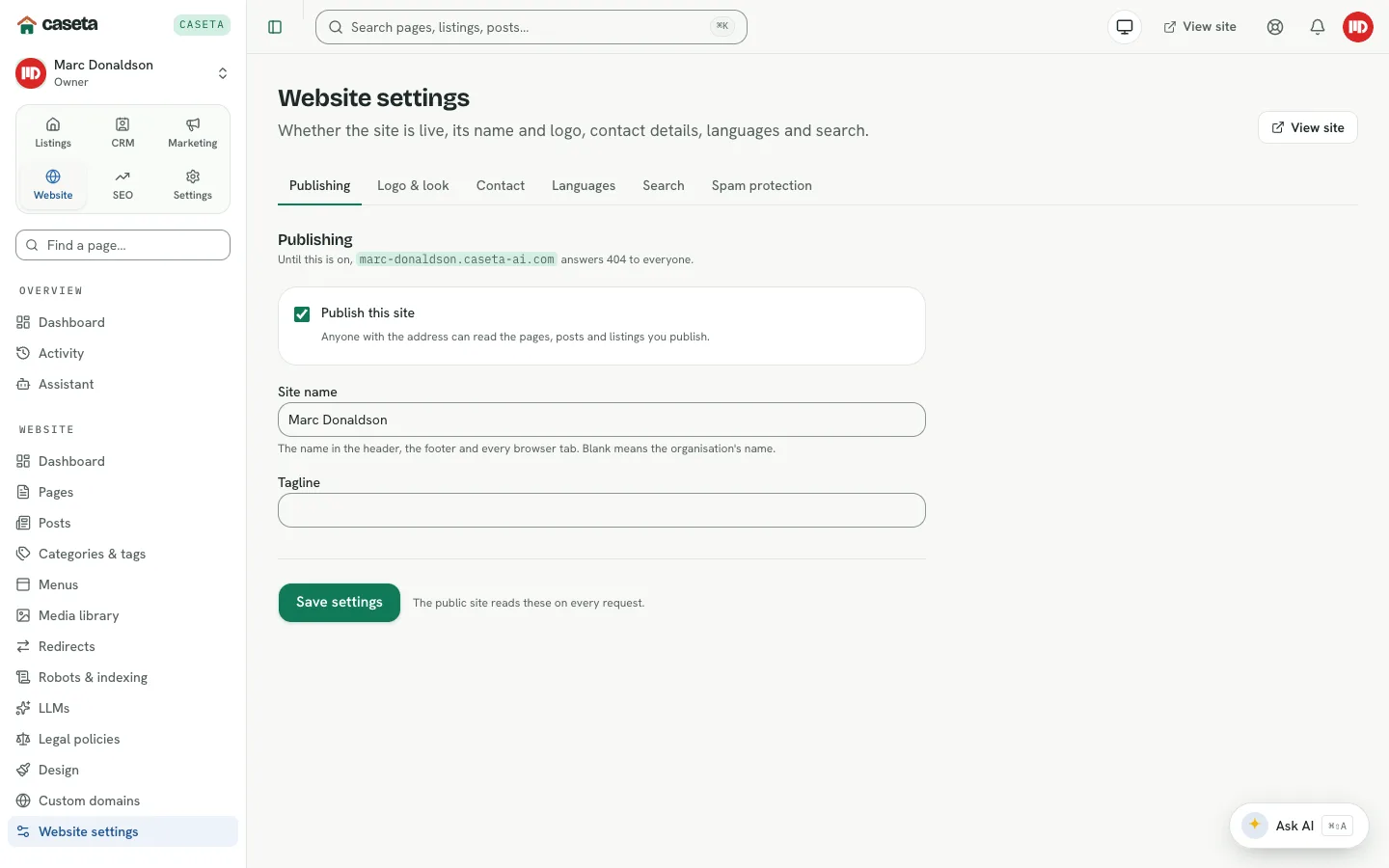
Shows website settings
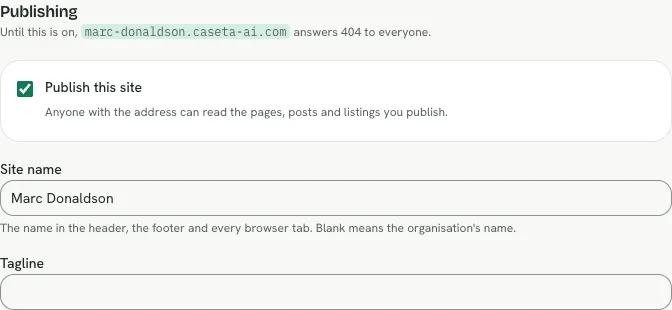
Shows the website publishing panel
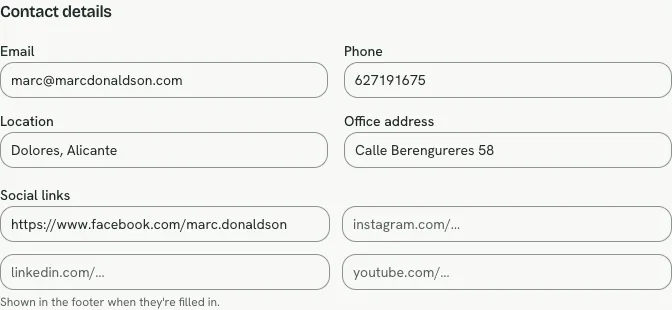
Shows the website contact panel