Managing Account Security
How to change your password, enable two-factor authentication, add passkeys, review sessions and read security activity.
Overview
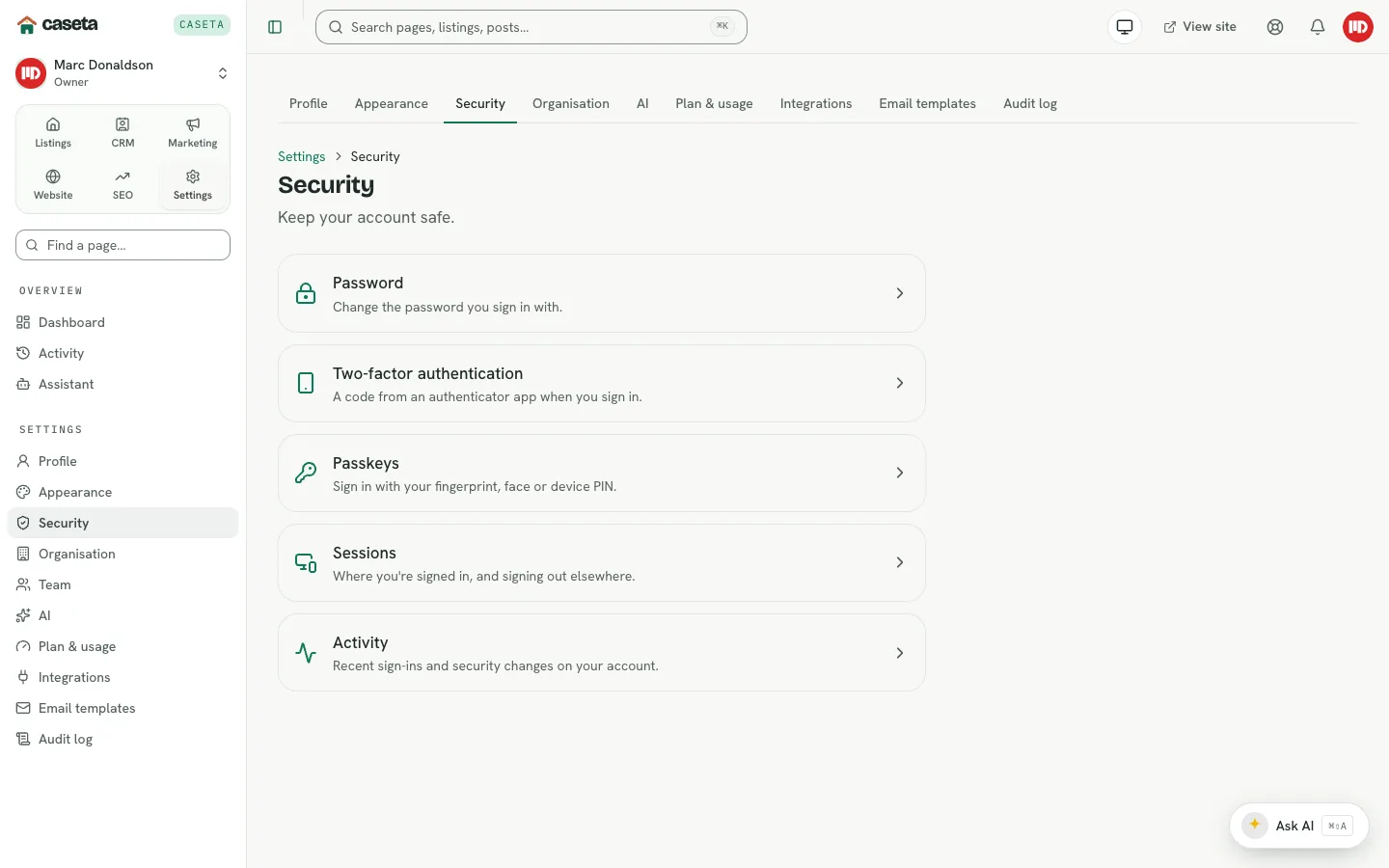
The security hub gathers the controls for your account: the password, two-factor authentication, passkeys, active sessions and recent security events. Some sensitive actions require a recent "confirm it's you" step.
Password
Open Settings → Security → Password.
| Field | Purpose | Validation |
|---|---|---|
| Current password | Proves the account belongs to you | Required |
| New password | The replacement | At least 12 characters, at most 128 |
| Confirm password | Catches typing mistakes | Must match |
| Sign out other devices | Ends other sessions | On/off |
Save. The change is recorded in security activity.
Two-factor authentication
Open Settings → Security → Two-factor authentication.
- Start the setup and scan the QR code with an authenticator app, or enter the secret.
- Enter the 6-digit code to confirm.
- Save the backup codes somewhere safe.
- Choose whether to trust the current device for 30 days after a challenge.
Later you can turn 2FA off or generate new backup codes. A recent confirmation may be required.
Passkeys
Open Settings → Security → Passkeys.
- Select Add a passkey.
- Follow the browser/device prompt (fingerprint, face or device PIN).
- Give the passkey a name.
- Save.
Passkeys can be renamed or removed. Removing the last authentication method may leave the account unable to sign in; keep a password or another passkey.
Sessions
Open Settings → Security → Sessions. The page lists where you are signed in, with device and time information. Revoke a session you do not recognise or sign out everywhere else.
Activity
Open Settings → Security → Activity for recent sign-ins and security changes. Use it to check whether an unexpected sign-in occurred.
Common Problems
- The password change is refused. The current password is wrong, or the new one is
shorter than 12 characters.
- The authenticator code is rejected. Codes are time-based; wait for the next one and
check the device clock.
- Backup codes are lost. Generate new ones while still signed in. If locked out,
contact support.
- A passkey does not work on another device. Passkeys are device/credential-bound; add
one per device you use.
- You cannot revoke a session. Try again from the current session; a recent
confirmation may be required.
Security and Privacy
Use a unique password and a password manager. Enable 2FA for owners and admins. Review sessions and activity regularly. Never share backup codes or a live reset link.