Locations, Property Types, Feeds and Property Sheets
A reference for the supporting listings tools: locations, property types and features, portal feed import, and printable property sheets.
Overview
These tools support listings rather than edit a single property. Locations provide the town/area tree used by listing forms and buyer requirements. Property types and features are the vocabulary agents tick. Feed import brings properties in from a portal XML feed. Property sheets turn a listing into a printable brochure.
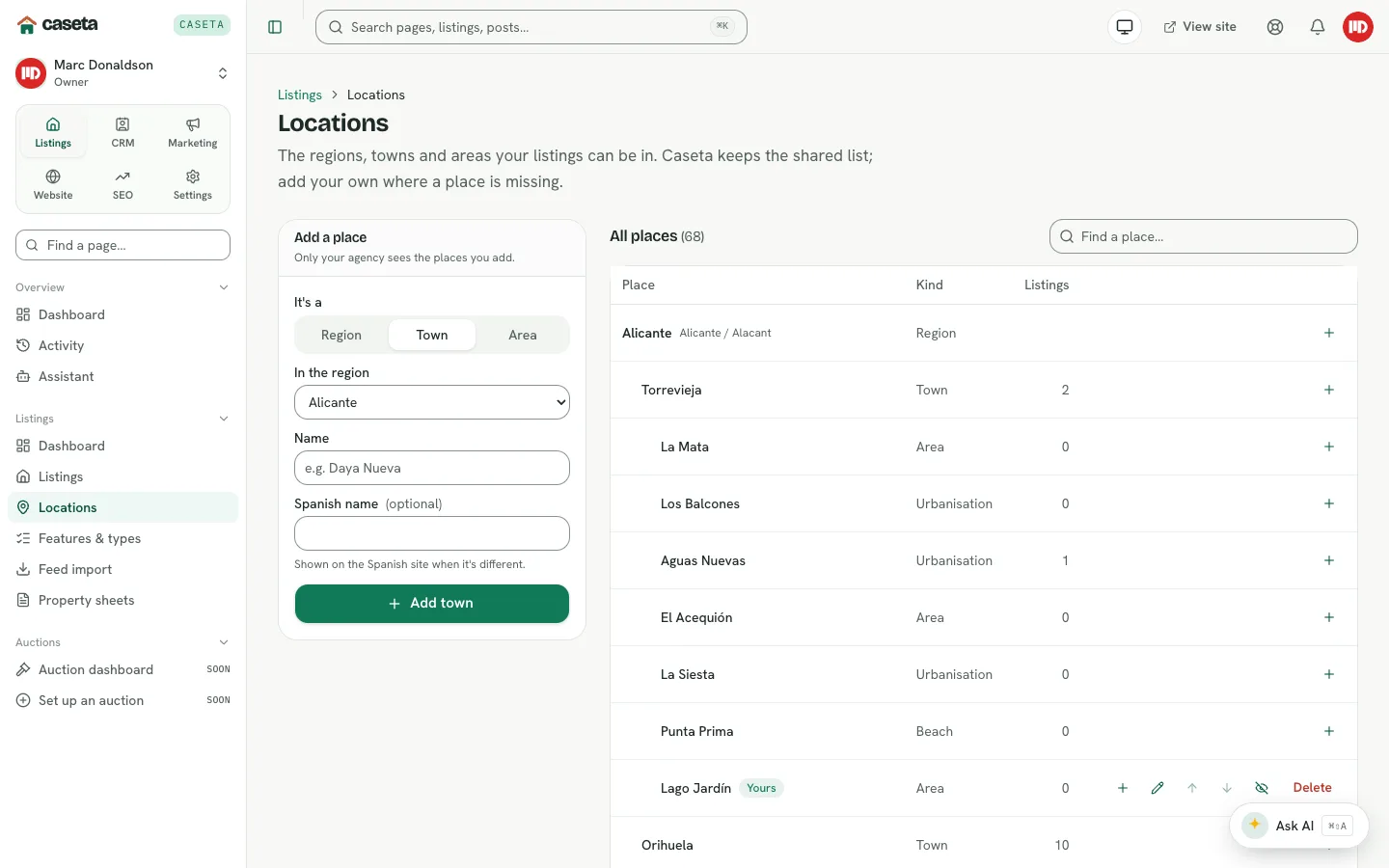
Locations
What it does
Locations are a three-level tree: region → town → area. Only your agency sees the places you add. Listings and buyer requirements use the same tree.
How to add a place
- Open Listings → Locations.
- In Add a place, choose the kind (region, town or area).
- For a town or area, choose its parent.
- Enter the name (up to 80 characters) and submit.
Managing places
| Action | Effect |
|---|---|
| Add a town under a region | Creates a town the listing form can use |
| Add an area under a town | Creates a smaller area and map circle |
| Edit | Renames the place |
| Move up / down | Changes its order in the tree |
| Hide / Show | Hides it from new selections without deleting it |
| Delete | Removes it; listings that use it may need attention |
Use Find a place… to filter a long tree. The Listings count shows how many listings use each place.
Property types and features
What it does
Listings → Features & types has two tabs:
- Property types — the classification shown on listings (for example Villa,
Apartment, Cortijo). Types can have child types.
- Features — the amenities and attributes agents tick (for example private pool,
air conditioning). A feature's value type decides whether it takes a yes/no, a count or a short detail.
How to add
- Open the tab.
- Use Add a property type or Add a feature.
- Enter a name (up to 80 characters); for a feature, choose its value type.
- Submit.
Agency-specific additions are private to your organisation. The Listings count shows how many records use an item. A type or feature in use cannot be deleted without addressing those listings.
Feed import
What it does
Feed import reads a property XML feed (Kyero and Resales Online's Kyero Plus style) and creates or updates listings, including photos. Imports are only for owners and admins. Nothing is imported until you run the feed.
Add a feed
- Open Listings → Feed import → Add feed.
- Complete:
| Field | Purpose | Notes |
|---|---|---|
| Name | A label only your team sees | Up to 80 characters |
| Web address of the XML | The feed URL | Must start with http:// or https:// |
| Kind of feed | Kyero or Kyero Plus | Resales Online writes types as "Category - Value" (Kyero Plus) |
| Runs | How often the feed should run | When I start it is the available option; daily/weekly are marked coming soon |
| The feed's language | The feed's plain-text language | English or Spanish |
| New listings start as | Draft (recommended) or Published | Drafts let you review before publishing |
| Active | Whether the feed may run | Inactive feeds are kept but not run |
- Save. Caseta can test the address while you type and report whether it looks like a
property feed.
Run and review
- Select Run on the feed to start an import.
- The list shows progress for properties and photos.
- History shows each run's status: Done, Some problems, Failed, Running or Stopped.
- Changes explains what a run created, updated or skipped.
- Clear stuck imports stops runs that appear stuck.
Feeds are subject to SSRF protection: private-network addresses and IP-number hosts are refused, and the feed must be a reasonable size.
Property sheets
What it does
Property sheets create a printable brochure for one or more listings, with your choice of sections and optional custom header/footer wording. The property sheet template is configured in Settings → Templates → Property sheet.
How to use
- Open Listings → Property sheets.
- Choose the listing and the sections to include.
- Preview the sheet.
- Select Download PDF or Open full page and print from the browser.
The listing editor also links to the sheet directly.
Common Problems
- A feed run fails. Check the URL, that it returns XML, that it is reachable, and that
it is not behind a private network. The history records the reason.
- Feed changes are not appearing. A feed may own only some fields; manual edits can
be overwritten on the next run. Review Changes.
- A type or feature cannot be deleted. It is in use. Reassign or clear it on the
affected listings first.
- A place is hidden but still on listings. Hiding prevents new selections; existing
listings keep the value.
- The PDF is blank. Use the print preview and ensure the chosen listing has enough
data and photos.
Screenshots
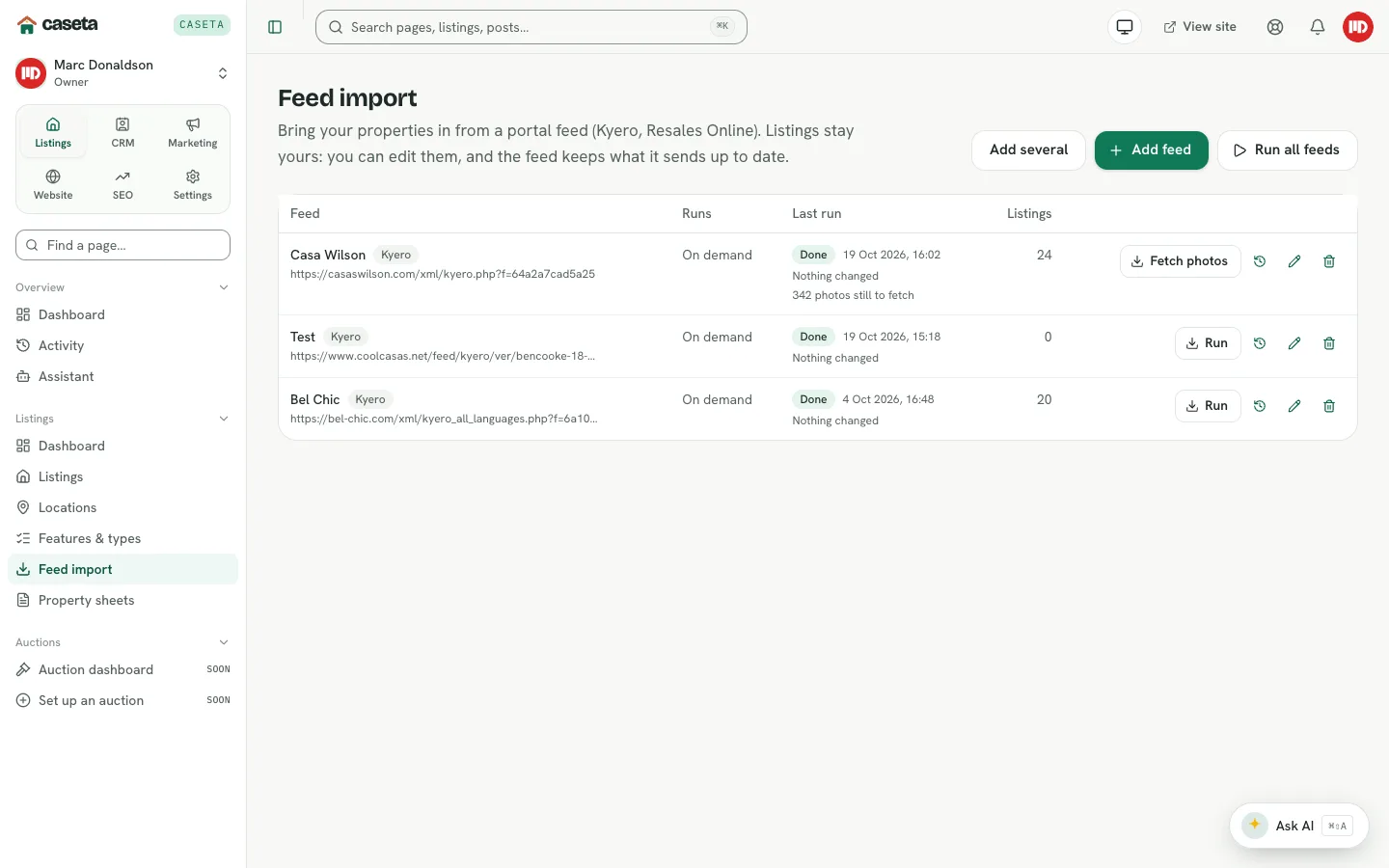
Shows feed import
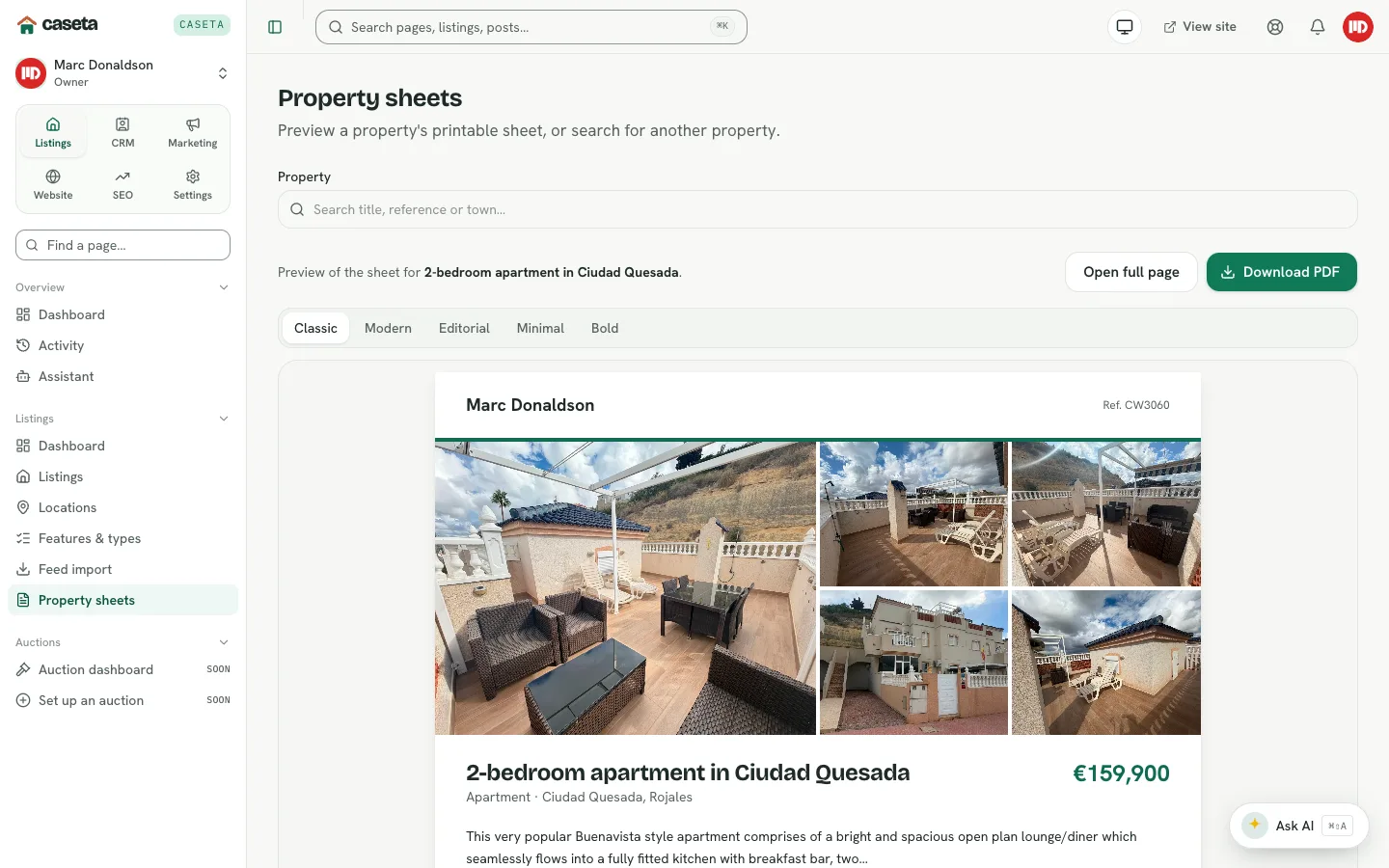
Shows property sheets