Creating a Listing
How to start a property record in Caseta with a title, listing type, reference, location and price.
Overview
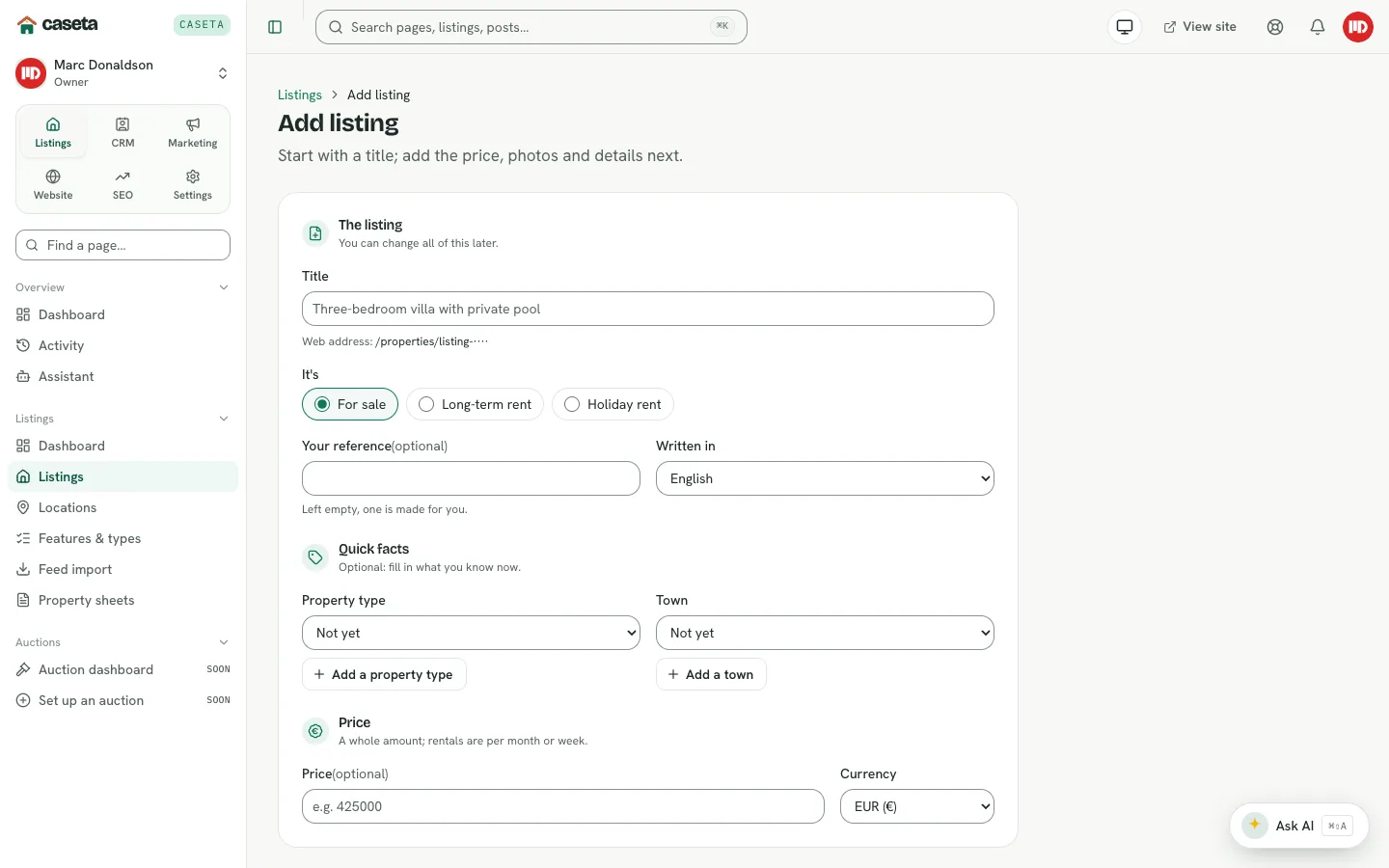
Adding a listing creates a draft you can complete in the editor. The create form asks only for enough information to identify the property: the title, whether it is for sale or rent, an optional reference, the language, the property type, the town and the price. Everything else is added in the full editor.
Who Is This For?
Agents, admins and owners with access to the listings area.
Before You Begin
- A property type and town. If they are missing, add them in **Listings → Features &
types** and Listings → Locations.
- The asking price and currency, if known.
- The language the listing is written in.
Step-by-Step Instructions
Step 1: Open the create form
Choose Listings → Add listing, or New listing on the dashboard.
Step 2: Enter the listing details
| Field | Purpose | How to complete it | Validation | Required? | Result |
|---|---|---|---|---|---|
| Title | The listing's name | A descriptive title | 1–200 characters | Yes | Shown in the list, editor and public page |
| Listed for | Sale or rent | Choose For sale or For rent | One of the two values | Yes | Controls price wording and matching |
| Your reference | Your internal code | Optional; leave empty to generate one | At most 40 characters | No | Shown on the listing and used in search |
| Written in | The listing language | Choose the language | Must be a supported content language | Yes | Sets the record's language |
| Property type | Classifies the property | Choose a type from the vocabulary | Must be an existing type | No | Used in filters, matching and the public page |
| Town | The property's town | Choose from the locations tree | Must be an existing town | No | Used on the listing and map |
| Price | The asking price | Whole number; rents are per month or week | 0 or more; currency required | No | Displayed as the price |
| Currency | The price currency | Choose from the supported currencies | Three-letter ISO code | Yes | Displayed with the price |
Step 3: Save the draft
Select the create action. Caseta creates the listing and opens its editor. The web address is generated from the title; you do not type it.
Step 4: Complete the record
Continue with the editor tabs: description, photos, features, location, energy, costs, tour/video, sharing and SEO. See Editing a Listing.
Understanding the Fields
| Field | Notes |
|---|---|
| Title | Editable later. Changing it does not change the existing web address; old addresses keep working. |
| Reference | If you leave it empty, Caseta generates one. References are useful for portals and printed sheets. |
| Property type | Agency-specific additions are available only to your organisation. |
| Town | Towns belong to regions and can contain areas. |
| Price | Use Price on request later in the editor to hide the amount. |
| Currency | The listing's own currency; it does not have to match the agency default. |
What Happens Next?
The new listing is a draft. It is not public and does not appear on the website until you publish it. Add photos and a description before publishing.
Common Problems
- No property types or towns are available. Add them first; owners and admins manage
both lists.
- The reference is rejected. Keep it to 40 characters or fewer, or leave it empty.
- The form says a field is required. Title, listed-for, language and currency are the
minimum. The other fields can be completed later.
- The price looks wrong for a rental. Use the price period in the editor so the public
page shows "per month" or "per week".
Frequently Asked Questions
Can I duplicate a listing? The list provides duplicate actions where available.
Can I create a listing from a feed instead? Yes; feed import creates and updates listings. See Locations, Property Types, Feeds and Property Sheets.
Can I change the web address? The address is generated from the title. Existing addresses keep working after a title change.