Publishing a Listing
How to publish, schedule, unpublish and archive a listing, and how to create announcement drafts and property sheets.
Overview
Saving and publishing are separate. A listing can stay a draft while you work on it, then be published immediately or scheduled for a future date. Published listings become available to the public site, portal exports and other features that use live property data.
Who Is This For?
Agents, admins and owners with listing access.
Step-by-Step Instructions
Step 1: Open the listing
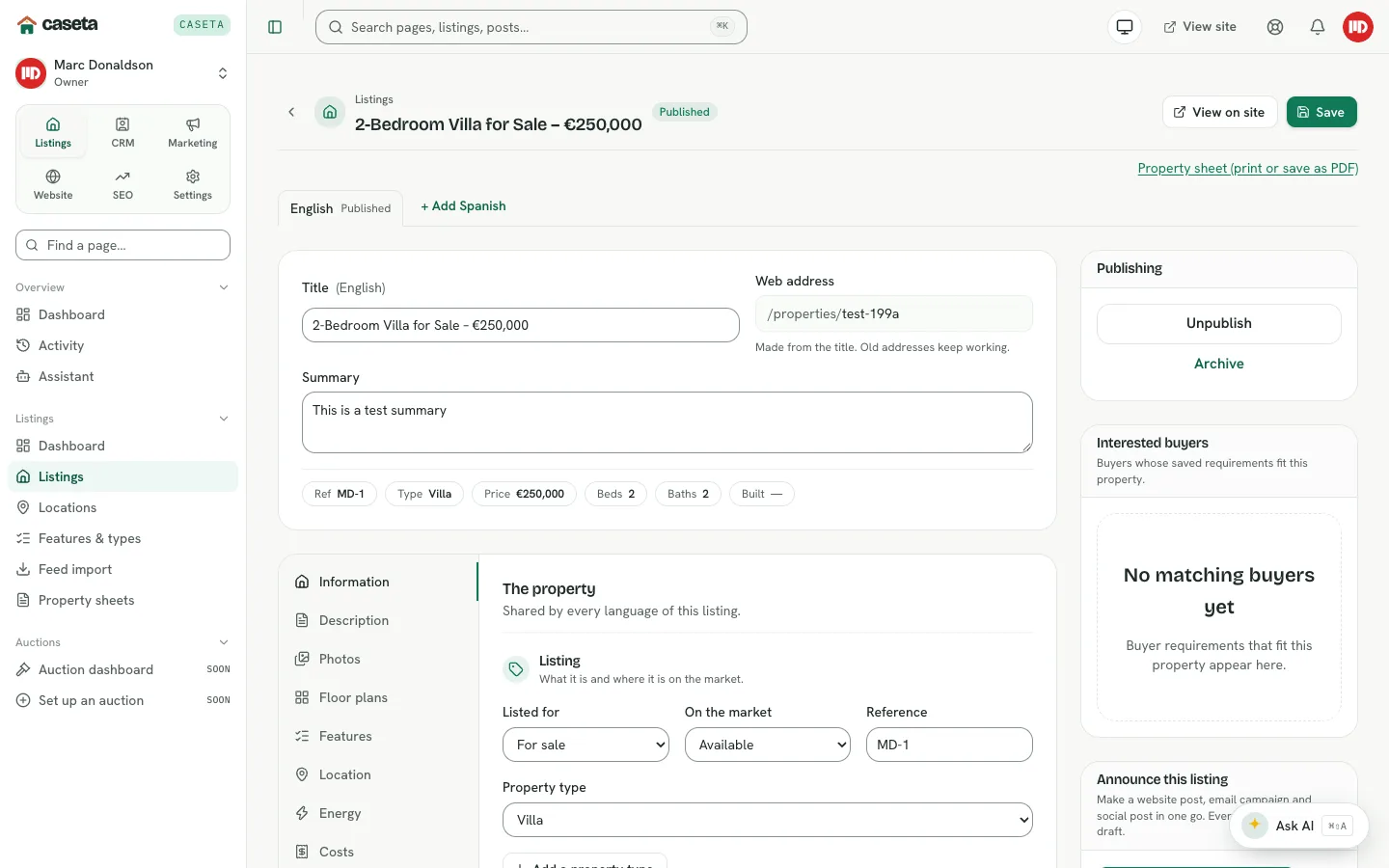
Open the property in the listing editor. The Publishing panel is in the right column.
Step 2: Choose an action
| Current state | Available actions |
|---|---|
| Draft | Publish now, Schedule, Archive |
| Scheduled | Save & publish (if edited), Reschedule, Cancel schedule, Archive |
| Published | Unpublish, Archive |
| Archived | Restore to drafts |
- Publish now — publishes immediately.
- Schedule — choose a future date and time in the browser's time zone.
- Unpublish — returns the listing to drafts and removes it from the public site.
- Archive — removes the listing from the active list without deleting it.
- Restore to drafts — brings an archived listing back.
If you have unsaved edits, Publish now becomes Save & publish so the current values are saved first.
Step 3: Confirm the result
A success message confirms the new state. The list and the public site reflect the change. Scheduled listings publish automatically at the chosen time.
Step 4: Announce the listing (optional)
In the Announce this listing panel, select the action. Caseta creates drafts for the available channels:
- a website post draft,
- an email campaign draft when email is available,
- a social post draft when social is available.
Skipped channels are named in the result. The drafts still need review and their own publishing or scheduling step.
Step 5: Create a property sheet (optional)
Use the Property sheet (print or save as PDF) link to open the printable brochure, or open Listings → Property sheets for the batch tools. The brochure wording can be customised in Settings → Templates → Property sheet.
Understanding the States
| State | Public? | Notes |
|---|---|---|
| Draft | No | Work in progress |
| Scheduled | Not yet | Goes live at the chosen time |
| Published | Yes | Available to the site and live-property features |
| Archived | No | Kept for history and possible restore |
Common Problems
- The listing is published but not visible. Check the website's live switch, the
custom domain, any redirect and whether the listing is excluded from the public site by its market status or sharing settings.
- A scheduled listing did not appear. Check the scheduled time and time zone; the
page stores the intended moment and the browser supplies its offset.
- Announcement drafts were skipped. The corresponding module may not be in the plan,
or the listing may not be shareable.
- You cannot publish. Your role or access grant may be read-only, or the plan's
listings limit may be reached.
Frequently Asked Questions
Does unpublishing delete the listing? No. It returns it to drafts.
Can I edit a published listing? Yes; saving updates the public page. Some changes may need a cache refresh before they appear.
Do scheduled listings count as published? No, until their time arrives.
Screenshots
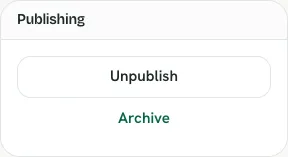
Shows the listing publishing panel