Configuring AI Providers
How to connect an AI provider, test it, choose a default model and set per-module models in Caseta.
Overview
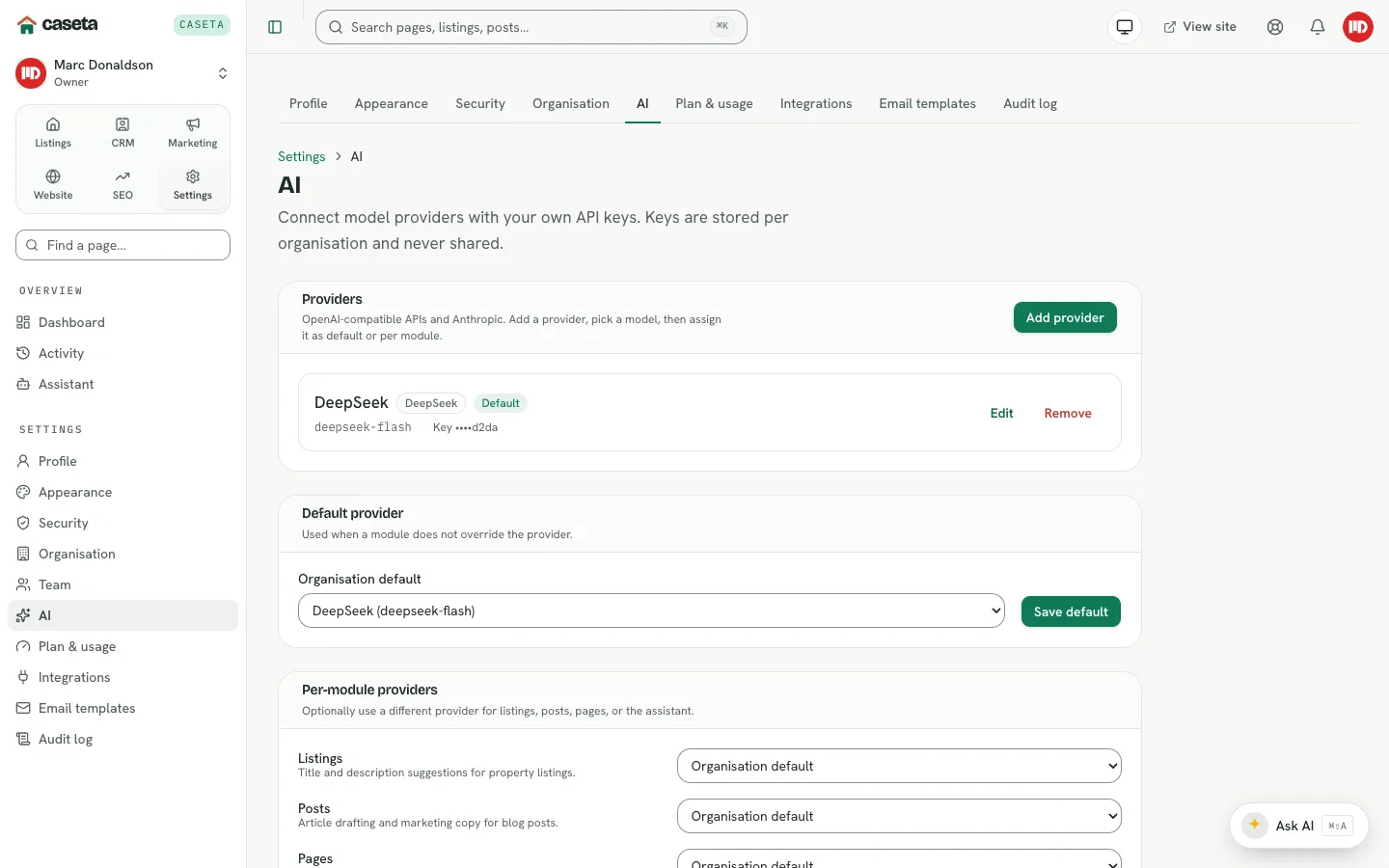
Caseta uses the agency's own AI provider. Add one or more providers, test the credentials, verify the model, then choose a default and optional per-module overrides. Without a working provider, AI actions and the assistant are disabled.
Who Is This For?
Owners and admins. The provider settings are organisation-wide.
Step-by-Step Instructions
Step 1: Open Settings → AI
Choose Settings → AI from the sidebar or the settings tabs.
Step 2: Add a provider
Select a preset:
| Preset | Typical use |
|---|---|
| OpenAI | GPT-4o and o-series |
| Anthropic | Claude Sonnet, Opus and Haiku |
| xAI (Grok) | Grok models |
| Groq | Fast Llama/Mixtral inference |
| OpenRouter | Many models through one API |
| Together AI | Open-source model hosting |
| DeepSeek | DeepSeek chat and reasoner |
| Custom | Any OpenAI-compatible endpoint |
Then complete the wizard:
- Provider — choose the preset.
- Credentials — a label, the base URL (pre-filled for presets), and the API key.
- Model — fetch the model list or type a model ID.
Select save.
Step 3: Test
Use the test action on the provider. Caseta sends a small request. A failure usually means a wrong key, base URL or model.
Step 4: Choose the default
In Default provider, choose the provider used when a module has no override, or None to keep AI off by default.
Step 5: Set per-module providers (optional)
In Per-module providers, choose a different provider for:
- Listings — title and description suggestions.
- Posts — article drafting and marketing copy.
- Pages — page content.
- Assistant — the chat assistant. Choose a model that supports tools.
Leaving a module on Organisation default inherits the default.
Step 6: Manage providers
Use the provider row actions to enable/disable, edit or remove a provider. Removing a provider that is the default may leave AI disabled until another is chosen.
Understanding the Fields
| Field | Notes |
|---|---|
| Label | A name for your team; does not affect the API |
| Base URL | The provider's compatible API base, normally ending in /v1 |
| API key | Stored securely; shown only as a hint after saving |
| Model | The model ID the provider accepts |
| Enabled | Whether the provider can be used |
Common Problems
- The test fails with 401. The API key is wrong or revoked.
- The test fails with 404. The base URL or model is wrong.
- The model list is empty. The provider may not expose a model list; type the model ID
manually.
- AI actions still say unavailable. No default provider is set, or the selected
provider is disabled.
- The assistant behaves poorly. Use a model that supports tool calling for the
Assistant module.
- You cannot open the page. AI settings are owner/admin only.
Security and Privacy
API keys are secrets. Do not share them in screenshots or messages. Requests go to the configured provider; choose a provider and model that meet the agency's data policy. Use the minimum permissions the key needs.
Screenshots
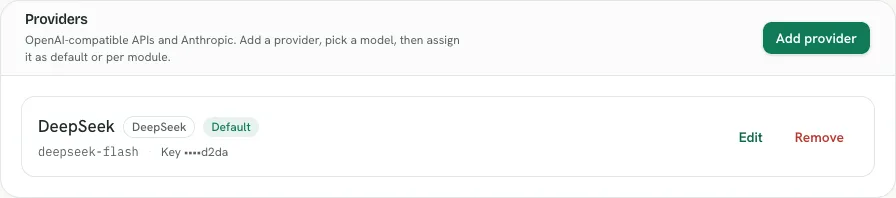
Shows the ai providers panel