Using the AI Assistant
How to ask the Caseta assistant about listings, enquiries, contacts and the agency, and how approvals and memory work.
Overview
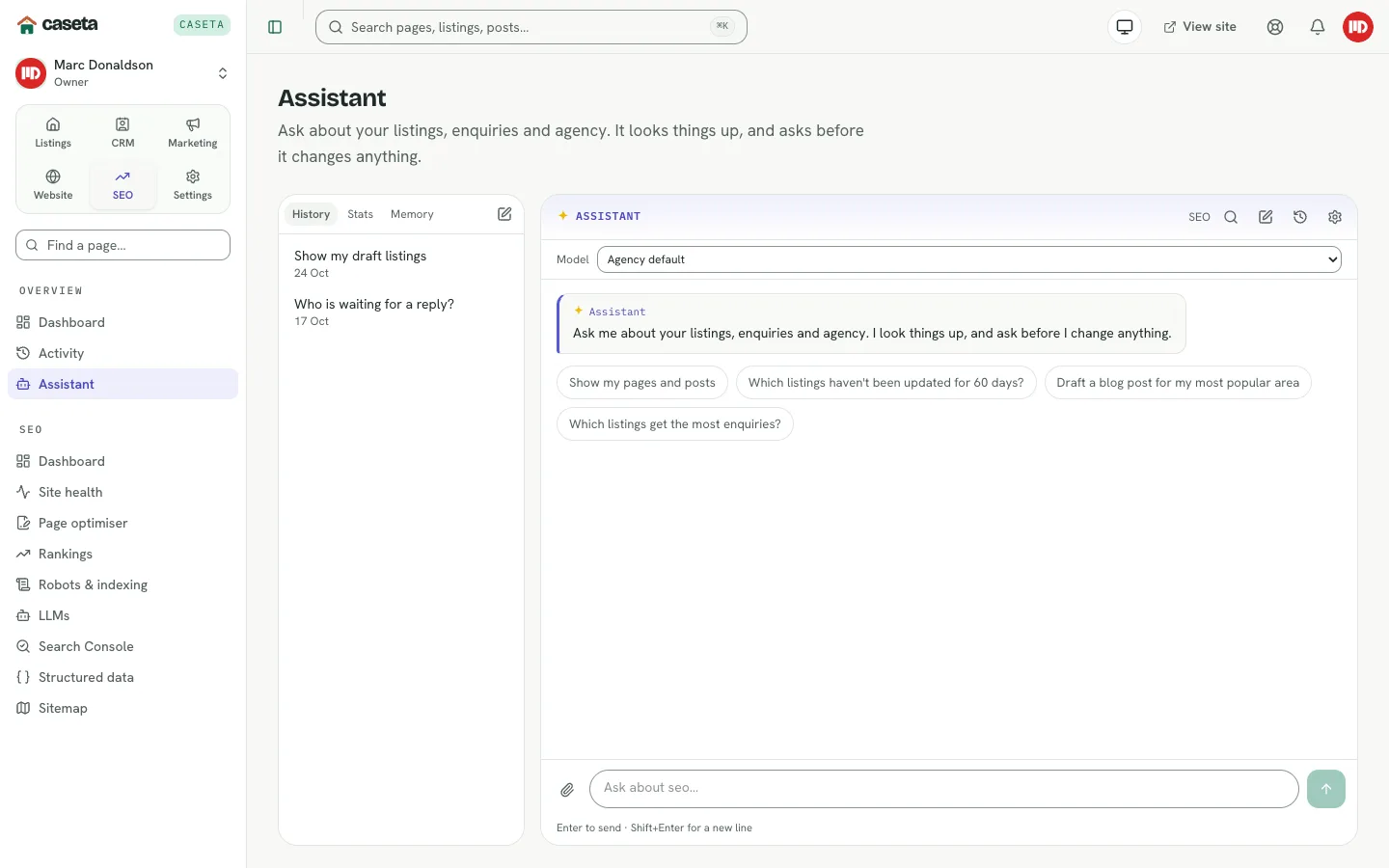
The assistant answers questions about the agency's listings, enquiries, contacts, deals, tasks and viewings. It looks information up with tools instead of guessing, and asks for confirmation before it changes anything. It can be opened on its own page or from the floating Ask AI launcher.
Who Is This For?
Members whose organisation has the assistant enabled and whose access grant allows the AI area.
Step-by-Step Instructions
Step 1: Open the assistant
Choose Overview → Assistant, or select the floating Ask AI button. On the dashboard, you can also type a question in the hero ask box.
Step 2: Ask a question
Type a natural-language question, for example:
- "Show my draft listings."
- "Which enquiries came in this week?"
- "Summarise the contact Ana Pérez."
- "What viewings are coming up?"
The assistant chooses the relevant tools and shows what it is looking up.
Step 3: Review the answer
Answers may include links, summaries and lists from your own data. Check the source where an answer matters.
Step 4: Approve a change
If a request would create or change something, the assistant asks for approval first. The approval card names the action. Approve only when you understand the change.
Step 5: Use history and memory
- History reopens earlier conversations.
- Memory stores useful context the assistant can reuse. Review and remove memory
entries you no longer want.
Step 6: Choose a provider
Use the provider selector to switch models for the conversation where available. The Agency default uses the organisation's configured provider.
The voice assistant
Open /ai-voice-assistant for a spoken experience. It uses the browser's speech
recognition where available, shows a listening/thinking/speaking status, and can read
answers aloud. Voice is a separate public page and does not replace the in-app assistant.
Understanding the tools
The assistant can search your data, find listings, summarise a listing, check the agency overview, find enquiries, contacts, deals, tasks and viewings, and request approval for a write. Tools respect your access grant.
Common Problems
- The assistant says AI is unavailable. Add and test a provider in Settings → AI.
- Answers are vague. Ask a more specific question and name the record or time range.
- A write is refused. Your role or access grant may not allow it.
- Voice does not work. The browser may not support speech recognition; use the text
assistant.
- Memory contains something unwanted. Remove the entry from the memory panel.
Security and Privacy
The assistant only sees data the signed-in member may access. Approval gates protect writes. Do not paste secrets or unnecessary personal data into prompts. AI requests go to the configured provider; review the provider's data policy.