Configuring Integrations, Templates and the Audit Log
How to test connected services, edit transactional email wording and email design, customise property sheets, and review the audit log.
Overview
These owner/admin tools cover the services Caseta connects to, the wording and look of transactional emails, the printable property sheet, and the organisation's audit trail. Availability depends on the organisation's feature flags and plan.
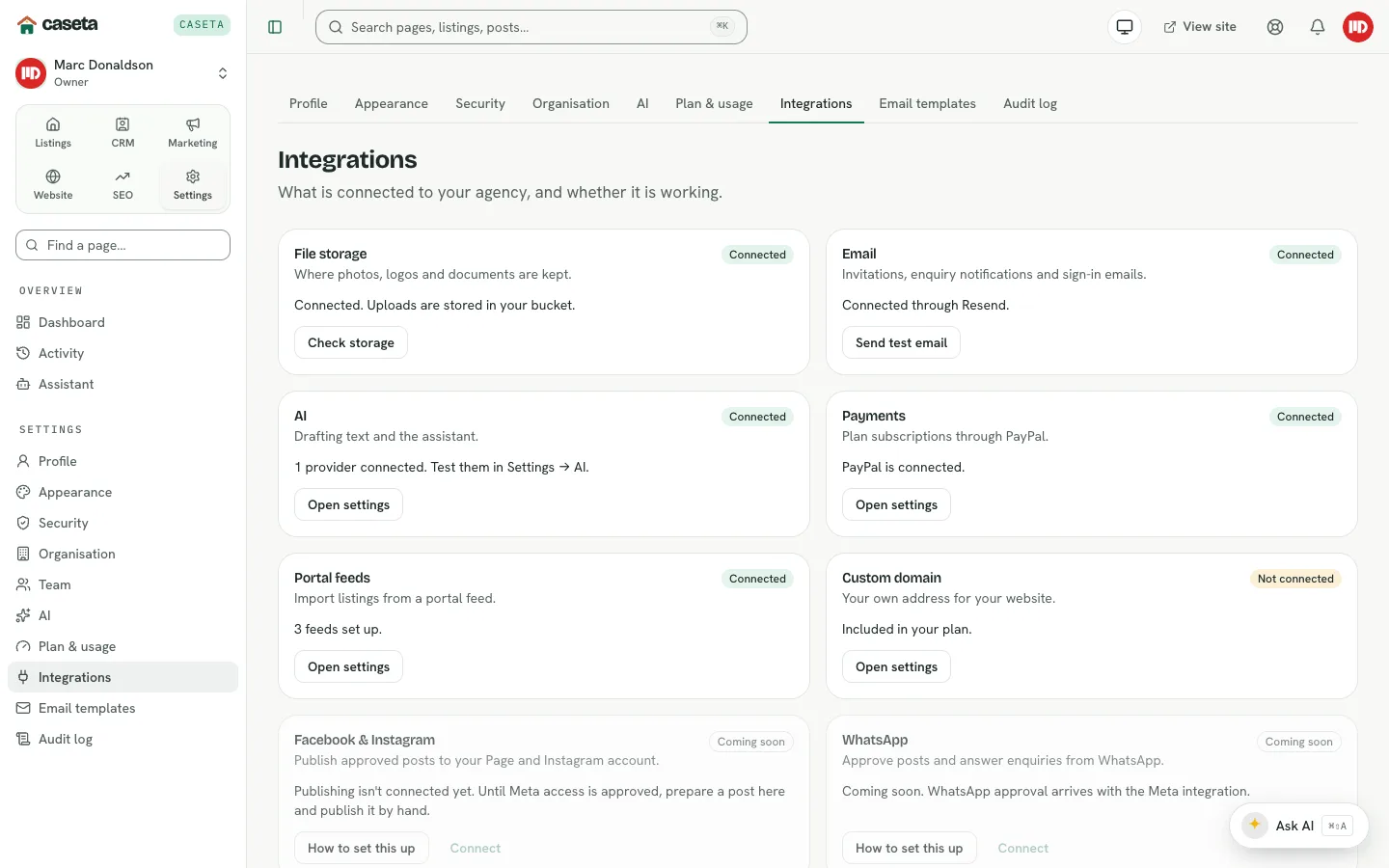
Integrations
Open Settings → Integrations. The page lists connected services with a status:
| Status | Meaning |
|---|---|
| Connected | The service is configured |
| Not connected | Configuration is missing |
| Coming soon | The integration is not available yet |
Available actions:
- Send test email — checks the email transport.
- Check storage — checks the storage connection.
- Open settings / How to set this up — opens the relevant configuration or guide.
A failed test usually means a wrong key, endpoint, sender identity or bucket. Fix the configuration and test again.
Email templates
Open Settings → Templates → Email templates.
Caseta's transactional emails (invitations, resets, notifications and others) have editable wording. Choose a template, edit its text, and save. Use Reset to restore the shipped wording and Preview to see the rendered email. Changes apply to everything sent from now on; they do not rewrite emails already sent.
Email design
Open Settings → Templates → Email design.
| Field | Purpose |
|---|---|
| Agency name | The brand name in emails |
| Logo URL | An HTTPS logo |
| Primary / Accent | Button and highlight colours |
| Page background / Card / Text / Muted / Button text | The email palette |
| Font | The email font |
| Header line | Optional text above the content |
| Footer | Optional footer text; the unsubscribe link and legal footer are added automatically |
| Button radius | The corner radius in pixels |
Save design. The preview shows the result.
Property sheet template
Open Settings → Templates → Property sheet.
| Field | Purpose | Validation |
|---|---|---|
| Header line | The line above the brochure content | Within the displayed character limit |
| Footer text | The line below the content | Within the displayed character limit |
Save, then preview with a property. Download PDF prints or saves the sheet.
Audit log
Open Settings → Audit log.
- Filter by category, actor and a date range.
- Read the table's When, Who, What and Category columns.
- Use Older events to paginate.
- Download spreadsheet exports the current filtered view as CSV.
The audit log is for managers. It records organisation events such as sign-ins, security changes, content, listings, plan changes and team changes. The Activity page is the lighter, member-facing view.
Common Problems
- A test email fails. Check the email provider key, sender address and domain
verification.
- Storage check fails. Check the endpoint, bucket, region and credentials.
- A template change does not appear. Confirm the save succeeded and check which
template the event uses.
- The logo does not show in email. Use a public HTTPS URL that the email client can
load.
- Audit export is empty. The filters may match nothing; widen the date range.
- A page is missing. The feature flag may be off for the deployment or organisation.
Security and Privacy
Integration keys are secrets. Do not share screenshots containing them. The audit log contains personal data; restrict exports and store them securely.
Screenshots
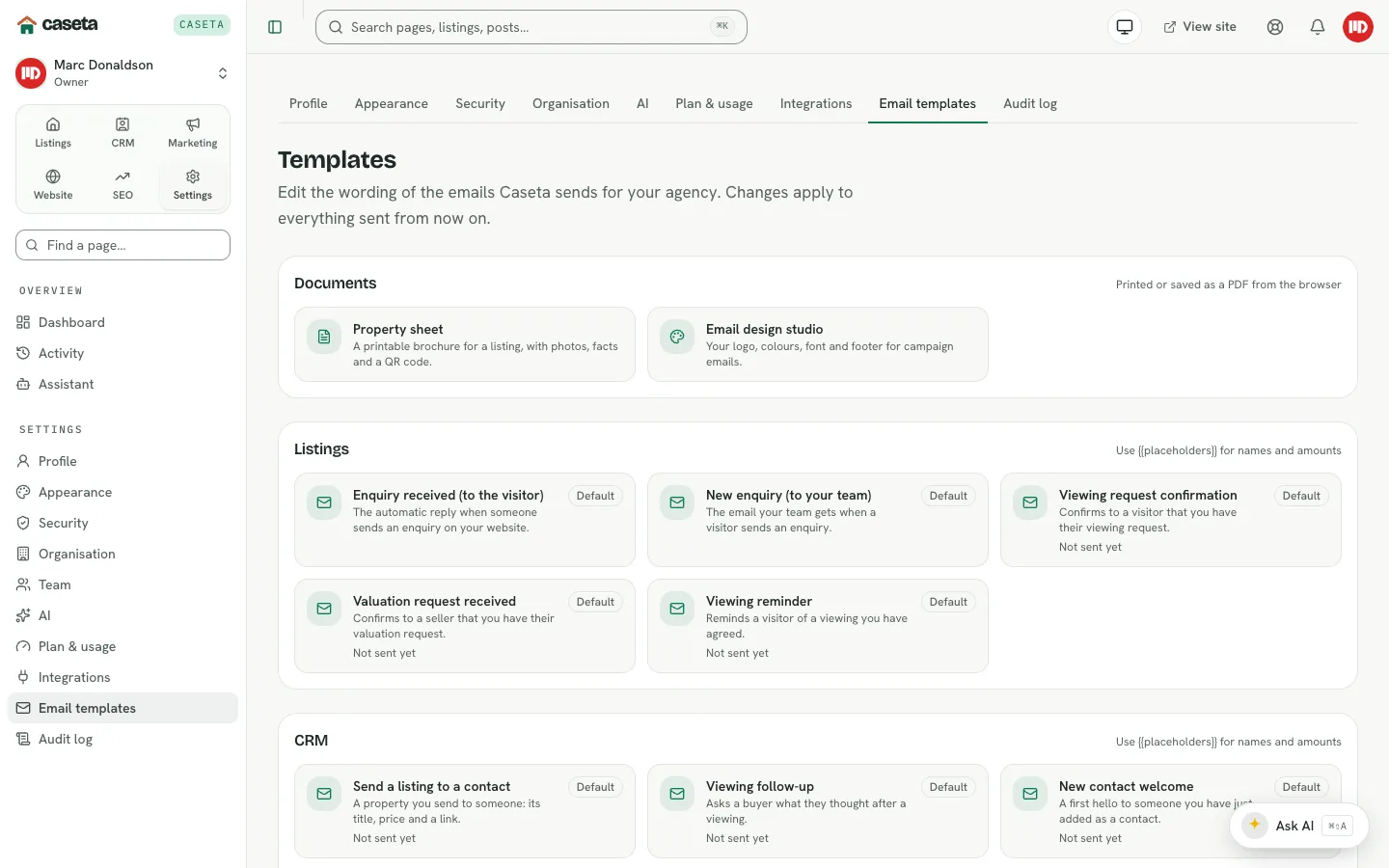
Shows transactional templates
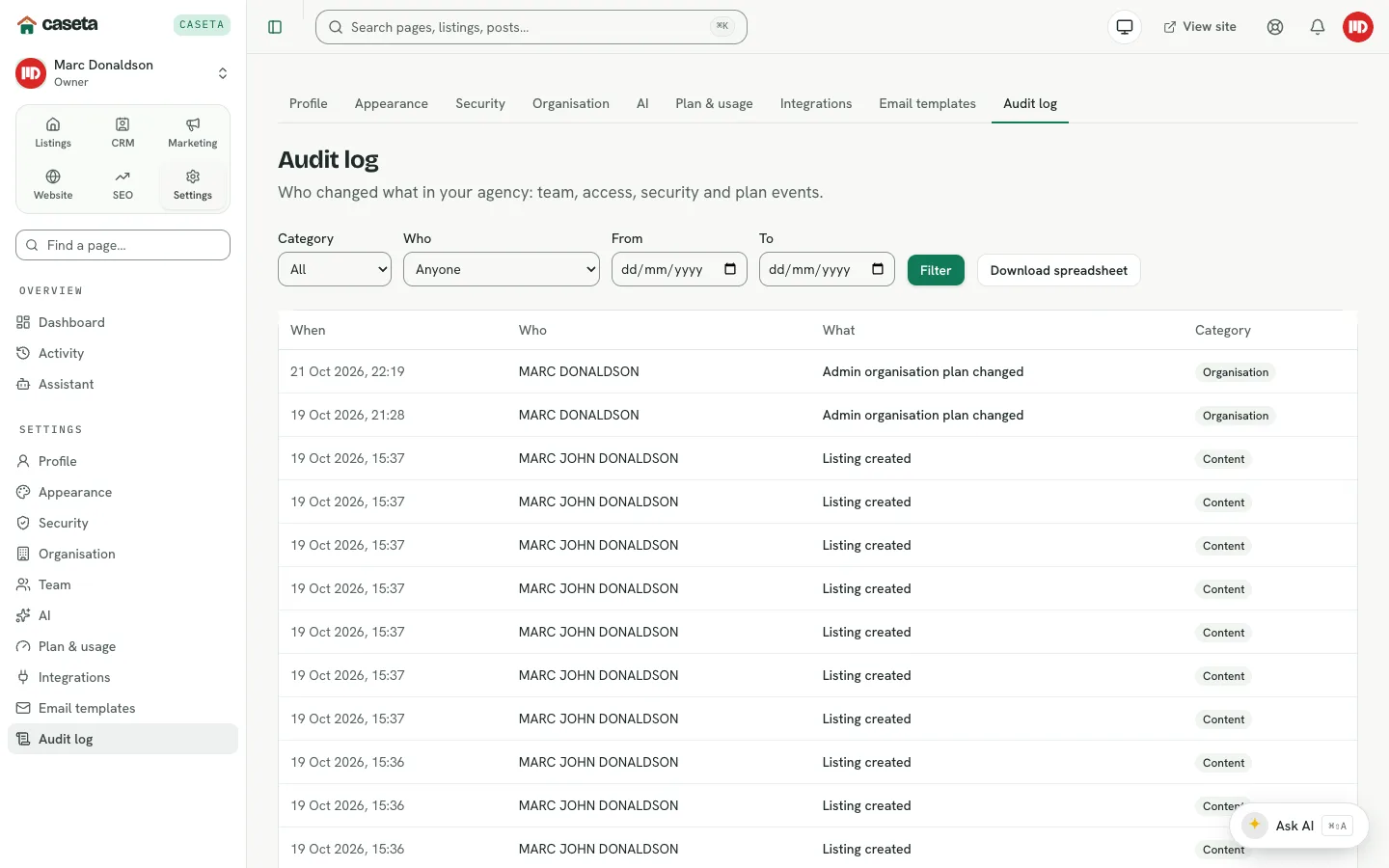
Shows the audit log

Shows the integration status panel