Configuring Member Access and Switching Organisations
How access areas, presets and read-only mode work, and how to switch between agencies in Caseta.
Overview
Caseta has two permission layers:
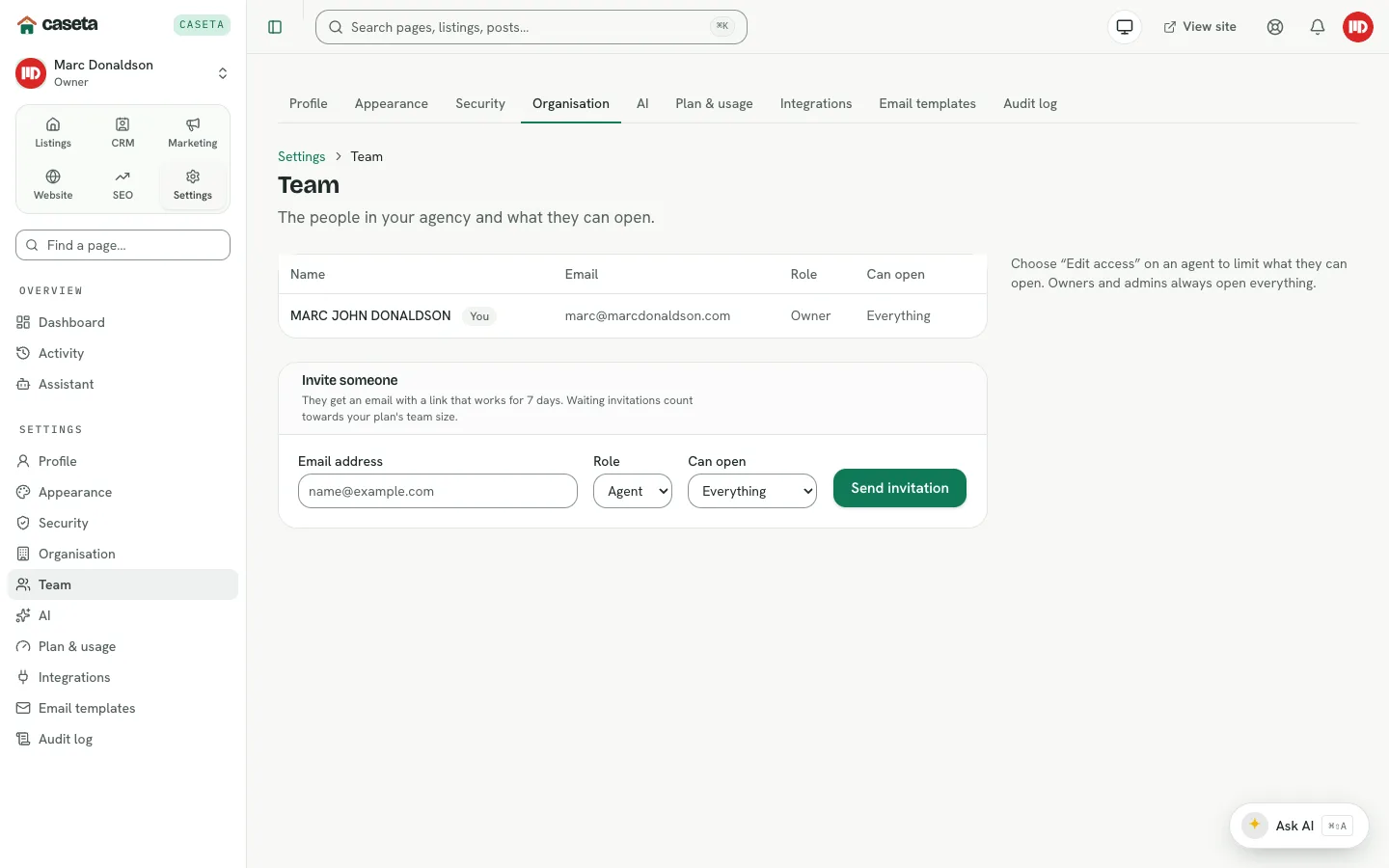
- Organisation roles — Owner, Admin and Agent (member).
- Access areas — an optional, finer grant for members: which parts of the app they can
open and whether they are read-only.
Owners and admins are unrestricted by role. A member with no grant row is also unrestricted, so behaviour is unchanged until an admin sets a grant.
Access areas
When enabled, the available areas are:
| Area | Covers |
|---|---|
| Listings | Properties, photos and search |
| Locations | Regions, towns and areas |
| Feeds, types & features | Feed import, property types and features |
| Enquiries | Website and portal enquiries |
| Contacts & pipeline | Contacts, sales pipeline and viewings |
| Marketing | Email, portals and social |
| SEO | Search visibility |
| Pages, posts & menus | Website content, media, redirects, robots, LLMs and legal |
| Site design | The design studio |
| Website settings | Site settings and custom domains |
| AI assistant | Use and configure the assistant |
| Integrations | Integrations and templates |
| Audit log | The organisation audit trail |
| Team | Invitations and member access |
| Plan & billing | Plan, usage and payments |
| Organisation settings | Name, slug, logo and domain |
Presets
| Preset | Areas | Read-only? |
|---|---|---|
| Manager | Everything except team, plan, integrations and organisation settings | No |
| Listings agent | Listings, locations, feeds, enquiries, AI | No |
| Content editor | Content, design, site settings, AI | No |
| Sales / CRM | Enquiries, CRM, marketing, AI | No |
| View only | Listings, enquiries, content | Yes |
A custom grant can tick any combination and set read-only. The grant stores the final area list, so later edits to a preset do not silently change existing members.
Step-by-Step: set a member's access
- Open Settings → Team.
- Select Edit access on the member.
- Choose a preset or tick individual areas.
- Optionally enable Read only.
- Review the "Will see" summary and save.
Read-only mode
A read-only member can view allowed areas and use their own profile, security, sign-out, organisation switching and the assistant, but state-changing requests are blocked. Use it for auditors, trainees or temporary staff.
What restricted members see
- Menu items outside their areas disappear.
- The command bar hides pages they cannot open.
- A direct visit to a disallowed area returns 403.
- The assistant respects the same access.
Switching organisations
If you belong to more than one agency, use the organisation switcher at the top of the
sidebar. Choosing another agency changes the active organisation and lands you on the
same section where possible. Use Switch organisation (/switch-organisation) for the
same action via the dedicated page.
Common Problems
- A menu item is missing. The plan may not include the module, or the member's grant
excludes the area.
- A member gets 403. Their grant does not include that path; update the access.
- A read-only member can still do something. Report it; the write guard covers normal
form and API writes, but a missed route should be fixed.
- Access settings are missing. The access-areas feature may be off for the deployment
or the organisation.
- You cannot change your own access. This is intentional to prevent self-escalation.
Security and Privacy
Access grants are security boundaries. Keep presets least-privilege, review them when people change roles, and remove access promptly when someone leaves. Owners and admins remain unrestricted; protect those roles carefully.