Creating Segments and Managing Lead Sources
How to save reusable contact segments and manage, rotate and attribute lead sources.
Overview
Segments are saved groups of contacts defined by filters. They make it easy to find the same audience again, preview who matches, and use the group in follow-up rules or email work where supported. Lead sources attribute enquiries and deals to where they came from.
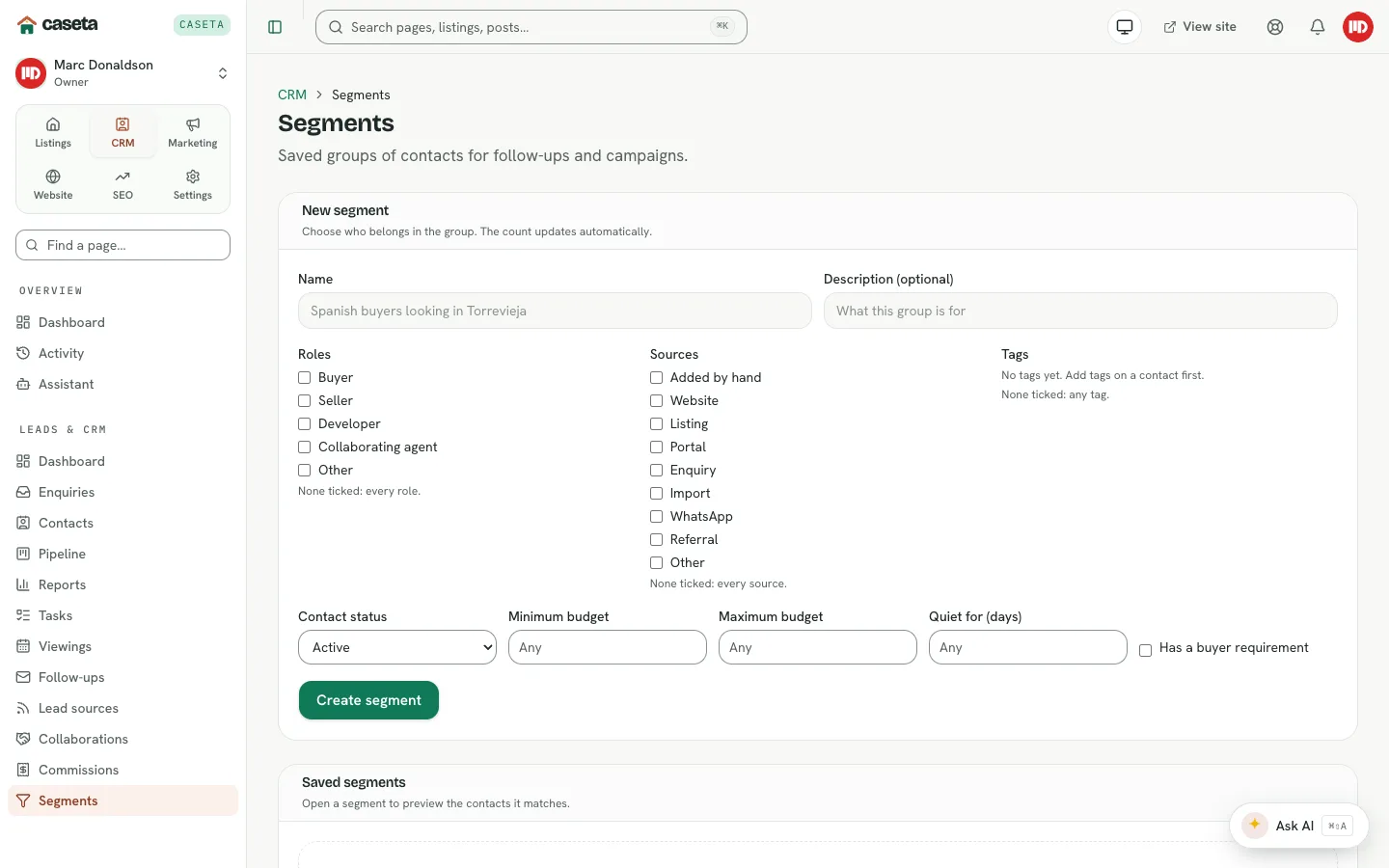
Segments
Create a segment
- Open CRM → Segments and select the create action.
- Complete:
| Field | Purpose | Validation |
|---|---|---|
| Name | The segment's label | Required; up to 80 characters |
| Description | What the segment is for | Up to 500 characters |
| Roles | Buyer, seller, developer, collaborating agent, other | Any combination |
| Tags | Contact tags | Up to 50 names, each up to 60 characters |
| Sources | Contact sources | Any combination |
| Status | Active, archived or all | One of the three |
| Has requirement | Only contacts with a saved requirement | On/off |
| Budget min / max | Requirement budget range | Whole numbers; min ≤ max |
| Inactive days | Last activity older than this | 1–3,650 days |
- Save. The segment page previews the matching contacts.
Use a segment
- Open the segment to see the current matches.
- Edit the filters and save; the membership is recalculated from the filters, not frozen.
- Delete the segment when it is no longer useful. Deleting a segment does not delete
contacts.
Lead sources
What a source is
A source labels where a contact or enquiry came from: manual, website, listing, portal, enquiry, import, WhatsApp, referral or other. Sources are used in reports and in segment filters.
Manage sources
Open CRM → Settings → Lead sources.
- Sources lists the configured sources and their use.
- Needs review lists contacts whose source is unclear.
- Rotate changes a source's tracking link/key where the source provides one.
- Toggle enables or disables a source for new attribution.
- Link assigns a source to an undecided contact.
- Dismiss clears an item from the review list.
Attribution
When a contact arrives from a known channel, the source is recorded automatically. You can change it on the contact record. Reports group leads and sales by source, so accurate attribution matters.
Common Problems
- A segment shows no contacts. The filters are too narrow. Check status, roles, tags
and the inactivity window.
- The budget filter is rejected. The minimum must not be above the maximum.
- A source cannot be removed. Disable it instead; historical contacts still reference
it.
- Attribution is wrong. Edit the contact's source or use Link in the review list.
Screenshots
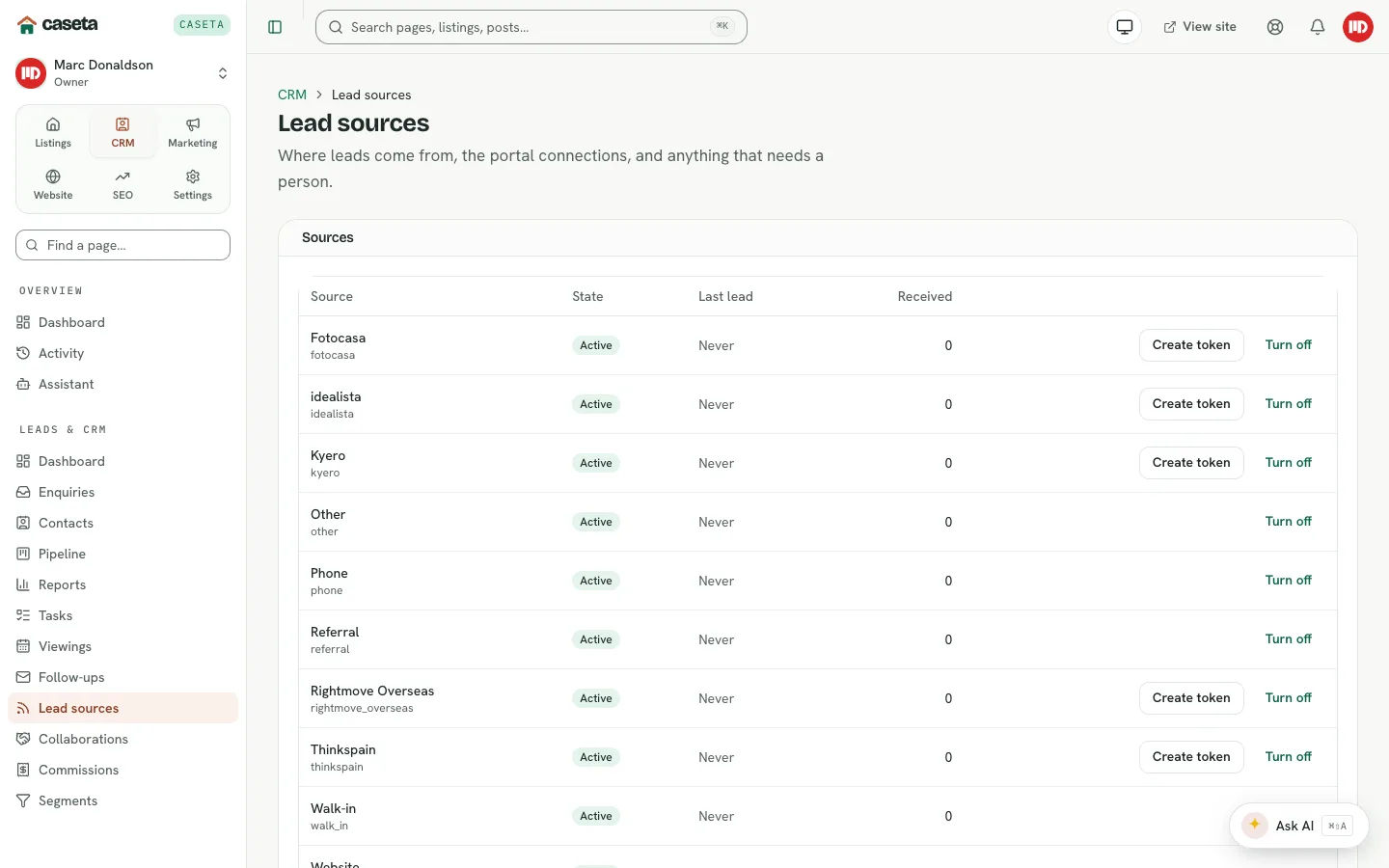
Shows lead sources