Managing Contacts and Duplicates
How to add, find, edit, archive and merge contacts, record buyer requirements and read the contact timeline.
Overview
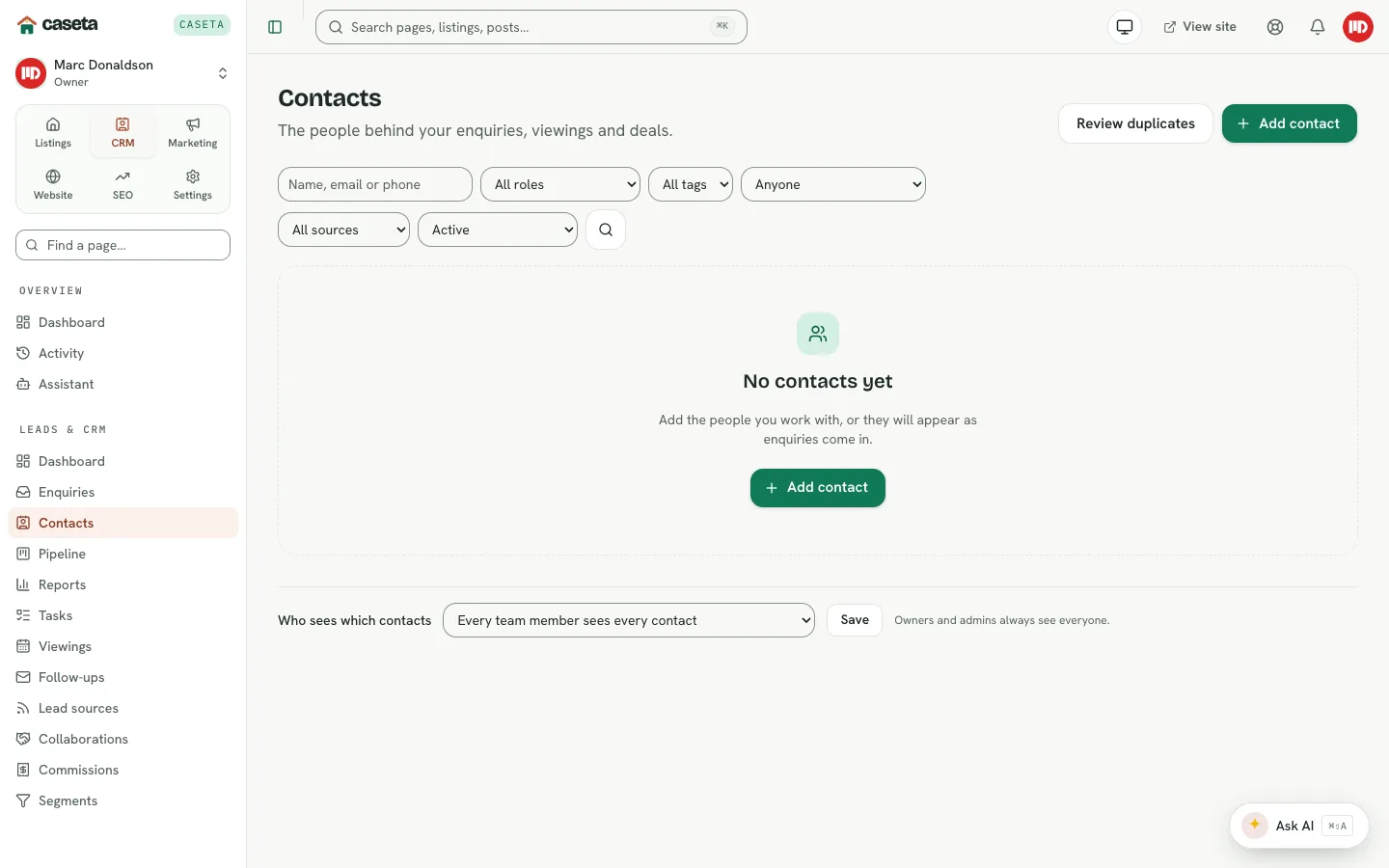
A contact is one person: a buyer, seller, developer, collaborating agent or other relationship. The list supports search, filters, bulk actions and archiving. A contact's page holds their details, requirements, activity, tasks, notes, viewings and linked properties. Duplicate contacts can be reviewed and merged.
Who Is This For?
Agents, admins and owners with CRM access.
Adding a contact
- Open CRM → Contacts and select Add contact.
- Complete the fields:
| Field | Purpose | Validation |
|---|---|---|
| Name | The display name | Required; up to 120 characters |
| First name / Last name | Split name parts | Up to 80 characters each |
| Contact address | A valid address; duplicates can be flagged | |
| Phone | Contact number | Valid; include the country code outside Spain |
| Language | Preferred language | A code such as en or es |
| Nationality | Two-letter country code | Two letters |
| Preferred channel | Email, phone or WhatsApp | One of the three |
| Looked after by | The assigned team member | A member of the agency |
| Source | Where the contact came from | Manual, website, listing, portal, enquiry, import, WhatsApp, referral or other |
| Source detail | A note about the source | Up to 200 characters |
| Roles | Buyer, seller, developer, collaborating agent, other | At least one where applicable |
| Tags | Free-form labels | Up to 20 tags, each up to 40 characters |
- Save.
Finding contacts
- Search by name, email or phone.
- Filter by role, tag, assignee, source or status (active, archived, all).
- Use the column sort controls.
Contact detail
The page is organised into panels:
| Panel | Purpose |
|---|---|
| Contact details | Email, phone, language, roles, source and consent |
| Open tasks | Follow-ups for the person, with complete/snooze actions |
| Buyer requirements | Budget, areas, property types, must-haves and timeline |
| Current requirement / History | The latest version and previous versions |
| Suggested properties | Matches that fit the saved requirement |
| Properties they own | Listings linked to the contact |
| Timeline | Notes, calls, emails, viewings and other events |
Buyer requirements
Requirements are versioned: saving creates a new version and the previous one stays in the history. Fields include budget from/to, currency, purchase type, timeline, minimum beds/baths, areas, property types, must-have features and notes. Saving triggers matching against published listings.
Timeline entries
Record notes, calls, viewings and other activity from the contact page. Use the task fields to create a follow-up with a due date, kind, priority and assignee.
Duplicate contacts
Open CRM → Contacts → Possible duplicates. The page shows pairs or groups that look like the same person. Choose Merge to keep one record and combine the other's history, or Dismiss if they are different people. Merge is irreversible, so check the details first.
Bulk actions
Tick contacts to assign an owner, add a tag or perform another supported bulk operation. The same validation applies as individual edits.
Common Problems
- The email is already used. The CRM may enforce one contact per email. Merge or edit
the existing record instead of creating a duplicate.
- A phone number is rejected. Include the country code for numbers outside Spain.
- No suggested properties. Save a requirement and ensure suitable listings are
published.
- A merge went wrong. Merges are not reversible; review duplicates carefully before
confirming.
- You cannot see some contacts. A "who sees which contacts" scope may restrict the
list, or your access grant may be read-only.