CRM Reports and Settings
How to read the CRM reports and configure pipeline stages, commission defaults, follow-up rules and CRM access.
Overview
The CRM reports show where leads come from, how they progress and how quickly the team responds. The CRM settings control the pipeline, commission defaults, follow-up rules and who can see or change CRM data.
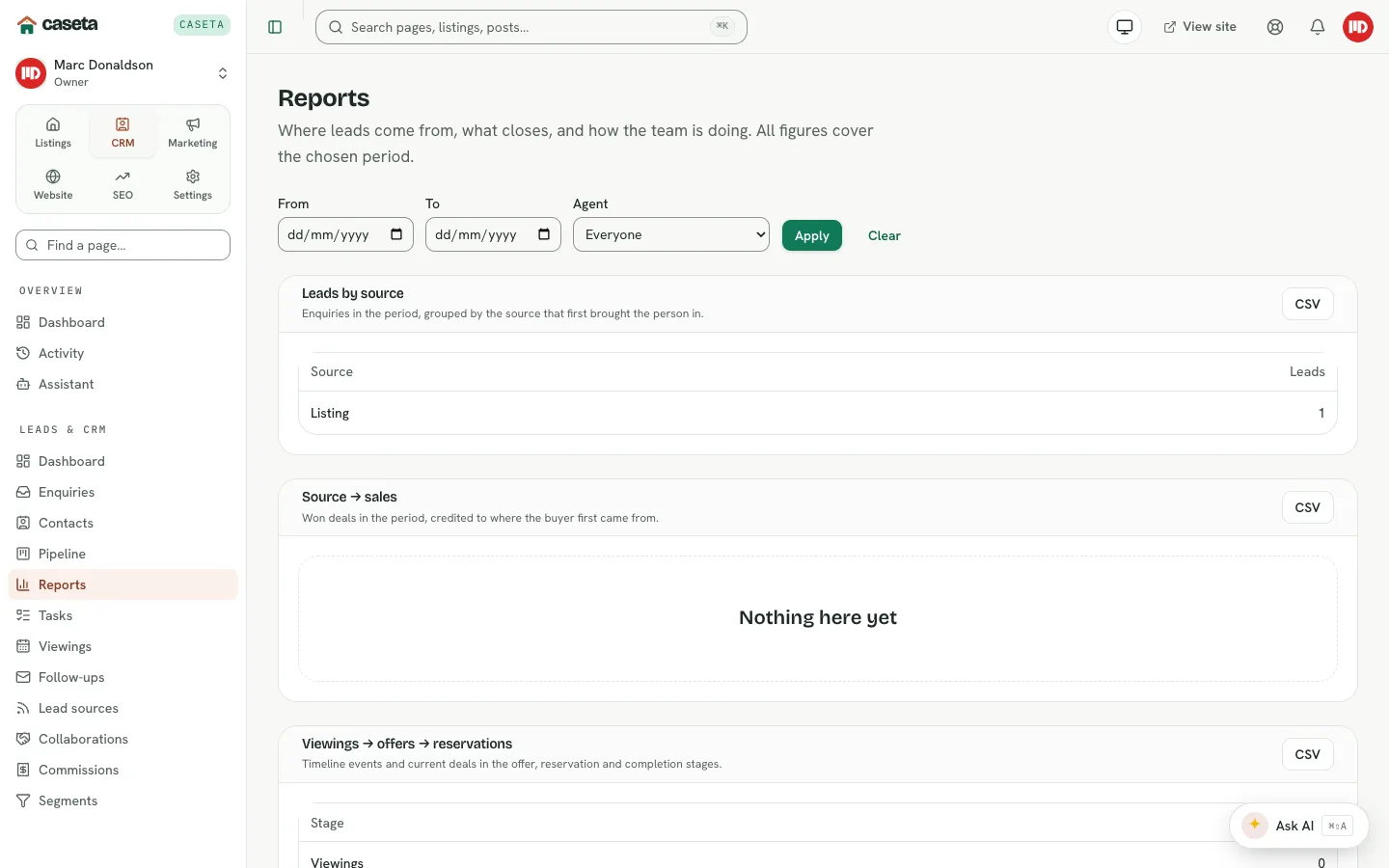
Reports
Open CRM → Reports. The report set includes:
| Report | What it shows |
|---|---|
| Leads by source | Enquiries and contacts grouped by source |
| Source → sales | How many leads from each source become deals or sales |
| Viewings → offers → reservations | Conversion through the viewing and offer stages |
| Listings by age | How long properties have been on the market |
| Sales per agent | Completed or won deals per team member |
| Response time to new leads | How quickly new enquiries get a first response |
Use the report filters where provided to change the date range or compare periods. The numbers reflect the CRM records; incomplete contact sources or missing deal values will show as gaps.
Pipeline stages
Open CRM → Settings → Pipeline.
- Create a stage with a name, a kind (open, won or lost) and an order.
- Update a stage's name or kind.
- Move a stage up or down.
- Archive a stage that should no longer accept new deals. Existing deals keep their
history.
A default stage is used when a new deal is created without an explicit stage.
Commission defaults
Open CRM → Settings → Commissions. Set the gross rate, the default collaborator share and whether VAT is included. These defaults feed new commission lines; existing invoiced and paid lines are preserved.
Follow-up rules
Open CRM → Settings → Follow-ups.
| Field | Purpose | Validation |
|---|---|---|
| Name | The rule's label | Required; up to 80 characters |
| Inactive days | Days without activity before the rule applies | 1–3,650 |
| Applies to roles | Restrict by contact role | Any combination |
| Applies to stages | Restrict by pipeline stage | Any selection |
| Applies to tags | Restrict by contact tag | Any selection |
| Segment | Restrict to a saved segment | Optional |
| Channel | Supported channel | |
| Template | The message template | A template key |
| Mode | Draft for approval | Supported mode |
| Max sends per contact | How many times one person may receive it | 1–50 |
| Quiet hours | The window when sends are deferred | Hours 0–23 |
| Enabled | Whether the rule runs | On/off |
Use Preview to see who would match and Toggle to enable or disable a rule.
CRM access
Open CRM → Settings → Access.
- The permission matrix shows what each role can do.
- Team access sets per-member presets, custom areas and a read-only option.
Access is enforced by the app's access-area system. Owners and admins see the settings; restricted members see only the areas they are granted. When the access-area feature is off, the CRM relies on organisation roles.
Common Problems
- A report is empty. There may be no records in the period, or the data lacks a source
or value.
- A stage cannot be deleted. Use archive; stages with history should be retained.
- A follow-up rule does not run. Check that it is enabled, its conditions match real
contacts, and the hourly scan has run.
- A member cannot see the CRM. Review their access grant and whether the plan includes
CRM.
- The access matrix is read-only. Your role may not permit changes.
Screenshots
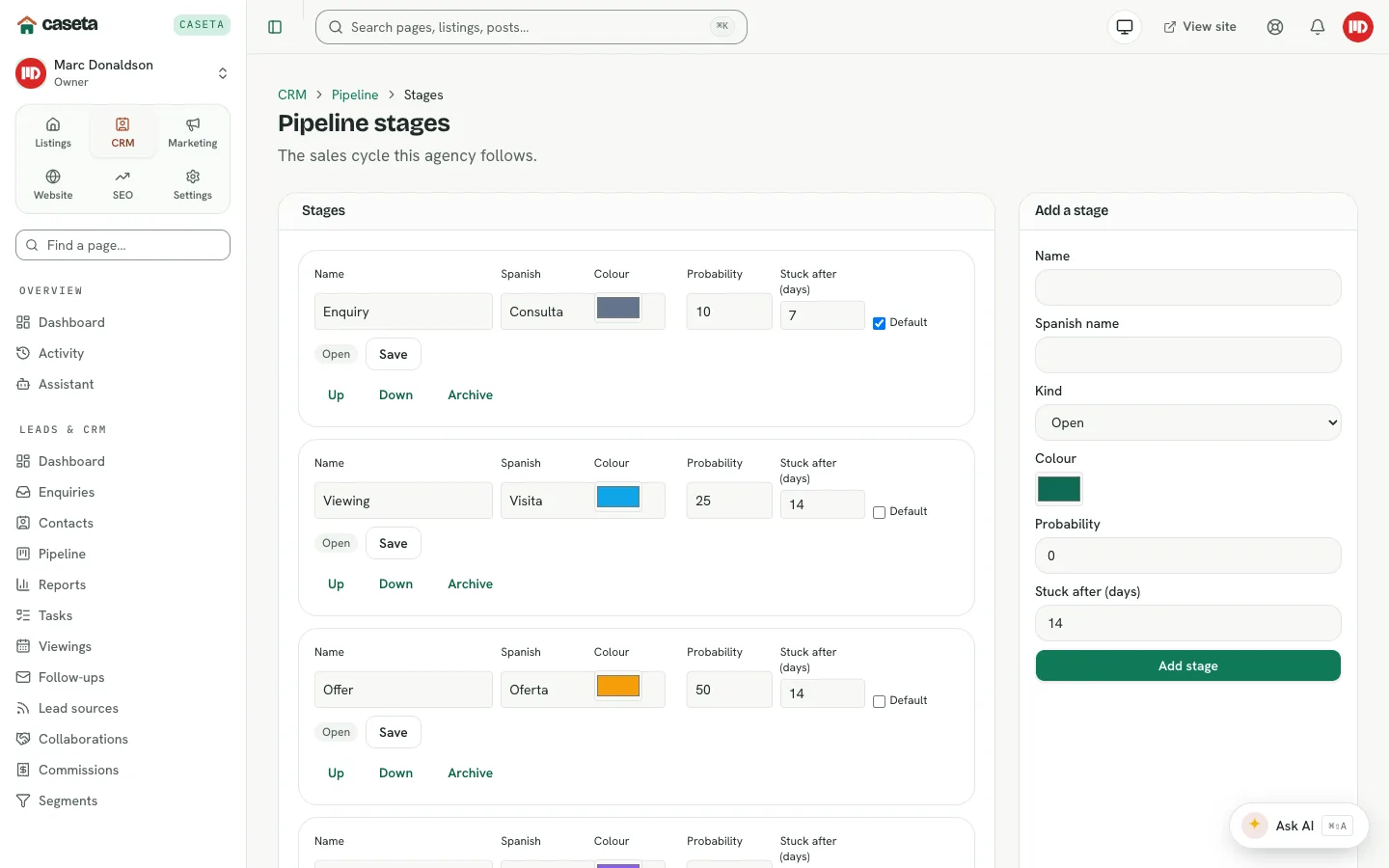
Shows pipeline configuration