Creating Email Campaigns
How to create, preview, test, send and schedule an email campaign, and how to read its results.
Overview
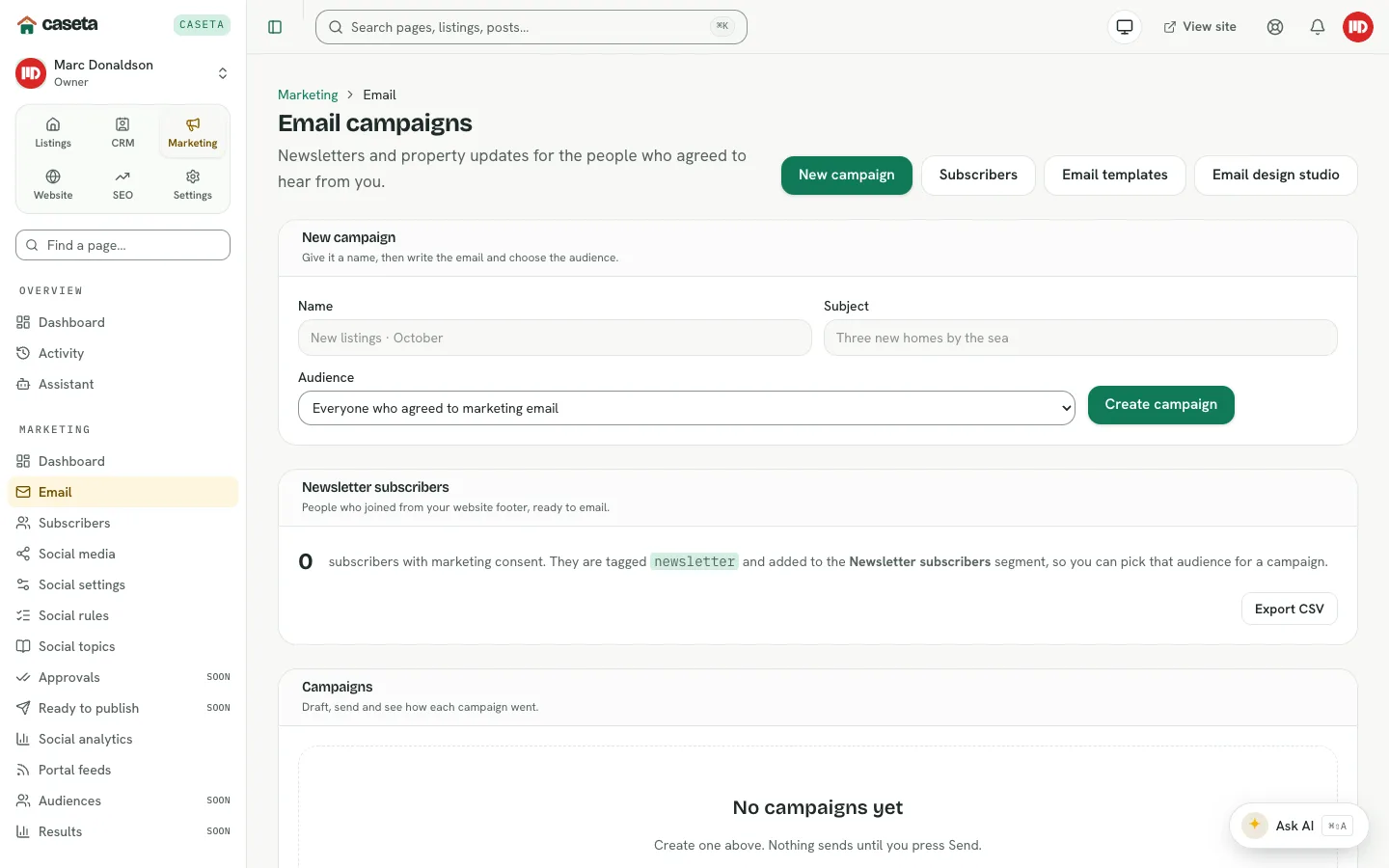
Email campaigns send newsletters and property updates to people who agreed to receive marketing email. A campaign has a name, subject, preheader, plain-text message, audience and a send or schedule action. The unsubscribe link and footer come from the agency's email design.
Who Is This For?
Agents, admins and owners with the email module.
Step-by-Step Instructions
Step 1: Create the campaign
Open Marketing → Email and complete New campaign:
| Field | Purpose | Validation |
|---|---|---|
| Name | The internal campaign name | Required; up to 120 characters |
| Subject | The email subject line | Required; up to 200 characters |
| Audience | Who receives it | Everyone with marketing consent, or a saved segment |
Select create. The campaign opens as a draft.
Step 2: Write the email
On the campaign page:
| Field | Purpose | Validation |
|---|---|---|
| Name | Internal name | Required; up to 120 characters |
| Subject | Subject line | Required; up to 200 characters |
| Preheader | The preview line in inboxes | Up to 200 characters |
| Message | The plain-text body | Required; a blank line starts a new paragraph |
| Audience | Recipients | Everyone with consent or a segment |
The unsubscribe link and footer are added automatically from the email design.
Step 3: Use AI (optional)
In Draft with AI, add an optional instruction (for example "short, warm, mention the coast") and generate a draft. The model sees the agency context and a few current listings. Review the result before saving.
Step 4: Preview and send a test
- Preview shows the recipient view with the current email design.
- Send a test sends the current saved text to one address. A test does not count as a
campaign send.
Step 5: Send or schedule
- Send now asks for confirmation and sends to the current audience.
- Schedule stores a future date and time. Cancel schedule removes it.
The audience is captured at send time. If the number is zero, sending is disabled.
Step 6: Read the results
The Results panel shows the recorded outcome once the campaign has been sent.
Understanding the Statuses
| Status | Meaning |
|---|---|
| Draft | Editable; not sent |
| Scheduled | Waiting for its time |
| Sending | In progress |
| Sent | Completed |
| Failed | The send failed; review the error |
Common Problems
- The audience is 0. No contacts have marketing consent for the chosen audience, or
the segment matches nobody.
- Sending fails. The email transport or sender identity is not configured. Test it in
Settings → Integrations.
- The test looks different from the campaign. A test uses the saved text; save your
edits first.
- A scheduled campaign did not send. Check the time and that the schedule was not
cancelled.
- The unsubscribe link is missing. It is added by the design/footer; check the email
design settings.
Security and Privacy
Only email people who have consented to marketing. The unsubscribe link must remain, and unsubscribes are honoured by the subscriber system. Do not paste personal data into AI prompts beyond what the campaign needs.