Your First Steps in Caseta
A practical setup path for a new agency: branding, website, listings, enquiries, team, AI and integrations.
Overview
This guide is the shortest path from a new organisation to a usable agency workspace. The required steps get you visible; the optional steps make the workspace match how your agency actually works.
Who Is This For?
New owners and admins setting up an agency, and agents joining an agency that is already configured.
Before You Begin
- A verified account and an organisation (see [Creating and Setting Up Your
Organisation](/knowledge-base/creating-your-organisation)).
- Your agency logo, contact details and at least one property if you want a realistic
first run.
Required steps
1. Confirm the agency profile
Open Settings → Organisation and check the name, web address and logo. These appear throughout the app and on the public site.
2. Review the website basics
Open Website → Website settings. Set the site name, contact details, language and whether the site is live. Then open Website → Design to choose the look.
3. Add your first listing
Open Listings → Add listing, enter a title, the listing type and the price. Save the draft, then complete the facts, location, photos and description in the editor.
4. Publish the listing
Use the publishing panel to publish when the record is complete. Publishing makes the property available to the public site and to the features that use published listings.
5. Invite the team
Open Settings → Team, invite each person by email and choose their role. Owners and admins can add access grants for restricted members.
6. Connect AI (optional but recommended)
Open Settings → AI, add a provider and choose a default model. This enables AI drafts in listings and content, and the assistant where enabled.
Recommended optional steps
- Website content: create the Home, About, Contact and legal pages; add posts and
menus.
- Enquiries and CRM: configure pipeline stages, lead sources, follow-ups and tasks.
- Marketing: connect social accounts, set the email design and check subscribers.
- SEO: run the SEO dashboard, add the site to Search Console and review structured
data.
- Plan: review Settings → Plan & usage and choose the modules the agency needs.
- Security: enable two-factor authentication, add a passkey and review sessions.
What Happens Next?
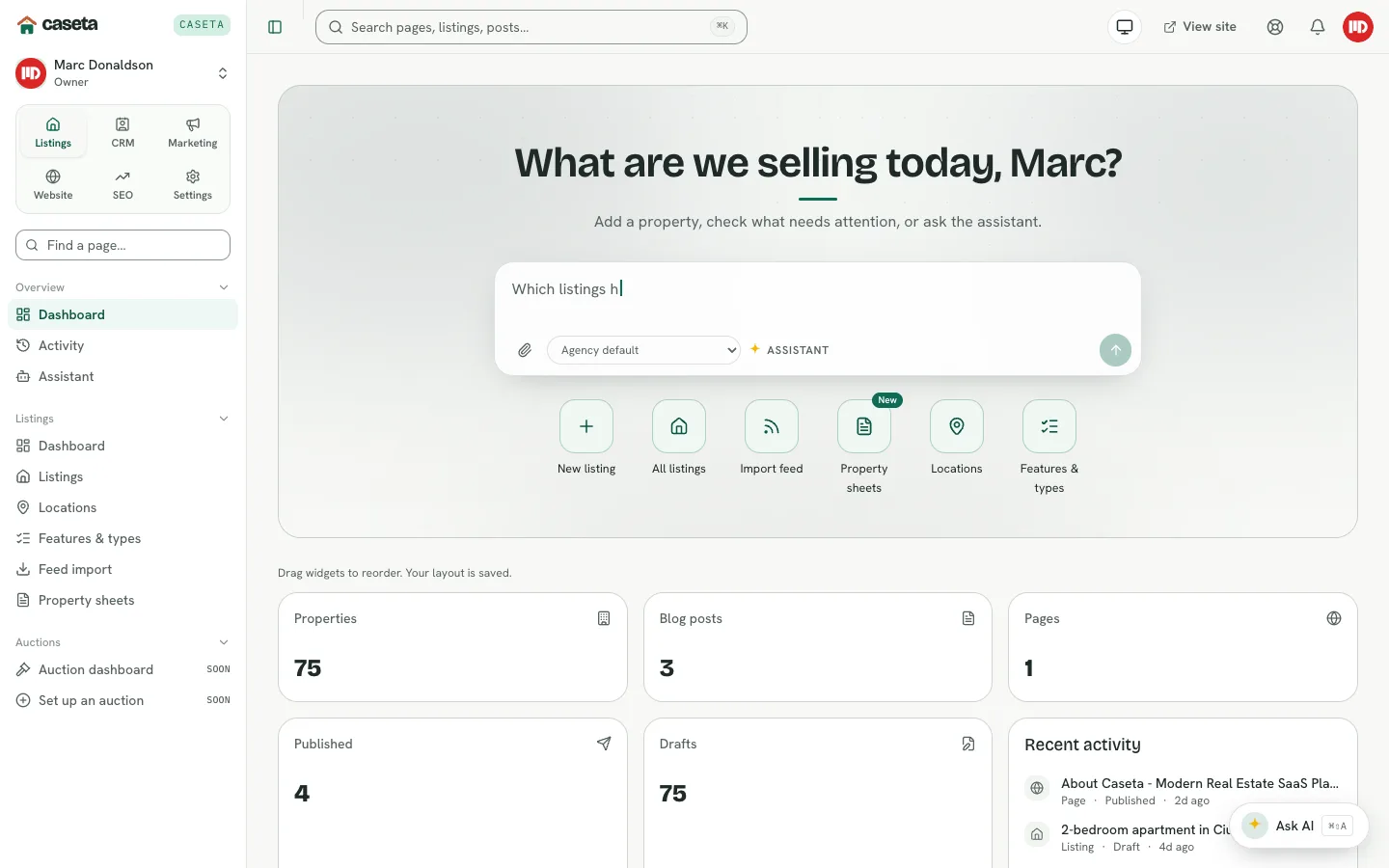
Once the required steps are done, the dashboard becomes the daily starting point. Use the workspace switcher to move between Listings, CRM, Marketing, Website and SEO.
Common Problems
- A menu item is missing. It may be outside your role or access grant, or the plan
may not include that module. See Troubleshooting Missing Features.
- The public site is not visible. Check the live switch and the custom domain
verification in Website settings and Website → Custom domains.
- AI actions are disabled. Add and test a provider in Settings → AI.