Overview of the Listings Workspace
How the listings dashboard, list, search, filters and bulk actions work in Caseta.
Overview
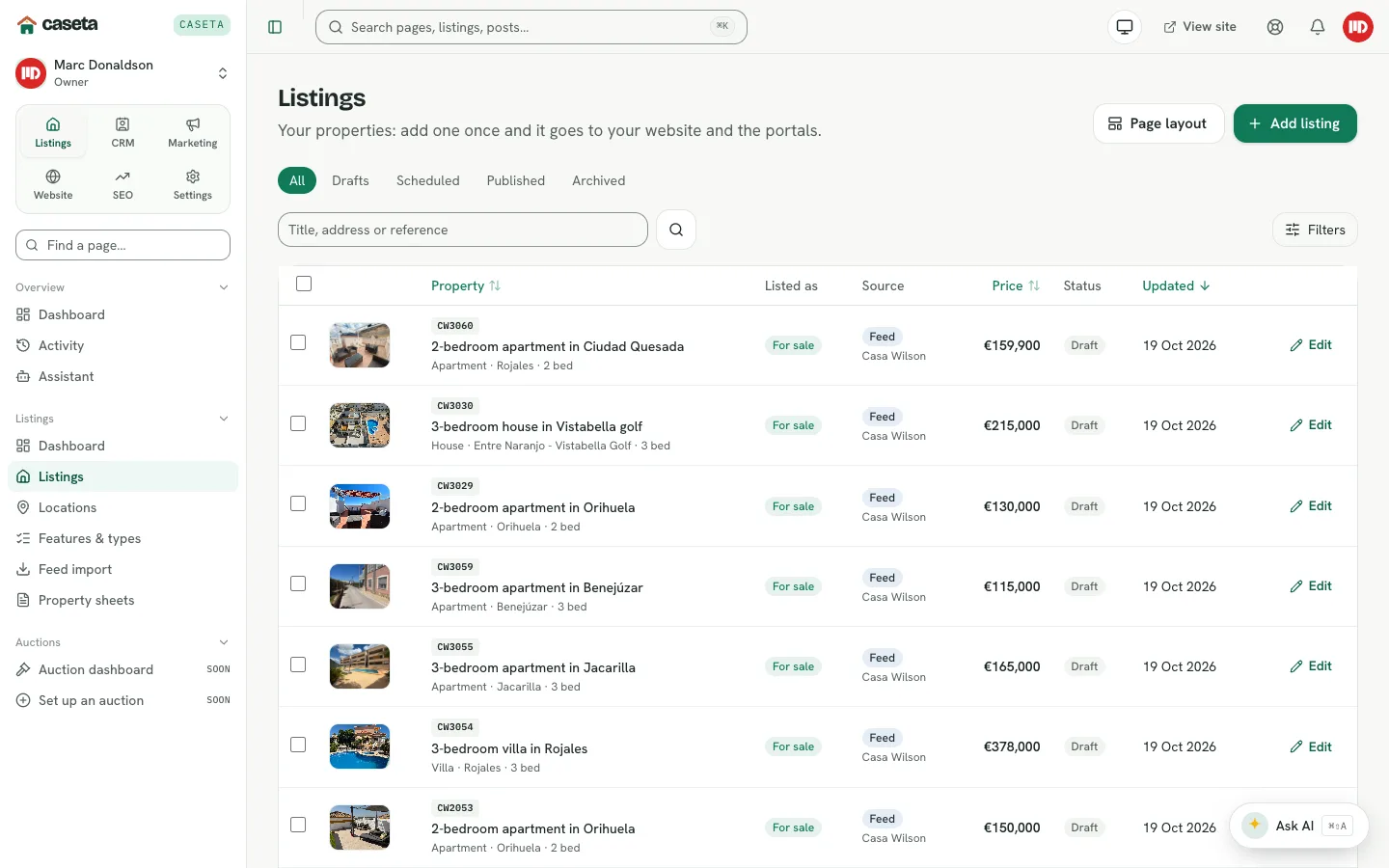
The Listings workspace holds your property records. A listing is created once and then used by the website, portal feeds, property sheets, buyer matching and marketing. The workspace has a dashboard, a searchable list, location and feature vocabulary, feed import and printable property sheets.
Who Is This For?
Agents, admins and owners with access to listings. Feed import and Features & types are limited to owners and admins.
Step-by-Step Instructions
Step 1: Open the listings dashboard
Choose Listings → Dashboard in the sidebar. It shows welcome text and counts for all listings, published, drafts and reserved/sold.
Step 2: Open the list
Choose Listings → Listings. The list has status tabs:
| Tab | Shows |
|---|---|
| All | Every listing |
| Drafts | Listings not yet published |
| Scheduled | Listings with a future publish time |
| Published | Live listings |
| Archived | Listings moved out of the active list |
Step 3: Search and filter
- Type a title, address or reference in the search box and submit.
- Use Filters for the available refinements.
- Use Page layout to change how the list is displayed.
Step 4: Open a listing
Select a row or its Edit action. The editor opens with the property's details.
Step 5: Use bulk actions
Tick rows to reveal the bulk action bar. The available operations depend on the current list and your role; they include moving records between states and deleting where permitted. Bulk actions do not bypass the same validation as individual edits.
Understanding the Columns
| Column | Meaning |
|---|---|
| Property | Title, reference, type, town and bedroom count |
| Listed as | Sale or rent |
| Source | Manual, feed import or another source |
| Price | The listing price and currency |
| Status | Draft, scheduled, published or archived |
| Updated | Last change time (newest first by default) |
Buttons and Actions
- Add listing — opens the create form.
- Page layout — adjusts the list presentation.
- Filters — opens filter controls.
- Edit — opens the listing editor.
- Bulk actions — appears when rows are ticked.
What Happens Next?
Creating or editing a listing does not automatically publish it. Use the editor's publishing panel when the record is ready.
Common Problems
- A listing is missing from the public site. It may be a draft, scheduled for later,
archived, or excluded from portal exports. Check its status and sharing settings.
- You cannot see Feed import or Features & types. Those pages are limited to owners
and admins.
- A bulk action is refused. Some records may be locked by a feed or be outside your
access area.