Managing Enquiries
How to read, filter, reply to and close website and portal enquiries in Caseta.
Overview
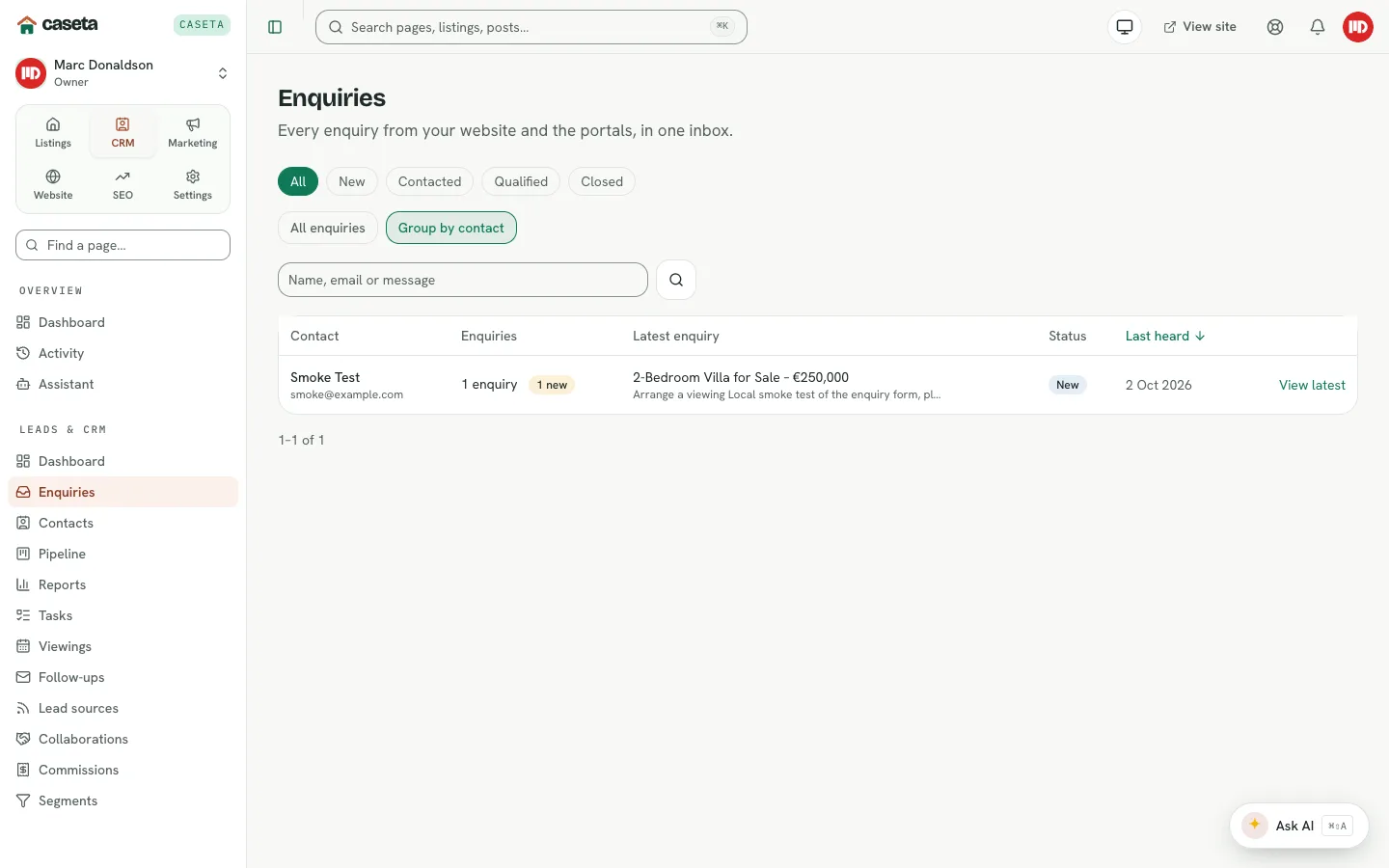
The enquiries inbox collects messages from the website contact and property forms and from connected portals. Each enquiry keeps the sender, the property (where relevant), the message and the reply state. Notes and status changes are recorded on the enquiry.
Who Is This For?
Agents, admins and owners with access to enquiries.
Step-by-Step Instructions
Step 1: Open the inbox
Choose CRM → Enquiries. The list shows enquiries with filters for their state.
Step 2: Filter and search
Use the status filters to show open, replied or closed enquiries. The search helps find a person or property.
Step 3: Open an enquiry
Select the enquiry to read the full message and see:
- the sender's name, email and phone;
- the property or page it came from;
- the original message;
- any notes added by the team.
Step 4: Reply or record the outcome
The detail page provides actions to record a reply and change the status. Sending an email reply depends on the connected email transport; if it is not available, record the outcome and contact the person using your normal email client.
Step 5: Add notes
Add a note to keep context for the team. Notes are timestamped and can be deleted.
Step 6: Close the enquiry
Set the status to closed when no further action is needed. A closed enquiry remains in the inbox and can be reopened if the person gets in touch again.
Understanding the Fields
| Field | Meaning |
|---|---|
| Sender | The person who submitted the form |
| Property | The listing the enquiry is about, when applicable |
| Source | Website, portal or another channel |
| Status | Open, replied or closed |
| Notes | Internal comments from the team |
Buttons and Actions
- Reply — records and, where configured, sends the reply.
- Add note / Delete note — internal history.
- Change status — open, replied or closed.
- Open contact — jumps to the person's CRM record where linked.
What Happens Next?
A serious enquiry usually becomes a contact with requirements and a deal in the pipeline. Use the contact record to record budget, areas and must-haves, then let matching suggest properties.
Common Problems
- No enquiries arrive. Check the website forms, the spam-protection keys and the
email transport. Test the form from the public site.
- The reply was not emailed. The email integration may not be configured. Record the
outcome and reply from your own mailbox.
- A duplicate enquiry appears. The same person may submit twice; use the contact
record and duplicate tools to keep one relationship.
- You cannot change the status. You may be read-only.