Using the Pipeline and Deals
How to create deals, move them through stages, mark them lost or won and reopen them in Caseta.
Overview
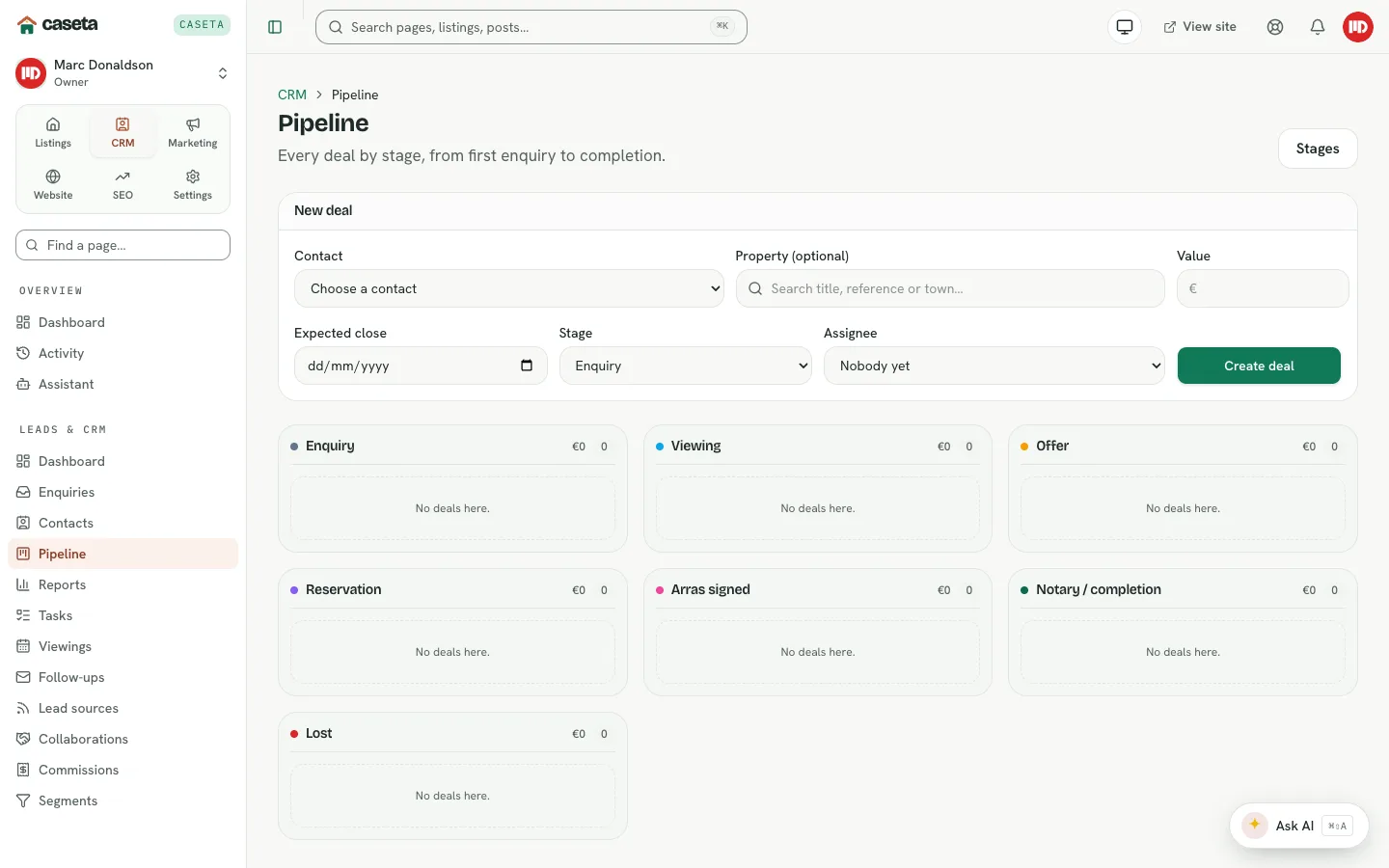
The pipeline shows deals grouped by stage, from first enquiry to completion. Each deal links a contact, optionally a property and an assignee, and carries a value and expected close date. Moving a deal is how you record progress.
Who Is This For?
Agents, admins and owners with CRM access.
Step-by-Step Instructions
Step 1: Create a deal
In CRM → Pipeline → New deal, complete:
| Field | Purpose | Validation |
|---|---|---|
| Contact | The person the deal belongs to | Required; an existing contact |
| Property | The listing involved | Optional |
| Value | The expected deal value | Whole number, 0 or more |
| Expected close | The expected completion date | A date |
| Stage | The starting stage | An existing open stage; a default is used if omitted |
| Assignee | Who owns the deal | A team member |
Select the create action.
Step 2: Move a deal
Drag a deal card to another stage, or use the card's stage control. The move is recorded in the deal's stage history. Some later stages may prompt for commission or document details.
Step 3: Open a deal
Select a card to open the deal. The detail page shows the people, property, value, stage history and linked activity. From there you can:
- add notes,
- create tasks,
- upload documents,
- update the value,
- update commission details,
- mark the deal lost or reopen it.
Step 4: Mark lost or reopen
- Mark lost records the reason and moves the deal out of the active pipeline.
- Reopen returns it to an open stage.
Step 5: Delete a deal
Deletion is available where permitted. It removes the deal record; use lost instead when you want to keep the history.
Understanding the Stages
Stages are configured in CRM → Settings → Pipeline. A stage has a name, a kind (open, won or lost) and an order. Default stages often include Enquiry, Viewing, Offer, Reservation, Arras signed, Notary/completion and Lost. Renaming or reordering stages does not delete deals; archiving a stage affects where new deals can start.
Buttons and Actions
- New deal — creates a deal.
- Drag / move — changes the stage.
- Mark lost / Reopen — closes or restores a deal.
- Add note / Create task / Upload document — adds activity.
- Update value / commission — changes the financials.
What Happens Next?
A won or completed deal feeds the commission records and reports. Attach the relevant documents and keep the stage history accurate.
Common Problems
- A deal cannot move. The target stage may be archived or the deal may be closed.
- No stages are available. Open the pipeline settings; default stages are created when
needed.
- The value is missing from reports. Set the deal value and currency.
- You cannot create a deal. You may be read-only or outside the CRM area.
Screenshots

Shows the new deal form