Managing Property Photos
How to upload, order, choose and remove listing photos and floor plans in Caseta.
Overview
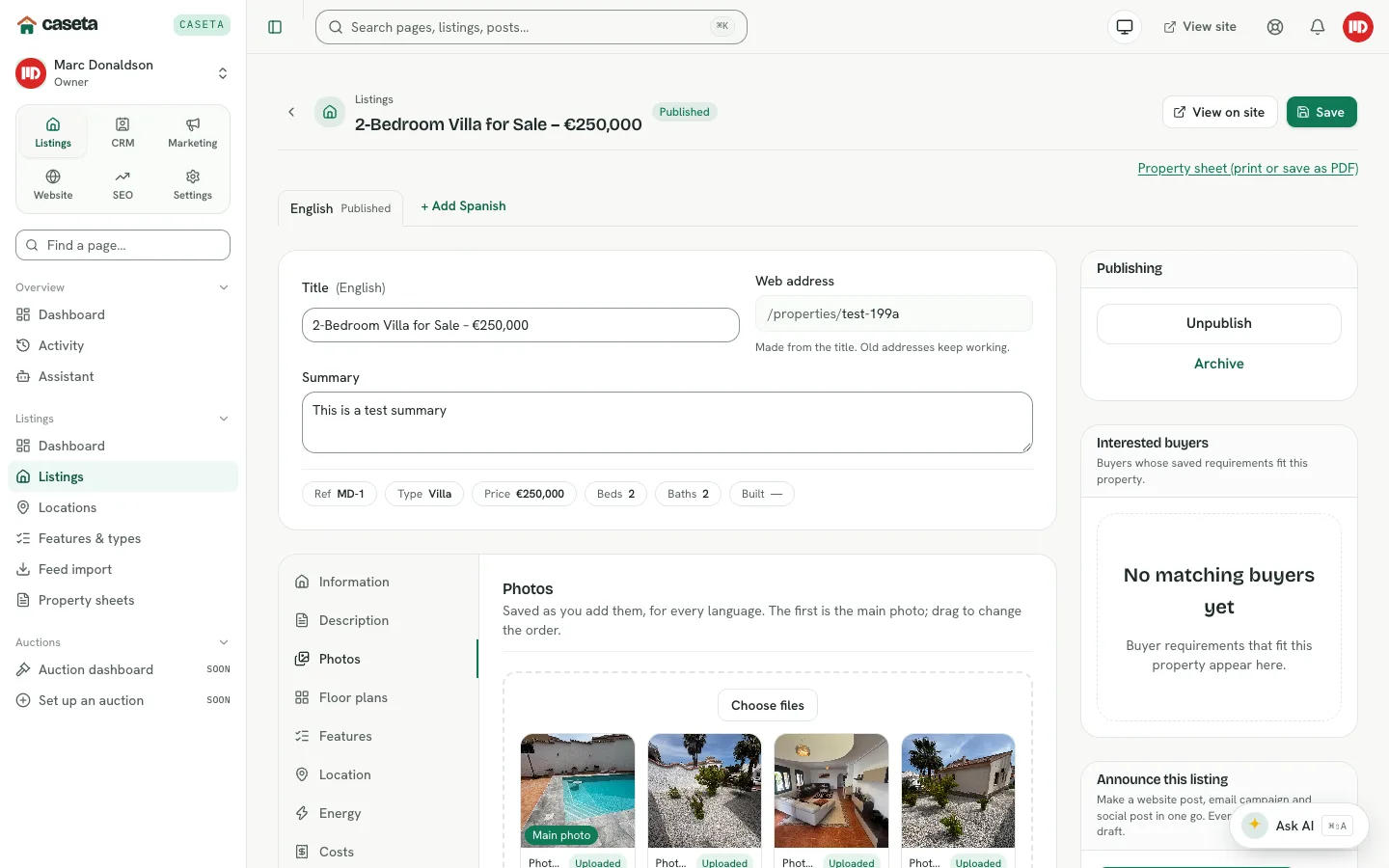
Photos and floor plans are managed inside the listing editor. The browser prepares each image before upload: it fits the picture within 1920 pixels, converts it to WebP and compresses it. The first photo is the main photo used on cards and previews.
Who Is This For?
Agents, admins and owners editing a listing.
Before You Begin
- Image files on the device. Common formats (JPEG, PNG, WebP) are converted in the
browser.
- A listing in the editor.
Step-by-Step Instructions
Step 1: Open the listing
Open Listings, choose the property and select Edit.
Step 2: Open Photos
Select the Photos tab. The gallery shows the current photos, with the first marked Main photo.
Step 3: Upload
Select the upload action and choose one or more images. Each image is fitted within 1920 px, converted to WebP and saved immediately. A progress and error message appears in the gallery.
Step 4: Order the photos
Drag a photo to a new position, or use the keyboard controls provided by the gallery. The order is saved automatically. Moving a different photo to the first position changes the main photo.
Step 5: Remove a photo
Use the remove action on the photo. The change is saved immediately.
Step 6: Add floor plans
Open the Floor plans tab and repeat the upload and ordering steps. Floor plans use the same image pipeline but are separate from the photo gallery.
Understanding the Rules
| Rule | Detail |
|---|---|
| Output format | WebP |
| Maximum stored size | 5 MB per listing image after preparation |
| Browser resize | Fit within 1920 px |
| Main photo | The first photo in the Photos gallery |
| Ordering | Drag or keyboard; saved automatically |
| Removal | Immediate; no undo within the gallery |
Buttons and Actions
- Upload / Choose images — adds photos.
- Remove — deletes the selected photo.
- Drag handle / keyboard controls — reorders.
- Add floor plan — uploads a floor plan.
What Happens Next?
The main photo and gallery are used by the public listing page, listing cards, portal feeds and marketing drafts. Save the rest of the listing, then publish it.
Common Problems
- Upload is rejected. The file may be corrupt, unsupported or too large after
conversion. Try a JPEG or PNG and keep the source under a few megabytes.
- The image is blurry. Caseta fits images within 1920 px; start with a sharp source
rather than upscaling.
- The order did not save. Wait for the gallery's saved confirmation; a network error
can leave the order unsaved. Reorder again.
- The main photo is wrong. Move the intended photo to the first position.
Security and Privacy
Property photos are public once the listing is published. Do not upload private documents, people who have not consented, or images containing addresses you do not want shown. Use the private note for internal information.
Frequently Asked Questions
Can I add stock photos to a listing? The listing gallery accepts uploads. Stock photos are available in the website content editor and can be downloaded and uploaded here if licensing allows.
Can I replace a photo without losing its position? Upload the new image and move it to the old position, then remove the old one.
Are floor plans public? They appear on the listing where the public template shows them, subject to the listing's status.