Using the Media Library
How to upload, find and reuse website images and PDFs, and how to choose stock photos.
Overview
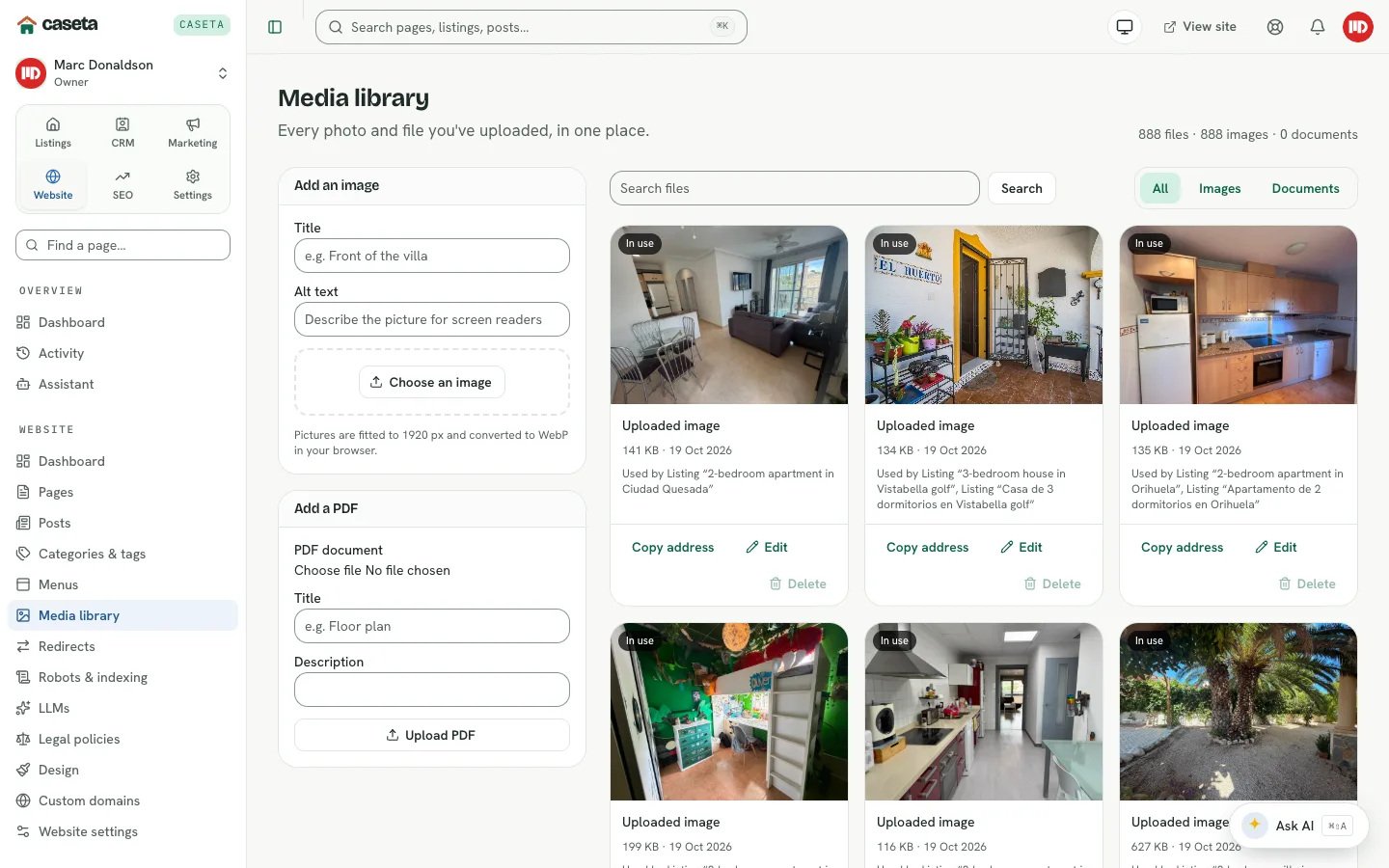
The media library stores images and PDFs that pages, posts and the design can reuse. It also mirrors the files used as featured images and listing photos, so you can find and manage them in one place. Images are prepared in the browser and stored as WebP.
Who Is This For?
Agents, admins and owners with website content access.
Step-by-Step Instructions
Step 1: Open the library
Choose Website → Media library.
Step 2: Upload an image
- In Add an image, select the file picker.
- Choose an image. The browser fits it within 1920 px, converts it to WebP and uploads
it.
- Wait for the upload to finish.
Step 3: Upload a PDF
- In Add a PDF, choose a PDF document.
- Select Upload PDF.
PDFs are listed as documents and can be linked from content.
Step 4: Find and filter
- Type in the search box to find a file by name or metadata.
- Use All, Images and Documents to filter.
- Use the pagination controls at the bottom of the list.
Step 5: Reuse a file
- Copy address copies the file's public URL for use in content or a custom link.
- Select the file to insert it where the picker supports it.
Step 6: Edit or delete
- Edit changes the title/alt text where available.
- Delete removes the file only when no page or post uses it. Remove it from the
content first.
Stock photos
The content editor's featured-image panel and image blocks can open a stock picker. Search for a topic, choose a photo, and insert it. Stock photos keep their creator credit. Check the licence shown by the source before using an image commercially.
Understanding the Rules
| Rule | Detail |
|---|---|
| Image output | WebP, fitted within 1920 px |
| Image size limit | 5 MB for content images |
| PDF upload | Accepted from the PDF panel |
| Delete safety | Blocked while the file is referenced |
| Credit | Stock photos keep their credit metadata |
Common Problems
- Upload fails. Use an image format the browser can decode (JPEG, PNG, WebP) and keep
the source reasonably sized.
- A file cannot be deleted. It is still used by a page or post; remove those
references first.
- The copied address does not open. Use the public URL shown by the library, not a
local or preview URL.
- A PDF is not previewed. PDFs appear as document cards; open the file to read it.
Screenshots
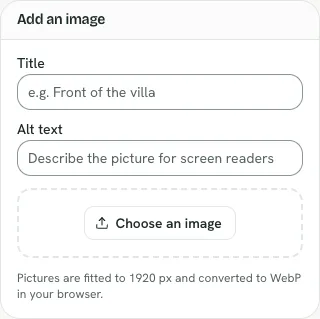
Shows the media upload panel