Troubleshooting Publishing and Media
Why a page, post or listing is not visible, why a scheduled publish did not run, and why an image or PDF upload failed.
Overview
Publishing problems usually come from status, the master site switch, a redirect, a cache delay or a domain issue. Media problems usually come from file type, size or a storage connection. This article lists the verified checks.
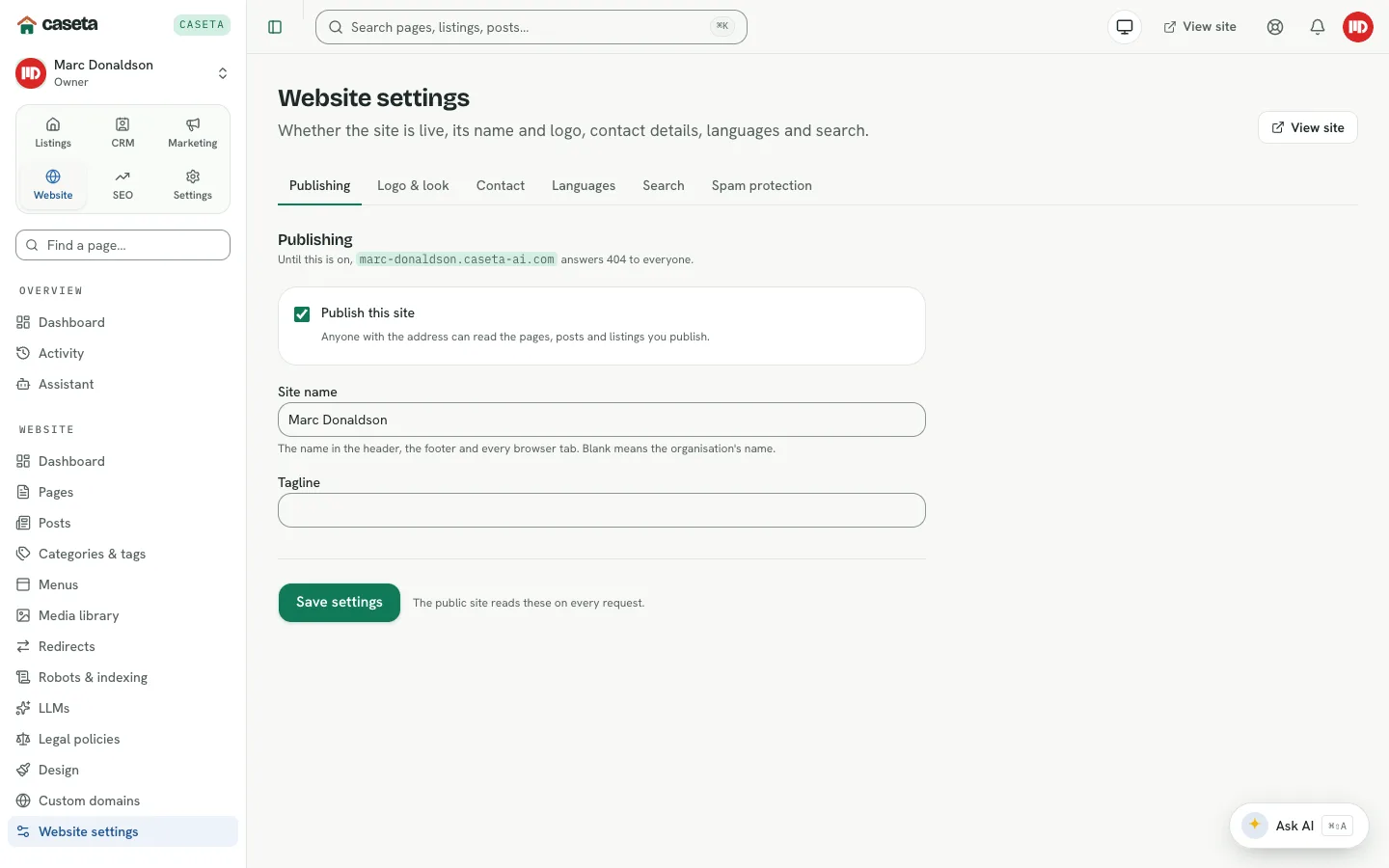
A page or post is not visible
- Status — open the content list and check whether it is a draft, scheduled, archived
or published.
- Site switch — Website → Website settings → Publishing must have **Publish this
site** on.
- Menu — publishing does not add a page to the menu. Add it in Website → Menus.
- Address — check the slug and whether an old redirect now points elsewhere.
- Cache — the public read model can take a moment. Reload the public page.
- Domain — if the site is on a custom domain, confirm the domain is active in
Website → Custom domains.
A listing is not visible
- The listing must be published, not draft/scheduled/archived.
- Its market status must be one the public template shows.
- If it is excluded from portal exports, it can still appear on the website; check the
Sharing tab for the specific setting.
- The public site must be live.
A scheduled publish did not run
- Confirm the scheduled date and time. The editor stores the intended moment; the browser
supplies its time-zone offset when scheduling.
- A scheduled item remains hidden until its time.
- If you edited it and chose a save action that did not publish, the status may have stayed
scheduled or returned to draft.
Media uploads
| Symptom | Likely cause | Resolution |
|---|---|---|
| Unsupported file | The browser could not decode it | Use JPEG, PNG or WebP |
| Too large | The prepared file exceeded the kind's limit | Crop/resize the source |
| Type mismatch | The file's real type differs from its extension | Re-export it correctly |
| Upload fails | The storage connection is down or misconfigured | Check Settings → Integrations → Check storage |
| PDF missing | PDFs use the document panel, not the image resizer | Upload from Add a PDF |
Images are fitted within 1920 px and converted to WebP; listing and content images have a 5 MB limit after preparation.
A file cannot be deleted
The media library blocks deletion while a page or post uses the file. Remove it from the content first, then delete it. Listing photos are removed from the listing gallery.
Common Problems
- The PDF is blank. Use the print preview and ensure the listing has enough data and
photos.
- The image is blurry. Start with a sharp source; Caseta does not upscale.
- The public URL is wrong. Use the address shown by the media library, not a local
preview URL.
- Changes do not appear on the public site. Confirm the save, the site switch and the
domain; then reload.