Managing Tasks and Viewings
How to create, complete, snooze and reassign tasks, and how to book and record property viewings.
Overview
Tasks are the CRM's to-do list: calls, emails, viewings, documents and other work with a due date, priority and assignee. Viewings are appointments tied to a contact and, optionally, a property and deal. Both appear on the CRM dashboard.
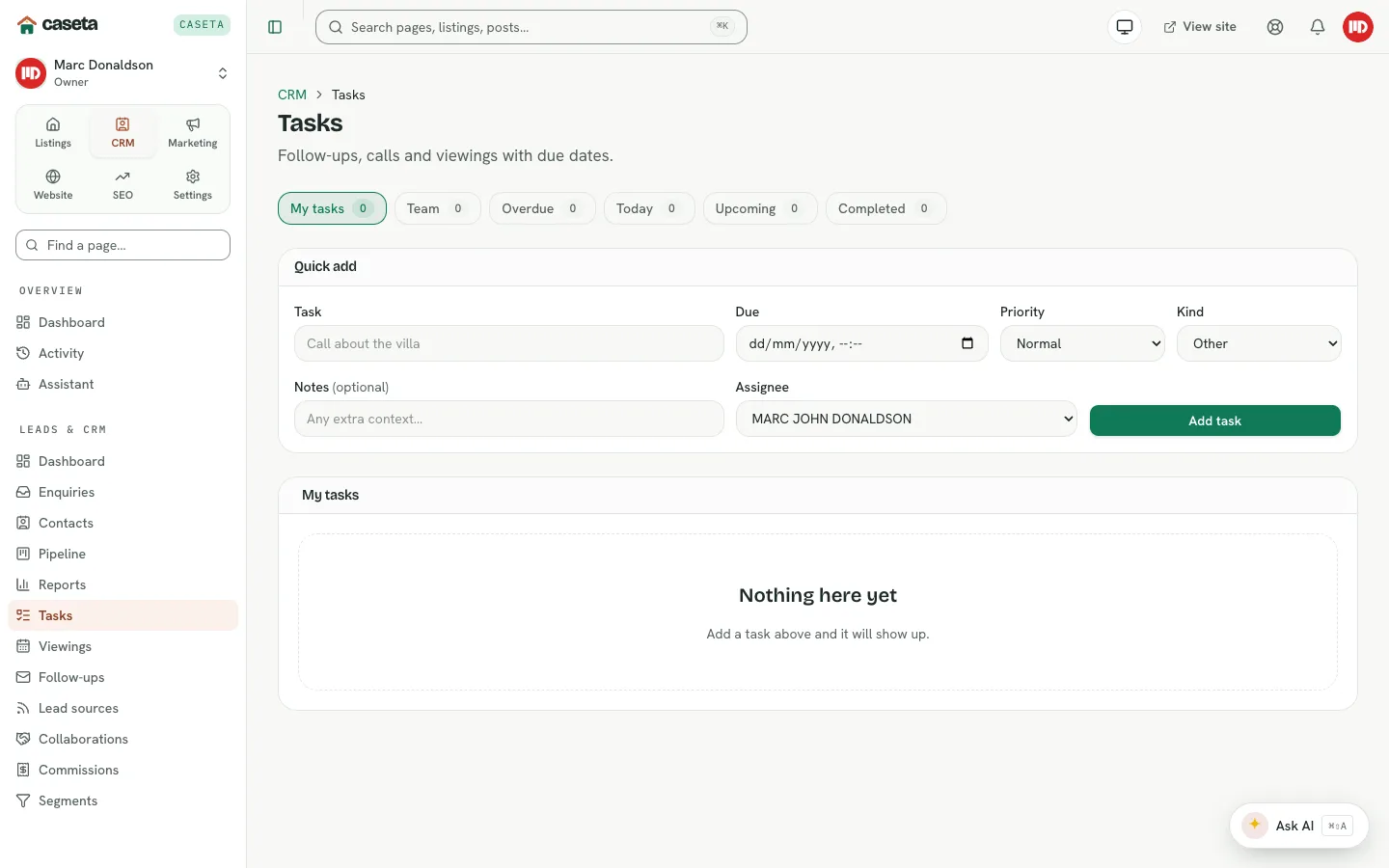
Tasks
Create a task
In CRM → Tasks → Quick add:
| Field | Purpose | Validation |
|---|---|---|
| Title | What needs doing | Required; up to 200 characters |
| Due | When it is due | A valid date/time |
| Priority | Low, normal, high or urgent | One of the four |
| Kind | Call, email, viewing, document or other | One of the five |
| Notes | Extra context | Up to 5,000 characters |
| Assignee | Who does it | A team member |
Task views
Use the view tabs to see overdue, today, upcoming, completed and all tasks. The task list lets you:
- Complete a task,
- Snooze it until a date,
- Reassign it to another member,
- Reopen a completed task,
- Delete it,
- Notify the assignee (where notifications are configured).
Tasks can also be created from a contact or deal, where they are linked automatically.
Viewings
Book a viewing
- Open CRM → Viewings.
- Use the month calendar or Book a viewing.
- Complete:
| Field | Purpose | Validation |
|---|---|---|
| Property | The listing to view | Optional |
| Contact | The person attending | Required for a meaningful viewing |
| Deal | The related deal | Optional |
| Assignee | The agent attending | A team member |
| Starts at | The appointment start | A valid date/time |
| Ends at / duration | The end or length | 15–480 minutes |
| Status | Requested, scheduled, confirmed, completed, cancelled, no-show | A supported status |
| Mode | In person, video, etc. | A supported mode |
| Source | Manual, website, portal, etc. | A supported source |
| Location | Where to meet | Up to 300 characters |
| Notes / Feedback | Internal notes and the outcome | Up to 5,000 characters |
- Save.
Manage a viewing
- Confirm a requested viewing.
- Reschedule it.
- Complete it and record the outcome/feedback.
- Cancel it.
- Delete it where permitted.
The calendar shows the month in the agency's time zone, with a status key, and the In the pipeline panel lists requested, scheduled and confirmed viewings soonest first.
Common Problems
- A viewing cannot be booked on a past day. The calendar disables past slots.
- The viewing has no property. A contact is enough to book, but linking the property
makes it appear on the listing's matching and history.
- A task notification was not sent. Email/push integration may not be configured.
- You cannot reassign. You may be read-only or not a manager.
Screenshots
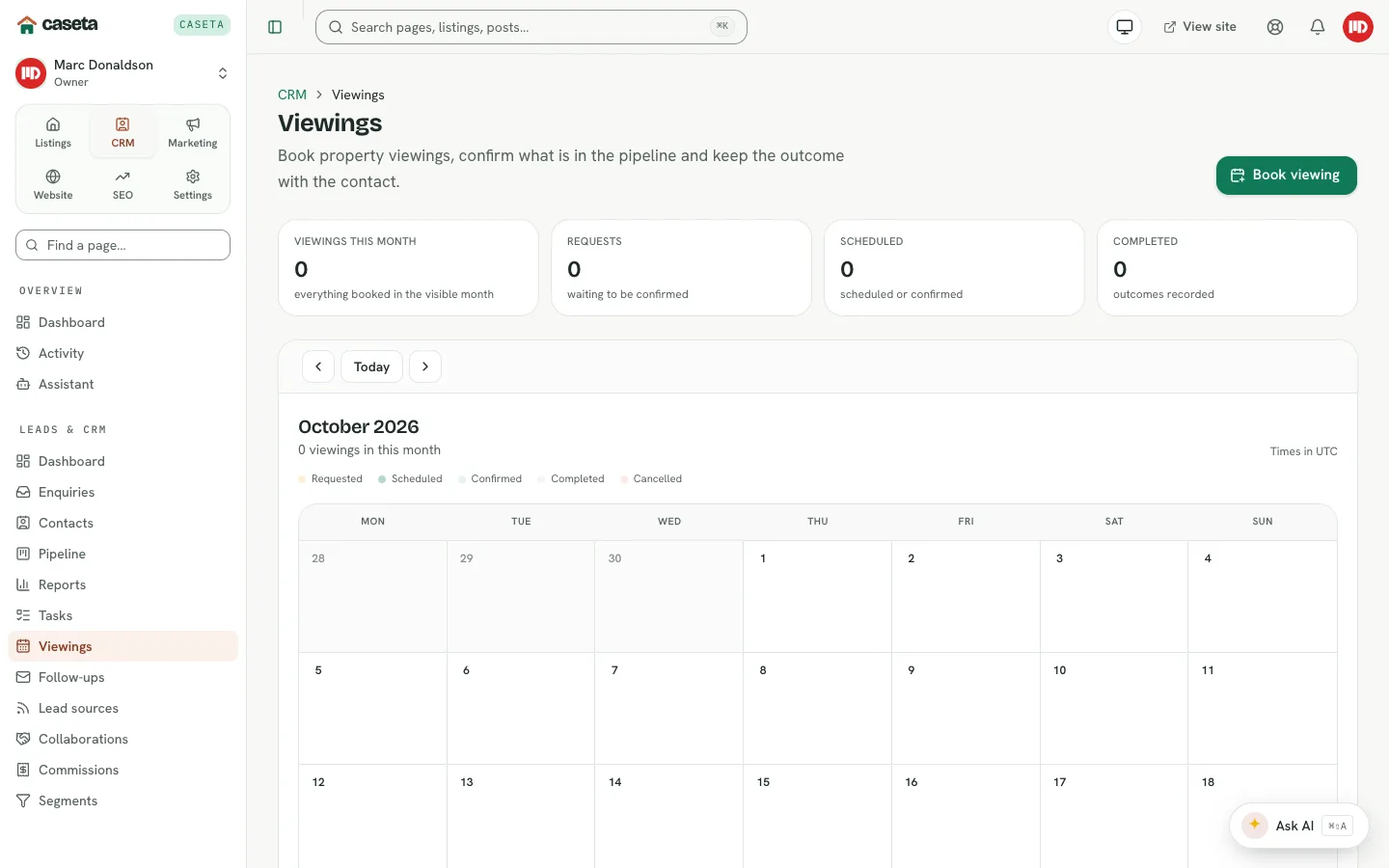
Shows viewing scheduling

Shows the task quick-add panel