Using Follow-ups
How Caseta drafts check-ins for quiet contacts and how to review, edit, approve, send, snooze or skip them.
Overview
Follow-ups help you stay in touch with contacts who have gone quiet. Caseta scans contacts against the rules, drafts a message, and puts it in an approval queue. Nothing is sent without a person approving it.
Who Is This For?
Agents, admins and owners with CRM access.
Step-by-Step Instructions
Step 1: Open the queue
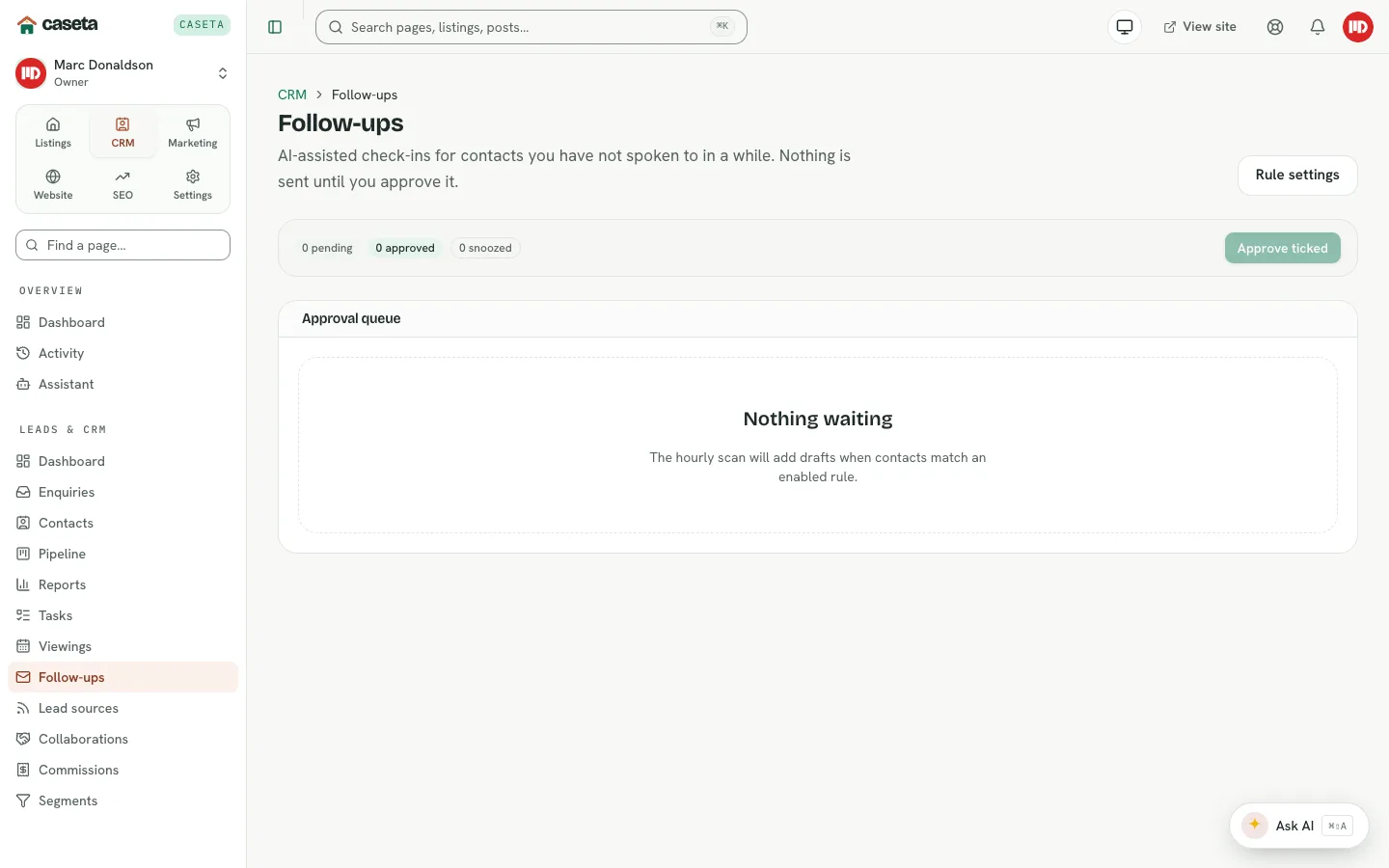
Choose CRM → Follow-ups. The Approval queue lists drafts waiting for a decision.
Step 2: Review a draft
Each draft shows the contact, the reason it was created, and the proposed subject and body. Edit the subject or text if needed before approving.
Step 3: Decide
| Action | Effect |
|---|---|
| Approve | Approves the draft so it can be sent |
| Approve selected | Approves several drafts at once |
| Skip | Dismisses the draft without sending |
| Snooze | Hides it until a chosen date |
| Snooze contact | Stops follow-ups for this person for a period |
| Send | Sends the approved draft through the email transport |
| Regenerate | Asks AI to rewrite the draft |
Step 4: Confirm the result
The queue updates with the new state. A sent draft records its send time and any external message ID. A failed send records the error.
How rules work
Rules live in CRM → Settings → Follow-ups. A rule has:
- a name;
- the number of inactive days before it applies;
- applicable roles, stages, tags or a saved segment;
- a channel (email);
- a template key;
- a mode (draft for approval);
- a maximum number of sends per contact;
- quiet hours;
- an enabled switch.
The hourly scan creates drafts only for matching contacts and respects quiet hours and the per-contact maximum.
Understanding the Draft States
| State | Meaning |
|---|---|
| Draft | Created, not yet approved |
| Approved | Ready to send |
| Sending | A send is in progress |
| Sent | Sent successfully |
| Failed | The send failed; the reason is shown |
| Skipped | Deliberately not sent |
Common Problems
- The queue is empty. No contact matches an enabled rule, or the scan has not run yet.
The queue updates hourly.
- Sending fails. The email transport may be missing or misconfigured. Check
Settings → Integrations.
- A contact keeps getting drafts. Limit the rule's sends per contact or snooze the
contact.
- The draft text is wrong. Edit it before approving or use Regenerate.
- Nothing sends without approval. This is intentional. Use Send only after
reviewing.
Frequently Asked Questions
Can I send automatically? The rule mode is draft for approval. This keeps a person in control.
Are follow-ups logged on the contact? Yes; the send is recorded in the contact timeline and the draft's state.
Do quiet hours use my time zone? The rule stores quiet-hour boundaries; sends are deferred outside them.
Screenshots
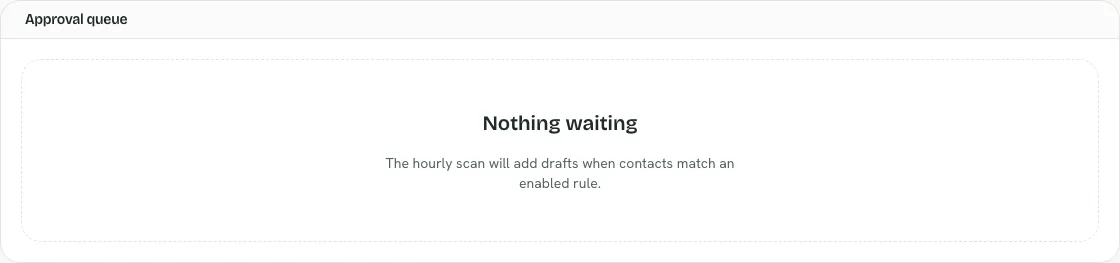
Shows the follow-up approval queue