Navigating Workspaces, Search and Notifications
How the Caseta sidebar, workspace switcher, command bar, notification bell and announcements fit together.
Overview
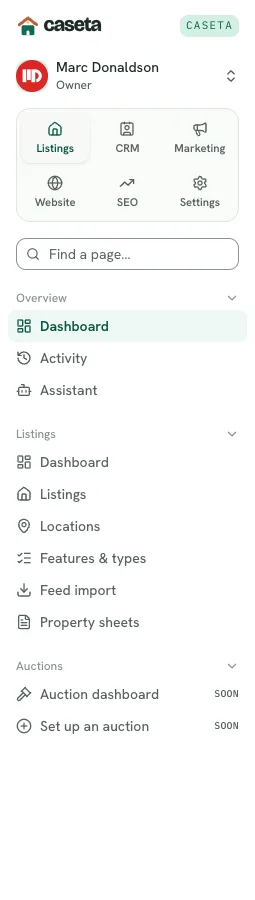
Caseta groups its pages into workspaces: Listings, CRM, Marketing, Website, SEO and Settings. The sidebar shows the groups for the current workspace, plus Overview everywhere. The command bar searches across pages, posts, listings and contacts. The header holds the notification bell, support button and account menu.
Who Is This For?
Every signed-in member. Restricted members see only the pages their access grant allows; plans hide modules the agency has not bought.
Step-by-Step Instructions
Step 1: Choose a workspace
Use the workspace picker at the top of the sidebar. The current workspace is highlighted. Pages that belong to a workspace also switch it automatically. The last workspace is remembered for neutral pages such as the dashboard.
Step 2: Open a page
Expand a group if needed and select a page. The active item is highlighted. Groups can be folded; the group containing the current page opens automatically.
Step 3: Find a page
Use the Find a page… box in the sidebar to filter menu links by name. This filters the menu only; it does not search records.
Step 4: Search across the app
Use the Search pages, listings, posts… bar at the top (or press the shortcut shown,
usually ⌘K). Type a term and choose a result. Results are limited to pages you can
open.
Step 5: Read notifications
Select the bell to see in-app notifications. The badge counts unread items. Selecting a notification opens its destination where one exists. Browser push notifications can be enabled when prompted.
Step 6: Read announcements
Product notices appear as dismissible banners or in the news ticker. Dismissing one hides it for your account; it does not change the underlying feature.
Step 7: Open support
Select the support button in the header to open the conversation panel. The badge shows unread support replies.
Understanding the Elements
| Element | Purpose |
|---|---|
| Organisation switcher | Shows the active agency and switches between agencies |
| Workspace picker | Narrows the sidebar to a job |
| Find a page | Filters sidebar links by label |
| Command bar | Searches pages, posts, listings and contacts |
| View site | Opens the agency's public website |
| Notification bell | In-app notifications and unread count |
| Support button | Opens the support conversation panel |
| Account menu | Profile, Security, AI and Sign out |
| Theme toggle | Switches light, dark or system appearance |
Buttons and Actions
- Workspace buttons — change the visible menu.
- Group headers — expand or fold a group.
- Search result — opens the selected record or page.
- Dismiss on a banner — hides the announcement for your account.
- Ask AI — opens the assistant panel (when enabled).
What Happens Next?
The sidebar keeps the current workspace while you move between its pages. Opening a neutral page (dashboard, activity, account settings) uses the remembered workspace.
Common Problems
- A page you expect is not in the menu. Your access grant or the agency's plan may
exclude it. Ask an owner/admin to review Settings → Team → Access or Plan & usage.
- Search does not find something. Search only returns records the current member may
open, and some items are found by title rather than body text.
- The sidebar is collapsed. Use the sidebar trigger in the header. On small screens
the sidebar becomes a sheet.
- Notifications do not appear. Check that the bell is not filtered by the current
organisation and that browser notifications are allowed if you expect push.
Frequently Asked Questions
Does the workspace change the data I see? No. A workspace is a menu grouping, not a tenant. Your organisation decides the data.
Is the remembered workspace per device? Yes; it is stored in a browser cookie.
Can I hide a workspace? Workspaces appear based on the plan and your access. Owners can change the plan; access grants control restricted members.