Using the Dashboard
How the Caseta dashboard works: the ask box, quick actions, statistics, recent activity and reorderable widgets.
Overview
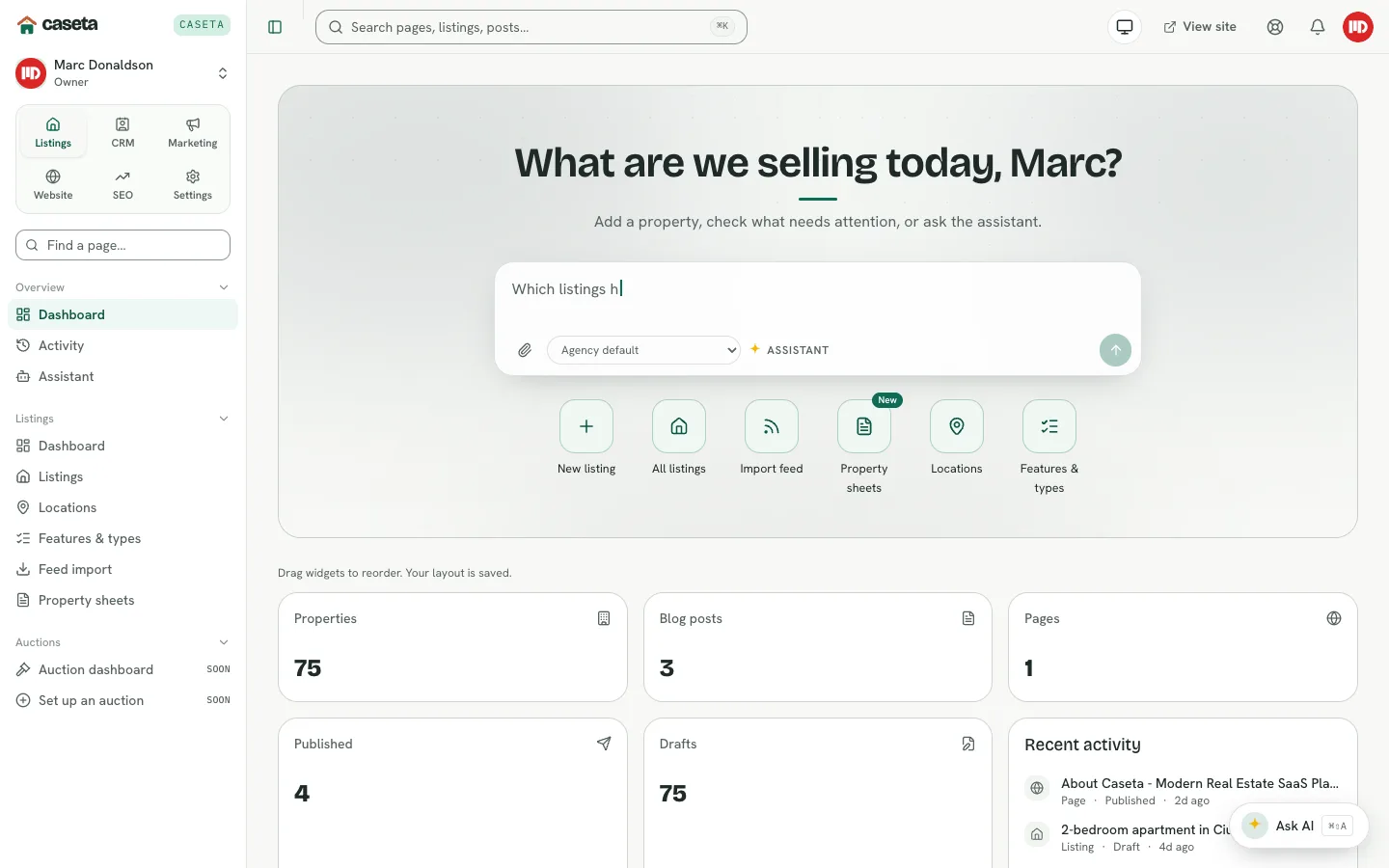
The dashboard is the signed-in home page. It combines a greeting and an ask box, quick actions for common jobs, high-level counts for your agency, and a recent-activity list. Widget cards can be dragged into the order you prefer.
Who Is This For?
Every signed-in member of an organisation. What you see depends on the modules in the agency's plan and, for restricted members, on the areas in your access grant.
Before You Begin
- Sign in and make sure you have an active organisation.
Step-by-Step Instructions
Step 1: Open the dashboard
Sign in, or choose Dashboard under Overview in the sidebar.
Step 2: Use the ask box
The large input at the top accepts a question about your agency. The provider selector shows Agency default unless you have chosen another provider. Select the send action to ask. The assistant is available when the feature is enabled for the organisation.
Step 3: Use a quick action
The row of shortcuts opens common tasks directly:
| Shortcut | Opens |
|---|---|
| New listing | The add-listing form |
| All listings | The listings list |
| Import feed | Feed import (owners/admins) |
| Property sheets | The printable brochure tools |
| Locations | The locations manager |
| Features & types | Property type and feature management (owners/admins) |
Shortcuts the plan or your access grant does not include are hidden.
Step 4: Read the statistics
The count cards show the agency's current totals, such as properties, blog posts, pages, published items and drafts. Select a card where it links to open the corresponding list.
Step 5: Review recent activity
The recent-activity panel shows the latest content and listing changes with timestamps. Use Activity in the sidebar for the full, filterable trail.
Step 6: Reorder widgets
Drag a widget card by its header to a new position. The interface confirms that the layout is saved. The order is remembered for your browser.
Understanding the Panels
| Panel | Purpose |
|---|---|
| Welcome hero | Greeting, the ask box and quick actions |
| Properties / Blog posts / Pages | Totals for the main content types |
| Published / Drafts | Publishing state counts |
| Recent activity | Recent changes in the organisation |
| Assistant launcher | Floating Ask AI button on other pages (when enabled) |
Buttons and Actions
- Ask / send — sends the question in the ask box.
- Provider selector — chooses the AI provider for this conversation.
- Quick-action buttons — open a task or list.
- Stat cards — open their list when linked.
- Ask AI — opens the assistant panel from any page (when enabled).
What Happens Next?
Use the sidebar to move into a workspace. The dashboard is a starting point, not a required stop; you can bookmark any workspace page.
Common Problems
- The ask box says AI is unavailable. Add and test a provider in Settings → AI.
- A shortcut is missing. The plan may not include that module, or your access grant
may not allow the page.
- Counts look out of date. Counts reflect stored records, not draft edits that have
not been saved. Reload after a save if needed.
Frequently Asked Questions
Can each person have a different layout? The widget order is stored per browser, so each device can differ.
Can I change the greeting? The greeting uses your profile name. Update it in Settings → Profile.
Why can I not see CRM or Marketing? Those modules require a plan that includes them and, for restricted members, the matching access area.