Automating Social Posts with Rules and Topics
How to use recurring social rules and reusable topics to fill the calendar, including property selection and approvals.
Overview
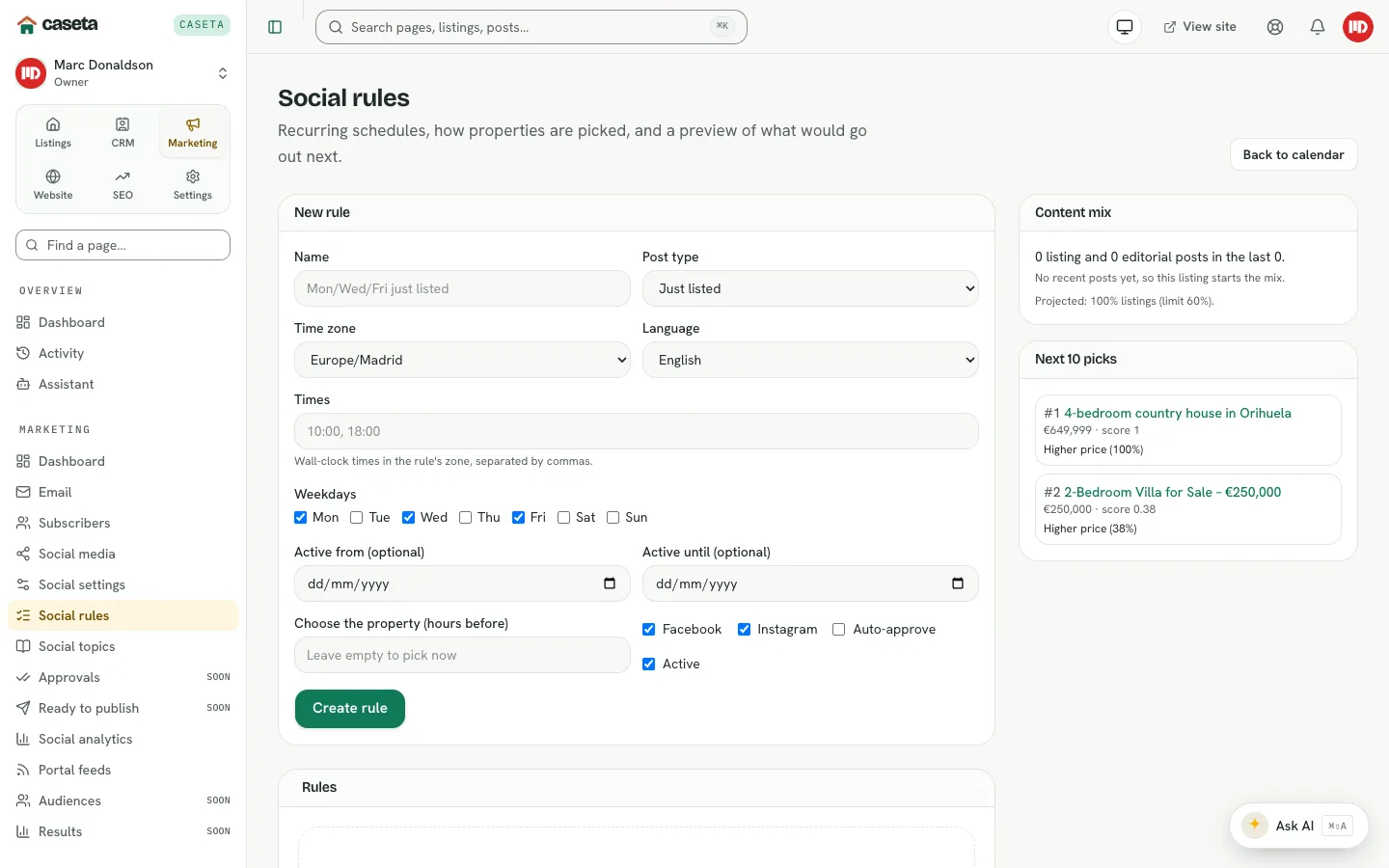
Rules fill the calendar on a recurring schedule. A rule chooses a post type, the days and times, the language, the platforms and whether posts need approval. Property rules can pick a suitable listing ahead of time. Topics are reusable editorial notes (area guides, market updates, buying tips) that rules can draw on.
Rules
Create a rule
Open Marketing → Social → Social rules and complete New rule:
| Field | Purpose | Validation |
|---|---|---|
| Name | The rule's label | Required; up to 80 characters |
| Post type | What kind of post to create | A supported type |
| Time zone | The agency's planning zone | A supported zone |
| Language | Caption language | English or Spanish |
| Times | The posting times | Comma-separated times such as 10:00, 18:00 |
| Weekdays | Which days it runs | At least one |
| Active from / until | Optional date window | Dates |
| Choose the property (hours before) | How early to pick a listing | 1–168 hours; empty means pick now |
| Facebook / Instagram | Target platforms | At least one |
| Auto-approve | Whether generated posts skip approval | On/off |
| Active | Whether the rule runs | On/off |
Manage rules
- Generate now creates posts from the rule immediately.
- Pause / Resume toggles the rule.
- Edit changes the schedule or targeting.
- Delete removes the rule; generated posts remain.
- Content mix shows the balance of post types.
- Next 10 picks previews what the rule would create next.
Topics
Open Marketing → Social → Social topics.
| Field | Purpose | Validation |
|---|---|---|
| Title | The topic name | Required; up to 160 characters |
| Type | The kind of topic | A supported type |
| Notes | The source material for the caption | Required; up to 6,000 characters |
| Tags | Optional labels | Free-form, comma-separated |
Topics are reused by rules and by manual posts. Editing a topic changes future captions, not already generated posts.
Approvals and publishing
Generated posts follow the approval policy in Social settings. If approval is required, they appear in Approvals. Approved posts due to go out appear in Ready to publish for the manual publishing flow.
Common Problems
- A rule creates no posts. It may be paused, outside its active dates, have no matching
weekdays, or no suitable property.
- Duplicate-looking posts. Two rules may target the same days and types; review the
content mix and schedules.
- Posts skip approval unexpectedly. Auto-approve is on for that rule.
- A property is not picked. Check that the listing is published, available and included
in portal/sharing settings.
- Times are off by an hour. Check the time zone saved on the rule and in social
settings.