Using the Social Calendar and Posts
How to plan, write, schedule, approve and mark Facebook and Instagram posts in Caseta.
Overview
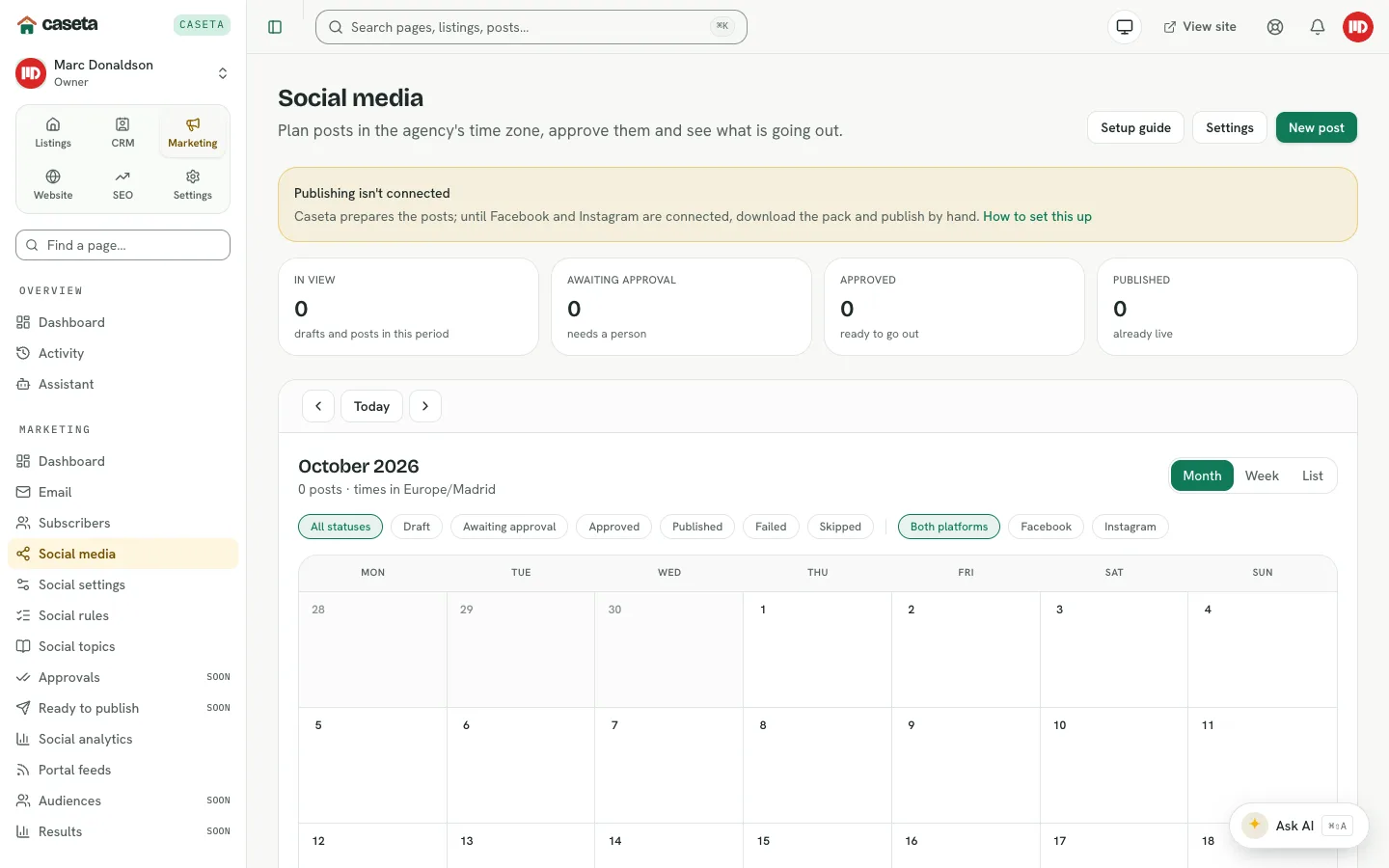
The social calendar plans posts by day in the agency's time zone. A post has a format, a date and time, target platforms and captions per language. Posts move through drafting, approval and publishing.
Who Is This For?
Agents, admins and owners with the social module.
Step-by-Step Instructions
Step 1: Open the calendar
Choose Marketing → Social media. Use Month, Week or List views and move between periods with the previous/next controls.
Step 2: Filter
Filter by status and platform (Facebook, Instagram or both), and search captions or properties.
Step 3: Create a post
Create a post and complete the fields:
| Field | Purpose | Validation |
|---|---|---|
| Date | The planned day | A valid date |
| Time | The planned time | A valid time in the agency time zone |
| Format | The post format | A supported format |
| Facebook / Instagram | Target platforms | At least one |
| Captions | The text for each language | Per-language text |
| Media | Photos attached to the post | Listing/website images |
The page suggests best posting times.
Step 4: Generate or edit the caption
Use Generate caption with an optional instruction. The previous caption stays in Caption history. Edit the caption per language before approval.
Step 5: Move a post
Drag a post to another day or time on the calendar, or edit its date/time. The change is saved.
Step 6: Approve
Open Approvals for posts waiting for a person. Approve or skip. Approval may be required by the social settings. Auto-approve can be enabled on a rule where appropriate.
Step 7: Publish
Open Ready to publish for approved posts that are due. Download the post pack, copy the caption and media, publish through Facebook/Instagram, and paste the public URL back. This manual flow is used until direct publishing is available.
Step 8: Track results
Use Social analytics to record and review reach, engagement, clicks and leads.
Understanding the Statuses
| Status | Meaning |
|---|---|
| Draft | Being written |
| Awaiting approval | Needs a person |
| Approved | Ready to publish |
| Scheduled | Planned for a date/time |
| Published | Live |
| Skipped | Deliberately not published |
| Failed | Publishing failed |
Common Problems
- A post cannot be approved. Your role may not allow approval, or approval policy is
stricter.
- The calendar shows the wrong day. Check the agency time zone in social settings.
- A post is stuck. Use the status control or skip it; check the media and caption.
- Publishing does not happen automatically. The manual publishing flow is the current
behaviour; complete the steps in Ready to publish.